
Turn restaurant decisions into work your team can follow through
A 36-person corporate lunch is waiting for a quote. You still need the dietary details—and the kitchen's approval.
The customer has mentioned vegetarian meals, gluten-free requirements, and a nut allergy, but the details remain unclear after several rounds of email. Elsewhere, a proposed $1 increase on a signature dish could reach the menu before finance and operations review it. A new store's progress report shows more than half the work complete, even though its health inspection has not passed. Useful store practices and headquarters standards can stall in chat threads and spreadsheets, too. Spotting the problem is only the beginning. The time-consuming work is gathering the evidence, putting the decision in the right hands, and following it through.
This tutorial uses five scenarios—catering inquiries, menu performance, new-store openings, best practices, and store execution—to build tools your team can click through, verify, and share. Each starts with a concrete business problem and includes build steps, copy-ready prompts, and a demo project. Choose the scenario closest to your work, then replace the sample data and rules with your own.
By the end, you will know how to use Enter to turn work scattered across emails, spreadsheets, and chat into a tool that supports decisions, moves work forward, and tracks outcomes—not just a polished page.
What you will build with Enter
WORKFLOW 01 / 05Take a catering inquiry from intake to kitchen review and quote confirmation
The business problem: How does an inquiry become an order?
Catering inquiries arrive daily through websites, email, and phone calls. Sales needs to establish the date, guest count, budget, pickup or delivery arrangements, and dietary and allergy requirements. A nearby kitchen then needs to confirm feasibility before sales can prepare a quote that is ready to send.
The handoff from inquiry to quote often stalls in three places:
- A customer writes, “Lunch for 36, with some vegetarians.” You still need the vegetarian and gluten-free counts and any allergies. Quote before those details are clear, and you will probably have to redo the work.
- Sales thinks the order is feasible, but the kitchen may already be full that day, or the lead time may be too short. The kitchen makes the final decision on whether it can fulfill the order.
- The guest count or menu changes after the quote goes out. Searching emails and chat threads may not establish whether the kitchen reviewed the revised requirements.
Use Enter to put intake, kitchen review, and quoting in one tool, so sales, the kitchen, and the customer can keep working from the same inquiry.
Build the workflow
Step 1: Map the business workflow
Build this tool for catering sales and kitchen teams. Arrange the functions in the order they work: collect requirements, review capacity, and confirm the quote.
- Collect the requirements. A customer submits the date, guest count, budget, location, and dietary needs through a form or AI assistant. The system flags what is missing.
- Route the inquiry to the kitchen. Assign a nearby kitchen and a sales owner based on the event location. The kitchen checks lead time, delivery, and prep load.
- Confirm the quote. Sales confirms the current requirements and builds a quote from approved packages. Sending stays blocked until the kitchen approval is in place.
The goal is to follow one inquiry all the way from requirements to quote, rather than stop at a collection form.
Step 2: Generate the first version
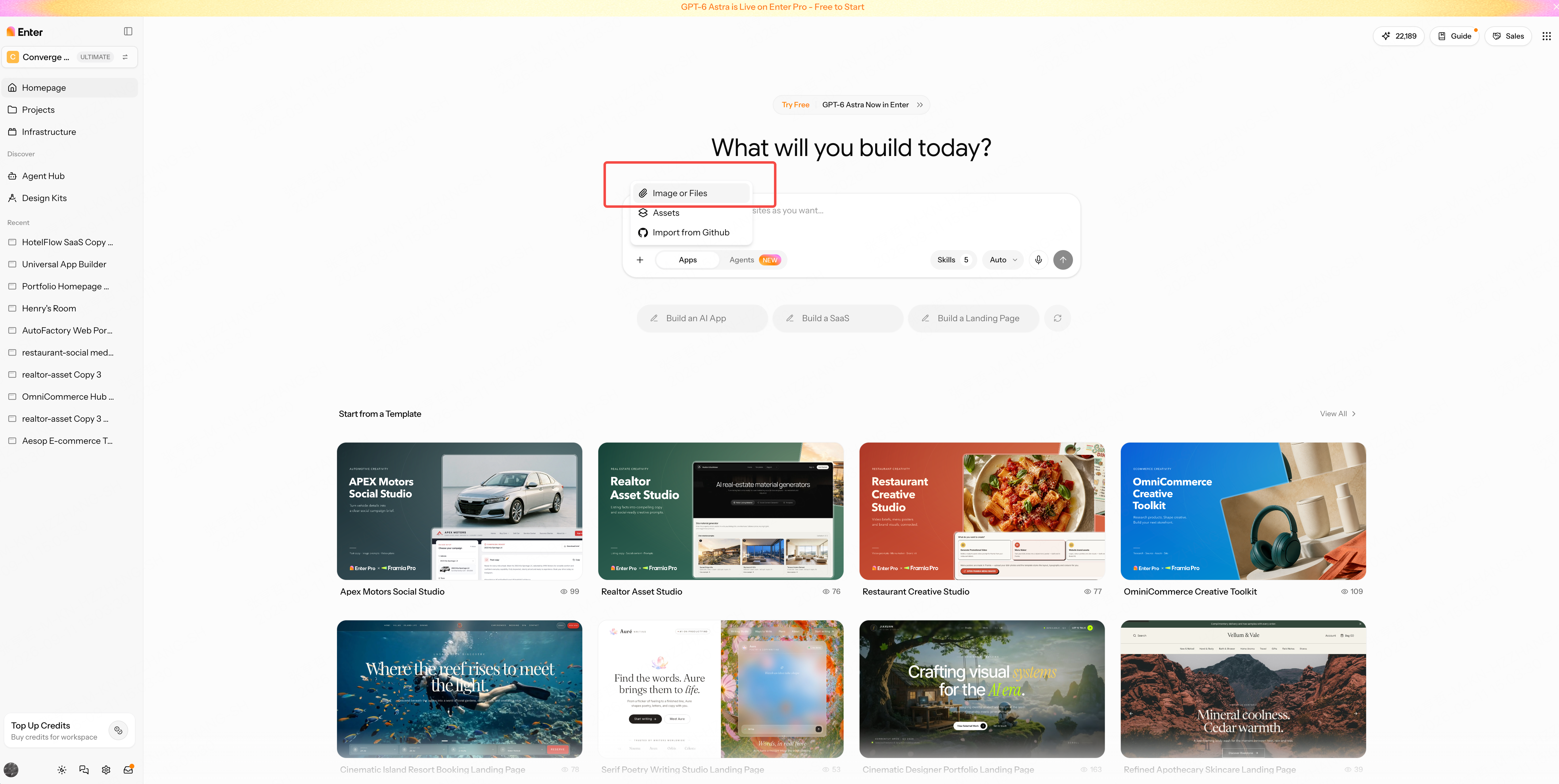
Open the Enter homepage, choose New Project, and use the “+” beside the input box to upload your business files.
Copy and submit the first-round prompt at the end of this scenario. Enter first proposes a build plan. Review and confirm it, then click Build Now to generate the first version.
Step 3: Refine the business rules
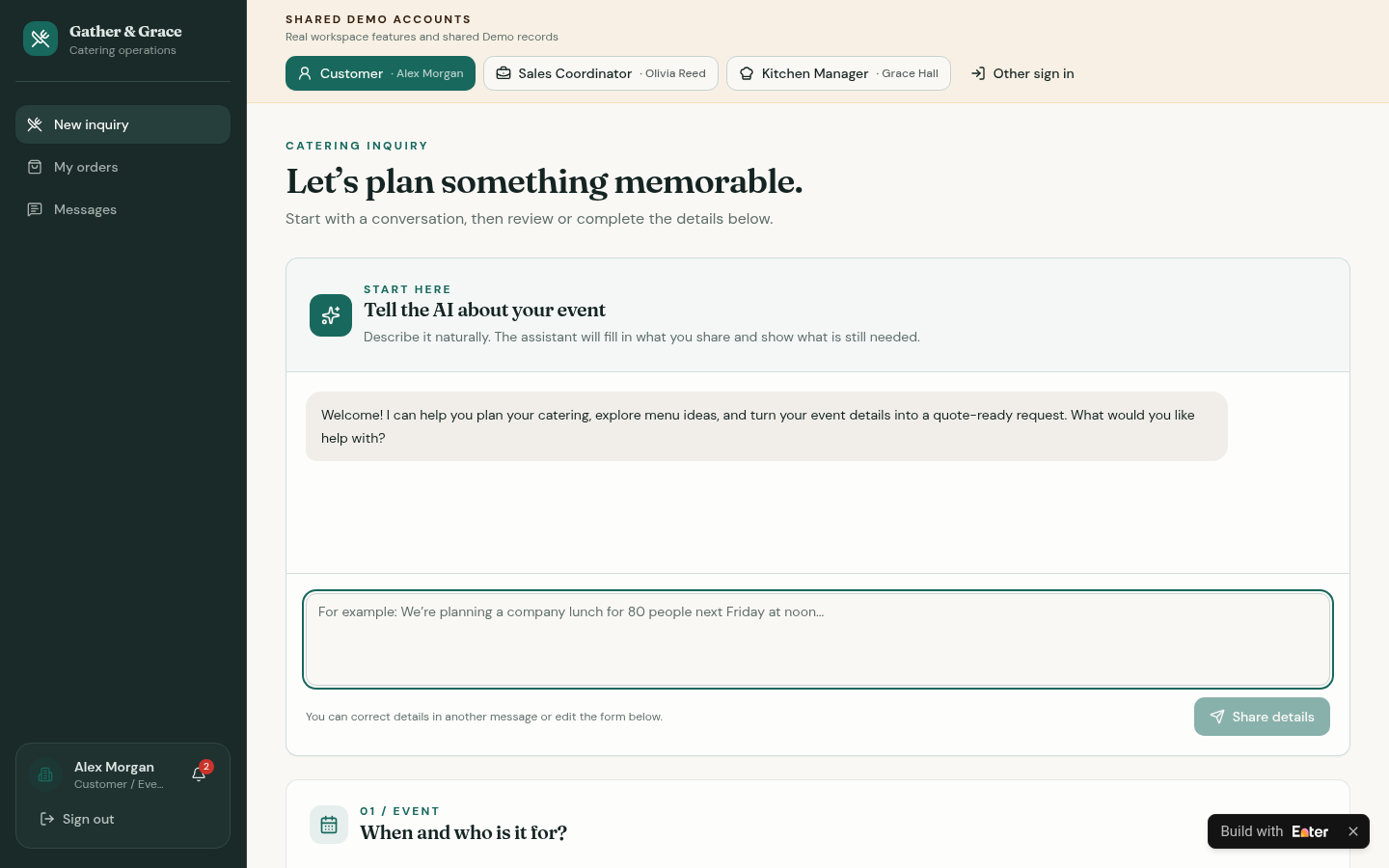
When sales opens the tool, the next actions should be clear: identify what the inquiry still needs, ask the right kitchen whether it can fulfill the order, and send a quote both sides have confirmed. Refine these three handoffs so requirements, capacity, and quoting stay attached to the same inquiry.
3.1 Make missing inquiry details explicit
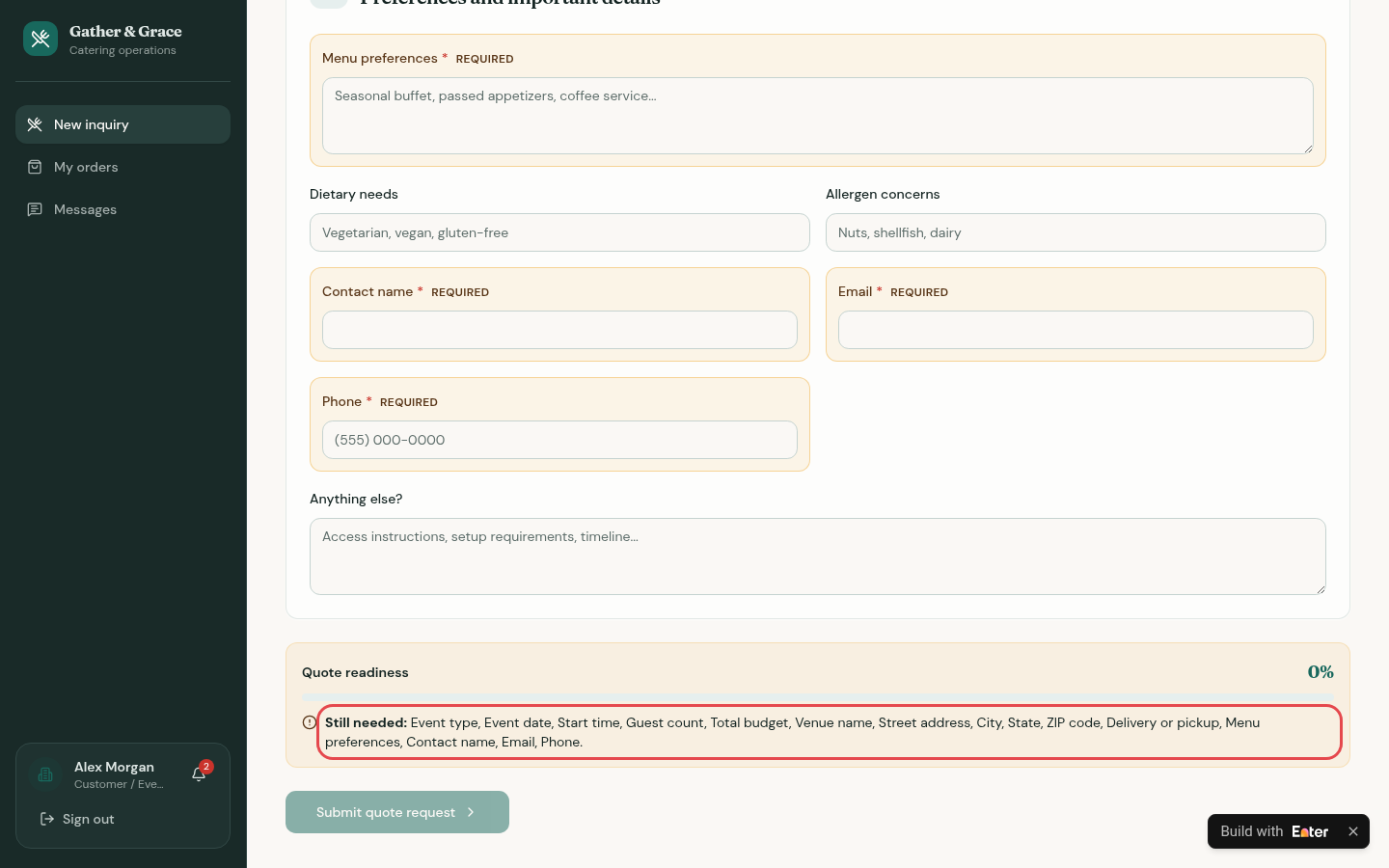
Start with a question more useful than an immediate package recommendation: What is this inquiry still missing? “Lunch for 36, with vegetarians and a nut allergy” sounds informative, but it does not tell you the vegetarian and gluten-free counts, whether the budget includes tax, or whether 10:00 means pickup or the start of service.
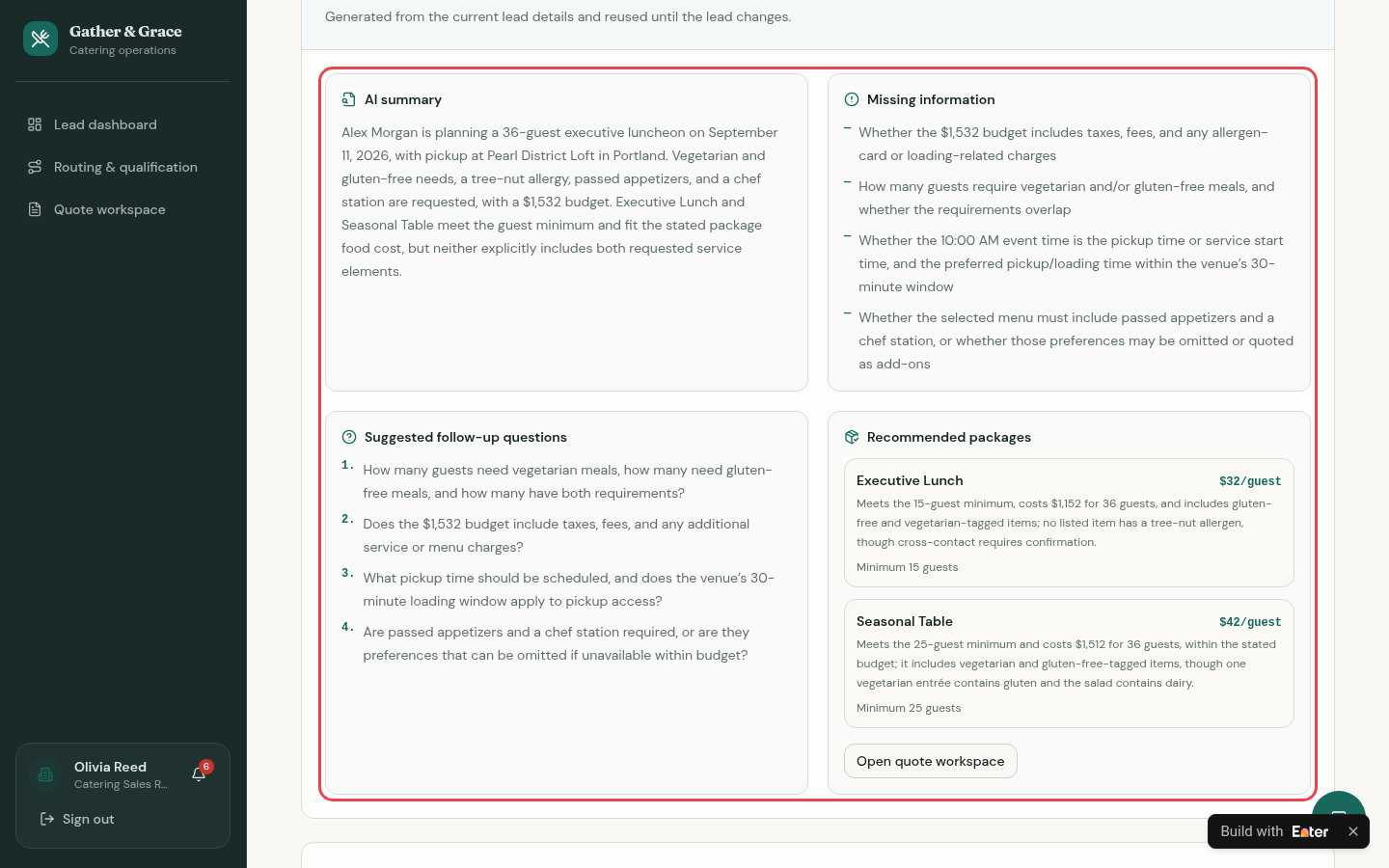
Show required fields as the customer fills out the form. Have AI summarize the supplied information, list missing details, and suggest follow-up questions, without inventing numbers. Sales gets a practical list of questions instead of a generic “incomplete” warning. Before copying the prompt, replace the required fields with the questions your team actually asks, and specify which dietary and allergy details need human confirmation.
For each inquiry, show quote readiness and the required fields still missing. Let the AI assistant summarize what the customer shared, list missing information, and suggest follow-up questions.
Never invent guest counts, dietary splits, allergen details, prices, or kitchen capacity. Keep incomplete inquiries in Needs Info.
Expected output: Customers can see what is missing before submitting. Sales sees completeness, an AI summary, missing information, and suggested follow-ups when opening an inquiry. A team member can answer, “What do we still need to ask before quoting?”
3.2 Let the kitchen decide whether it has capacity
Sales may be tempted to quote as soon as an inquiry arrives. But an order sales can accept is not necessarily an order the kitchen can fulfill. Cold prep may overlap with another lunch delivery, the lead time may be too short, or the venue may sit outside the delivery area.
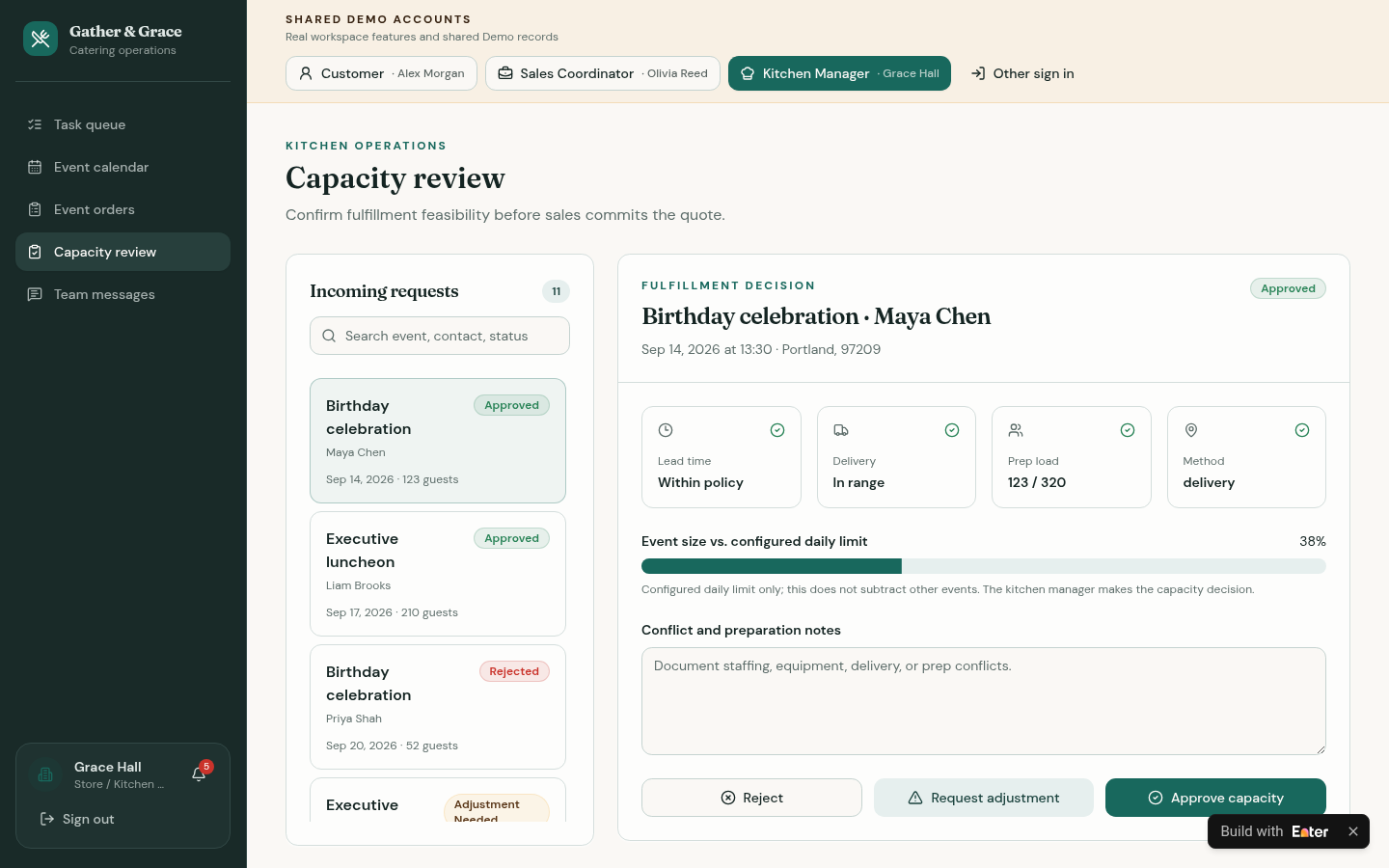
First route the inquiry to a nearby kitchen and sales owner based on the event location. Then let the kitchen independently assess lead time, delivery or pickup, and prep load. The system supplies checks; the kitchen manager approves, requests an adjustment, or rejects the inquiry. If your team assigns work by region or store, substitute your actual routing rules, service radius, and minimum lead time.
Route each inquiry to the nearest kitchen and a named sales owner, and show why it was routed there. Check lead time, delivery or pickup, prep load, and the kitchen's daily limit.
Keep the kitchen capacity decision separate from sales qualification. Let the kitchen manager approve, request an adjustment, or reject with notes.
Expected output: Every inquiry has a kitchen and sales owner. The kitchen can review lead-time, delivery, and prep-load checks, then record its own decision and notes. Sales no longer needs a separate private conversation to find out whether the order is feasible.
3.3 Confirm the current requirements before quoting
Choosing a package and calculating the price only completes half the job. If the customer later changes the guest count or dietary requirements while the kitchen's approval still covers the old request, the quote and the kitchen's preparation no longer describe the same order.
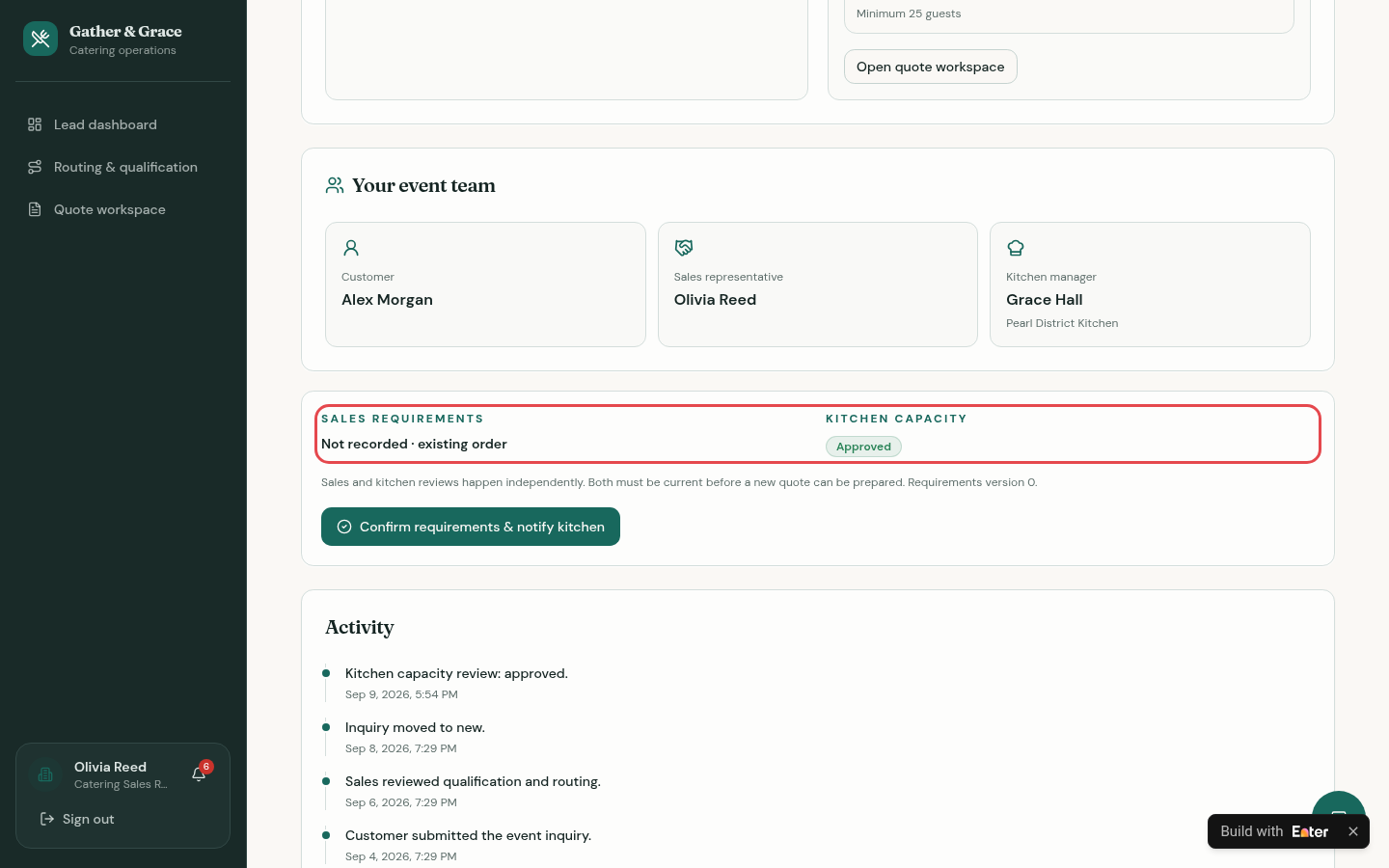
Have sales confirm the current customer requirements and notify the kitchen. Each change creates a new version that requires fresh kitchen approval. A quote can go out only when both teams have confirmed the current version. Specify which changes require reconfirmation, who sends quotes, and which charges each quote must include.
Save the confirmed customer requirements as a numbered version and notify the kitchen. Any change to guests, menu, dietary needs, or location creates a new version that needs re-approval.
Build quotes only from approved packages. Block sending until sales has confirmed and the kitchen has approved the current version.
Expected output: Inquiry details show sales confirmation and kitchen approval separately. The quote page blocks sending until both are current. Sales and the kitchen work from the same requirements version.
Step 4: Verify the case
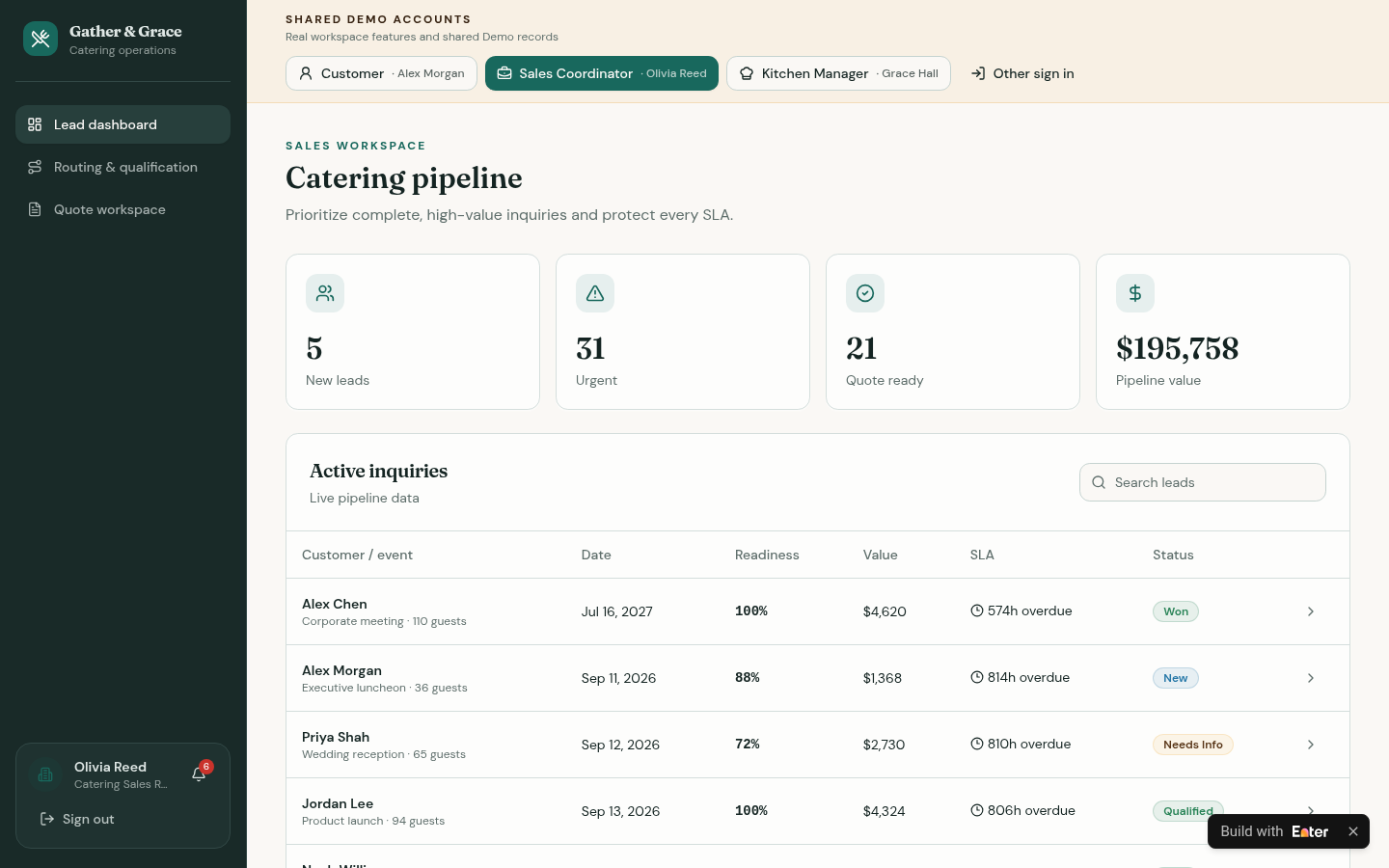
Use a 36-person corporate lunch to inspect missing information, check the kitchen review, and determine whether the quote can be sent. In the demo, select Olivia Reed (Sales Coordinator) and open Alex Morgan's Executive luncheon.
4.1 Inspect the missing information
Find the inquiry in Active inquiries on the Lead dashboard: Sep 11, 2026, 36 guests, 88% completeness, and status New.
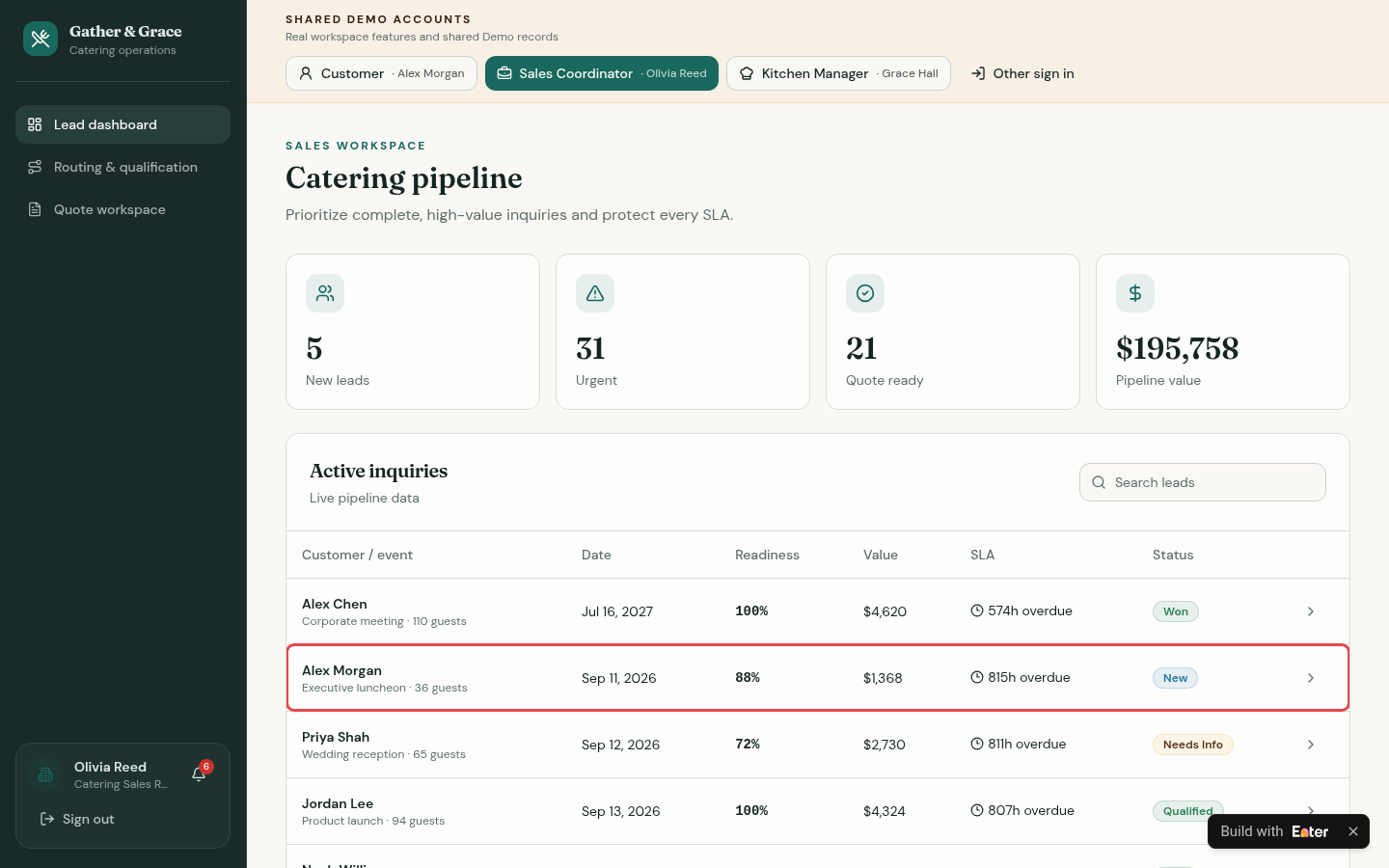
Open AI lead insights to inspect the missing details: whether the budget includes taxes and fees, the vegetarian and gluten-free counts, whether 10:00 means pickup or the start of service, and whether passed appetizers and a chef station are mandatory.
4.2 Check the kitchen review
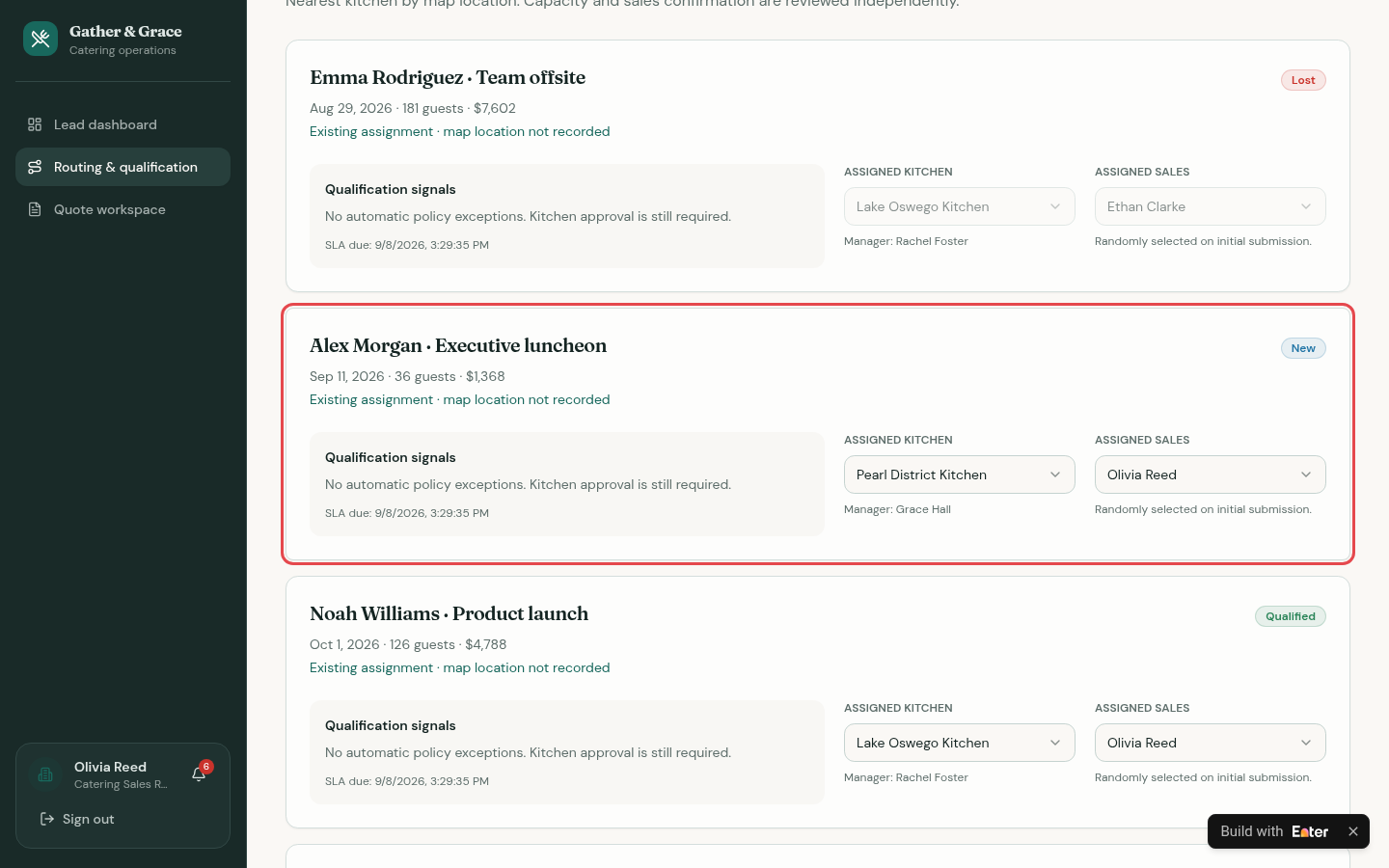
Find the same inquiry in Routing & qualification. It is assigned to Pearl District Kitchen, with Grace Hall as kitchen manager and Olivia Reed as sales owner. The page states that kitchen approval is still required.
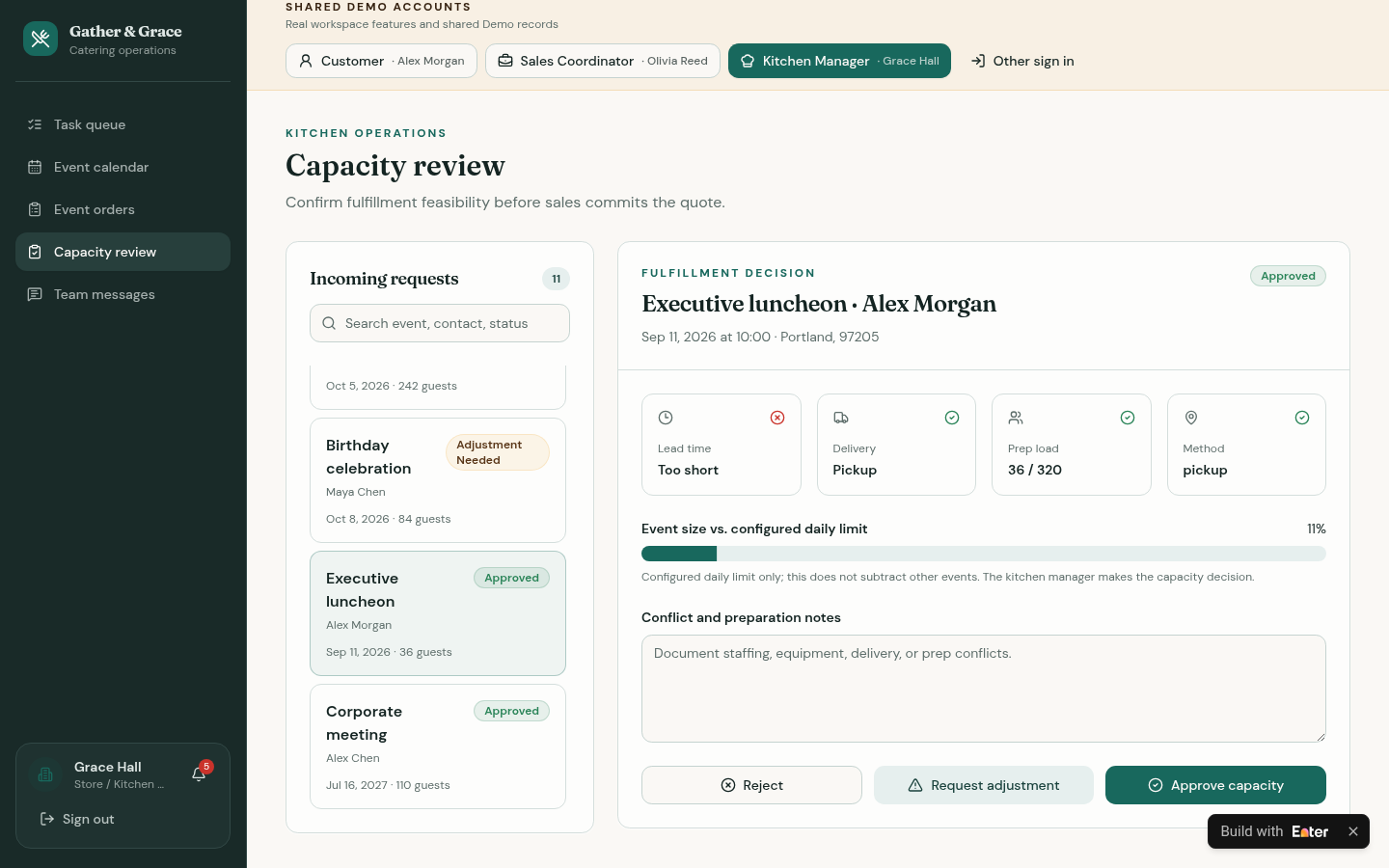
Switch to kitchen manager Grace Hall and open the inquiry in Capacity review. Fulfillment is pickup, prep load is 36 / 320, and the lead-time check says Too short. The kitchen manager has nevertheless approved it.
4.3 Check whether the quote can be sent
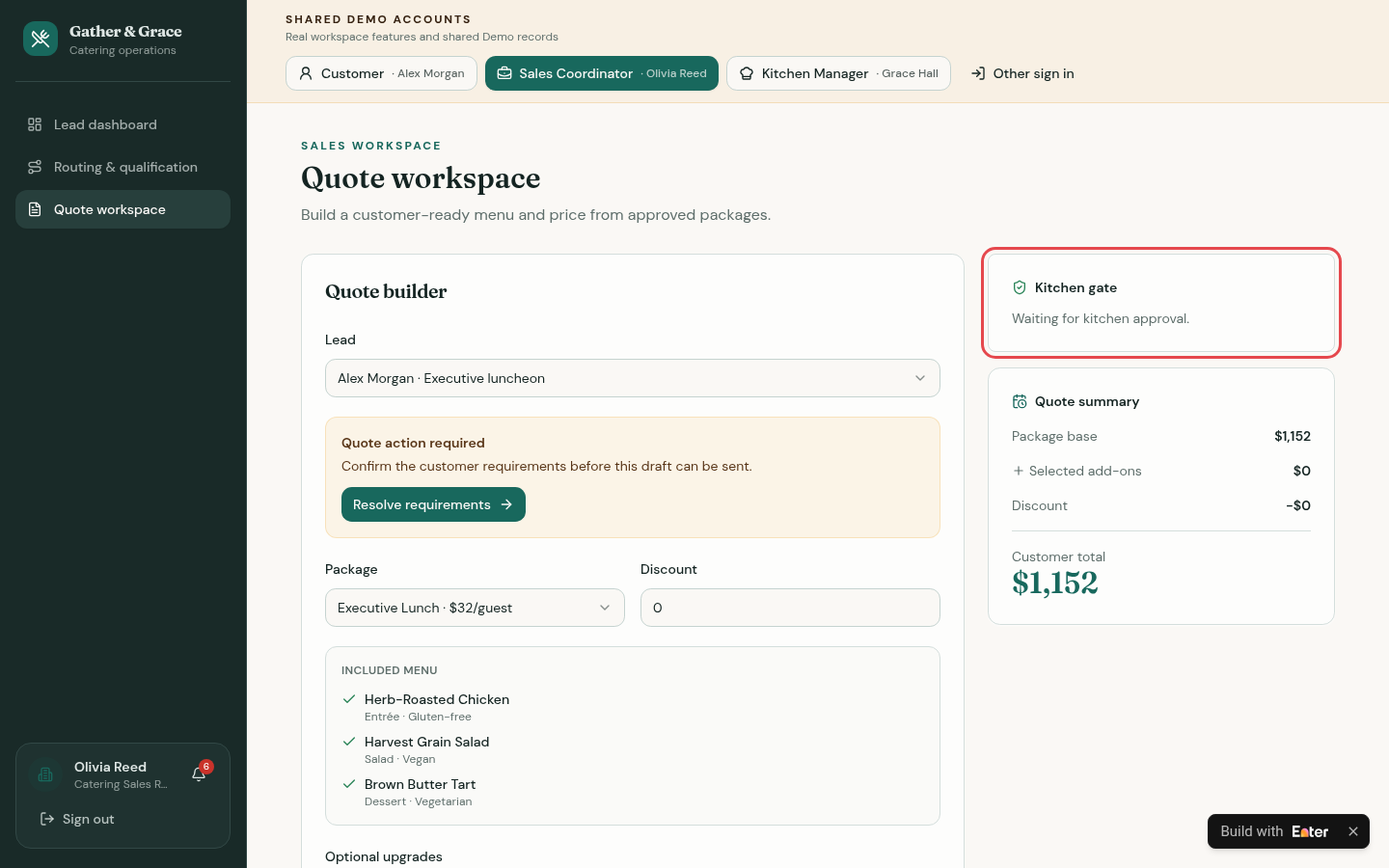
Return to sales and select the same inquiry in Quote workspace. The Executive Lunch package costs $32 per guest, or $1,152 for 36 guests. The page asks you to confirm the customer's requirements first, while Kitchen gate shows that kitchen approval is pending.
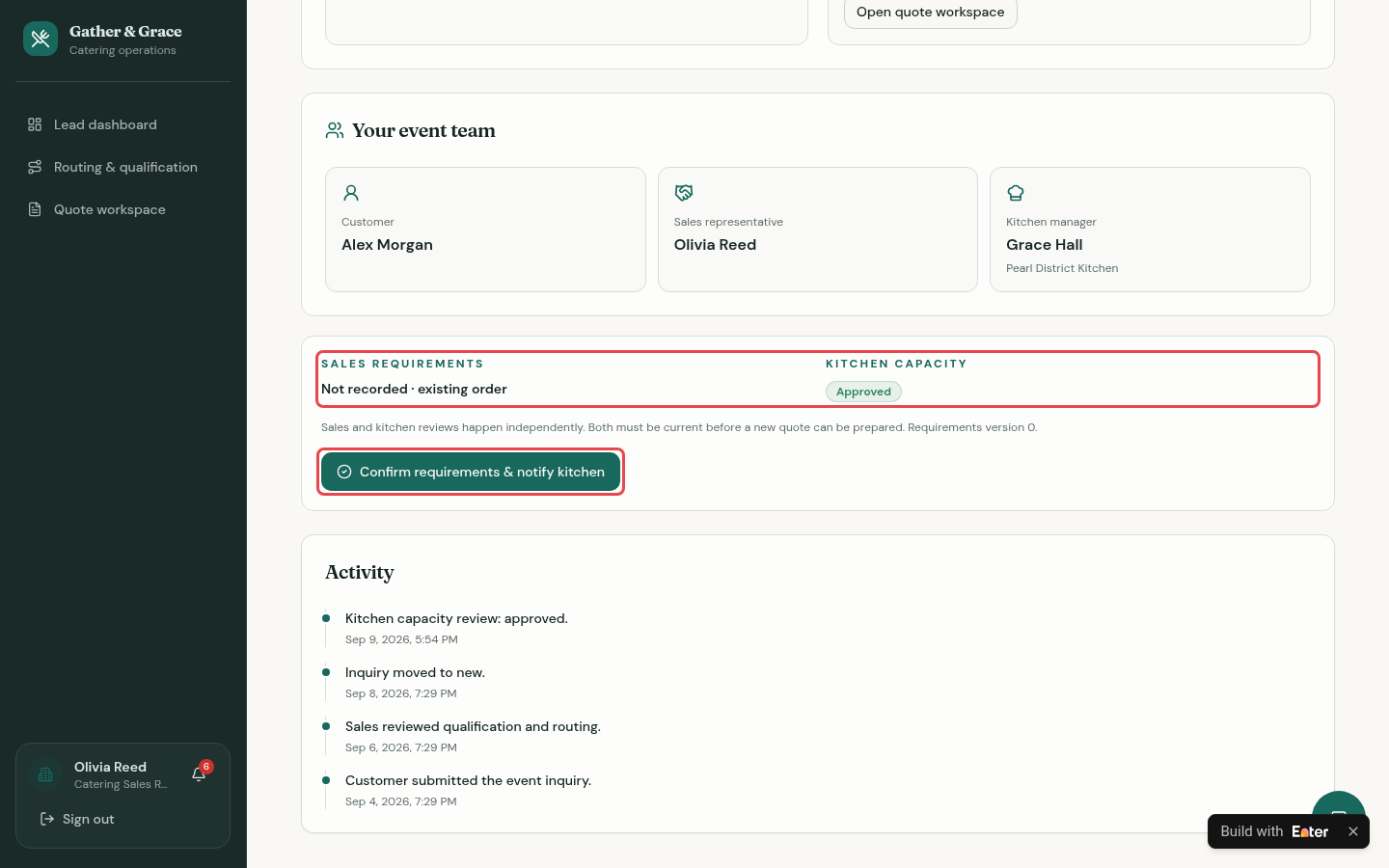
Click Resolve requirements to open the inquiry details. Check the separate sales requirements and kitchen capacity states, and locate Confirm requirements & notify kitchen. In this example, sales requirements have not been recorded, kitchen capacity is approved, and the quote has not been sent.
Step 5: Refine the interface and test with your team
Use Visual Edit to adjust copy, font sizes, and spacing. Help sales find urgent inquiries and those awaiting information, and help the kitchen spot orders that need an adjustment.
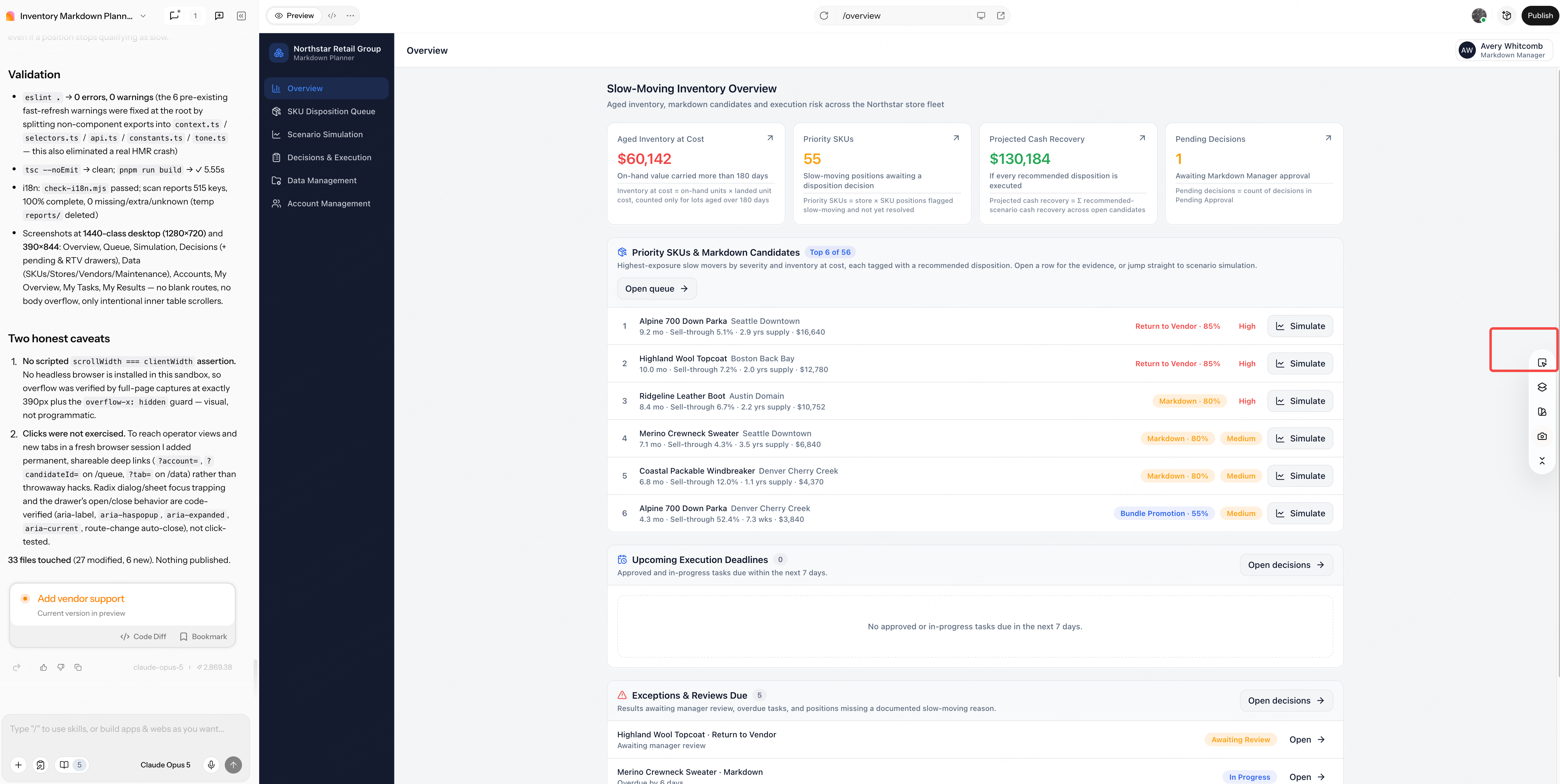
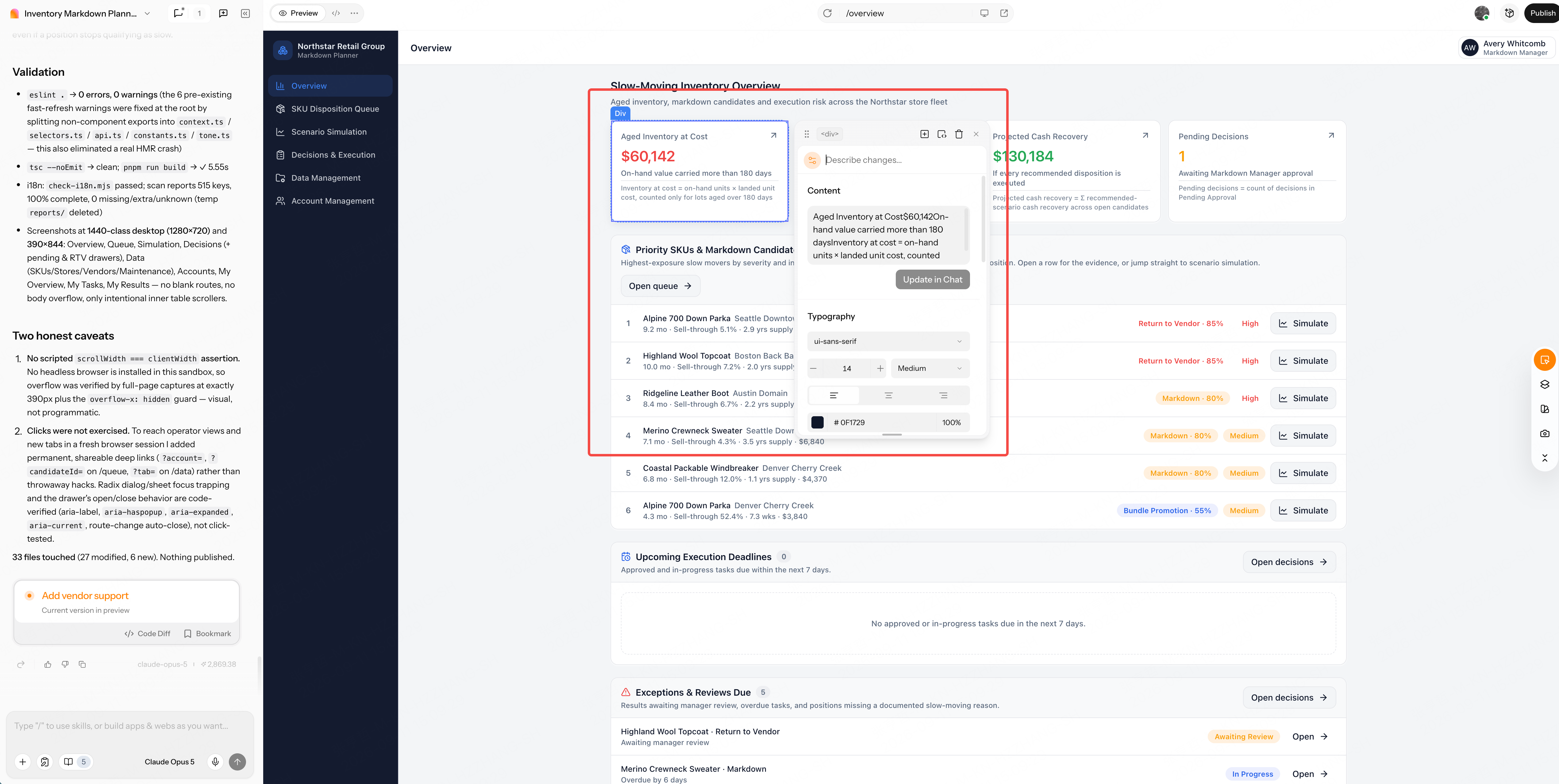
Once customer names, guest counts, and confirmation states are readable on desktop and mobile, click Publish and share the link with sales and kitchen colleagues. Ask them to find an inquiry, fill in missing details, confirm capacity, and generate a quote. Note where the workflow remains awkward.
Copy the starter prompt
Before copying: Replace the roles, required inquiry fields, packages, and pricing rules with your own. Specify who confirms dietary and allergy requirements and which criteria the kitchen uses for approval. Replace the 36-person lunch with the inquiry you want to test, and adjust the region, currency, and interface language for your team.
Create a Catering AI Intake and Quote System in Enter for a U.S.-based multi-kitchen catering business. Help the team take an event inquiry from customer intake through missing-information follow-up, routing to the nearest kitchen and a sales owner, kitchen capacity review, and a quote that can only be sent once the current requirements are confirmed.

[TARGET USERS]
- Customer / Event Organizer: Submit an inquiry through a guided form or AI assistant, answer follow-up questions, and track their own orders and quotes.
- Sales Coordinator: Review the pipeline, resolve missing information, confirm requirements, build quotes from approved packages, and send them.
- Kitchen Manager: Review lead time, delivery or pickup, prep load, and dietary or allergen feasibility; approve, request an adjustment, or reject with notes.
- Administrator: Maintain packages, menu items, kitchens, service areas, capacity rules, and user access.

[CORE WORKFLOW]
1. Collect event type, date and time, guest count, budget, venue and address, delivery or pickup, menu preferences, dietary needs, allergen concerns, and contact details. Show quote readiness and the required fields still missing.
2. Let an AI assistant summarize the inquiry, list missing information, suggest follow-up questions, and recommend packages that fit guest minimums and stated needs, without inventing missing details.
3. Route the inquiry to the nearest kitchen and a named sales owner, and record the routing basis, SLA, and any policy exceptions.
4. Let the kitchen manager review capacity separately from sales qualification and record a decision with notes.
5. Let the sales coordinator confirm the current requirements and notify the kitchen. Build a quote from approved packages with add-ons and discounts, and block sending until both sales and kitchen reviews are current.

[CORE PAGES]
- Lead Dashboard: New, urgent, and quote-ready inquiries, pipeline value, readiness, SLA, and status.
- Lead Detail: Customer and event details, AI summary, missing information, follow-up questions, recommended packages, event team, sales and kitchen review states, and activity history.
- Routing & Qualification: Assigned kitchen and sales owner, qualification signals, and SLA.
- Quote Workspace: Package builder, included menu, optional upgrades, discount, quote summary, kitchen gate, and follow-up draft.
- Kitchen Task Queue and Capacity Review: Fulfillment checks, decisions, adjustments, and notes.
- Customer Intake and My Orders: Guided form, AI assistant, and the customer's own requests and quotes.
- Data Management: Packages, menu items, kitchens, service areas, capacity rules, and users.

[DATA AND BUSINESS RULES]
- Use stable IDs to link customers, inquiries, kitchens, sales owners, requirement versions, kitchen reviews, quotes, and activity.
- Use USD and U.S. date and address conventions. Package total = price per guest x guest count + add-ons - discount; show the formula.
- Treat AI summaries, follow-up questions, and package recommendations as suggestions. Never invent guest splits, allergen details, prices, or capacity, and never send messages automatically.
- Dietary and allergen feasibility, including cross-contact, must be confirmed by an authorized kitchen manager.
- Capacity checks are advisory; the kitchen manager makes the decision. Sales confirmation and kitchen review must both be current before a quote is sent, and requirement changes need re-approval.
- Include a demo case: Alex Morgan, executive luncheon, 36 guests, Sep 11, 2026 at 10:00, pickup at Pearl District Loft, Portland, OR, $1,532 budget, vegetarian and gluten-free needs, and a tree-nut allergy. Readiness is 88%; it is routed to Pearl District Kitchen and Olivia Reed; lead time is flagged as too short but capacity is approved; requirements are not yet confirmed, so an Executive Lunch quote of $1,152 cannot be sent.

[VISUAL DIRECTION AND DELIVERABLES]
- Use a warm, trustworthy hospitality workspace with clear role entry points, readable cards, and visible status labels.
- Support desktop and mobile, including a guided customer intake on mobile.
- Use clearly labelled demo data with consistent IDs and dates, USD amounts, and U.S. date conventions.
- Deliver a publishable demo with shared demo accounts for Customer, Sales Coordinator, and Kitchen Manager, and one traceable inquiry-to-quote journey.

Before building, provide a requirements summary, missing information, page architecture, data model, quote calculation rules, role permissions, state transitions, and acceptance criteria. Do not begin generating pages yet.
WORKFLOW 02 / 05Diagnose menu performance and move price tests through approval
The business problem: Should this dish change?
The recurring work
Each reporting cycle, the menu team gathers item-level units sold, net sales,
ingredient cost, and contribution. It then works with finance and operations to decide what to leave alone,
reprice, reformulate, or remove. Those discussions need consistent metric definitions, named approvers, and
someone responsible for reviewing results later.
Three common points of failure
- Sales volume holds steady while contribution falls. A signature dish sells the same number of portions in both periods, yet contributes much less after ingredient costs and marketplace fees. A volume ranking alone will not reveal the cost problem.
- Inconsistent scopes make changes hard to interpret. One period includes every channel; the baseline includes dine-in only. Different stores, dates, or promotion conditions make even a prominent change indicator unhelpful.
- The price changes before anyone approves it. A meeting ends with “Let's try a $1 increase.” The POS price changes before finance has checked the numbers or operations has prepared, and nobody returns to the observation window afterward.
What should the tool cover?
Item metrics → reasons for change → menu experiments → approvals and
results. Bring these into one Enter workspace so the next menu discussion starts with the same numbers and
approval history, instead of another round of report assembly.
Build the workflow
Step 1: Map the business workflow
Help the menu team find problem items on a consistent scope, turn proposed changes into experiments that can be reviewed, and assess results over defined observation windows. Menu, finance, and operations use the tool in this order:
- Find the problem. The menu director fixes the comparison scope and baseline, then opens items with falling contribution or rising costs to investigate the difference.
- Propose an experiment. Record a price, recipe, bundle, or removal change, with stores, channels, observation period, owner, and success metrics.
- Approve and follow up. Finance and operations review separately before launch. Record observations at 7, 14, and 28 days, then decide whether to scale, iterate, roll back, or archive.
The team discusses the same numbers within the same scope, and changes cannot launch without approval.
Case file: Upload the business input brief below, or use your own data.
↗ Open case input · 02-menu-performance-input.txtStep 2: Generate the first version
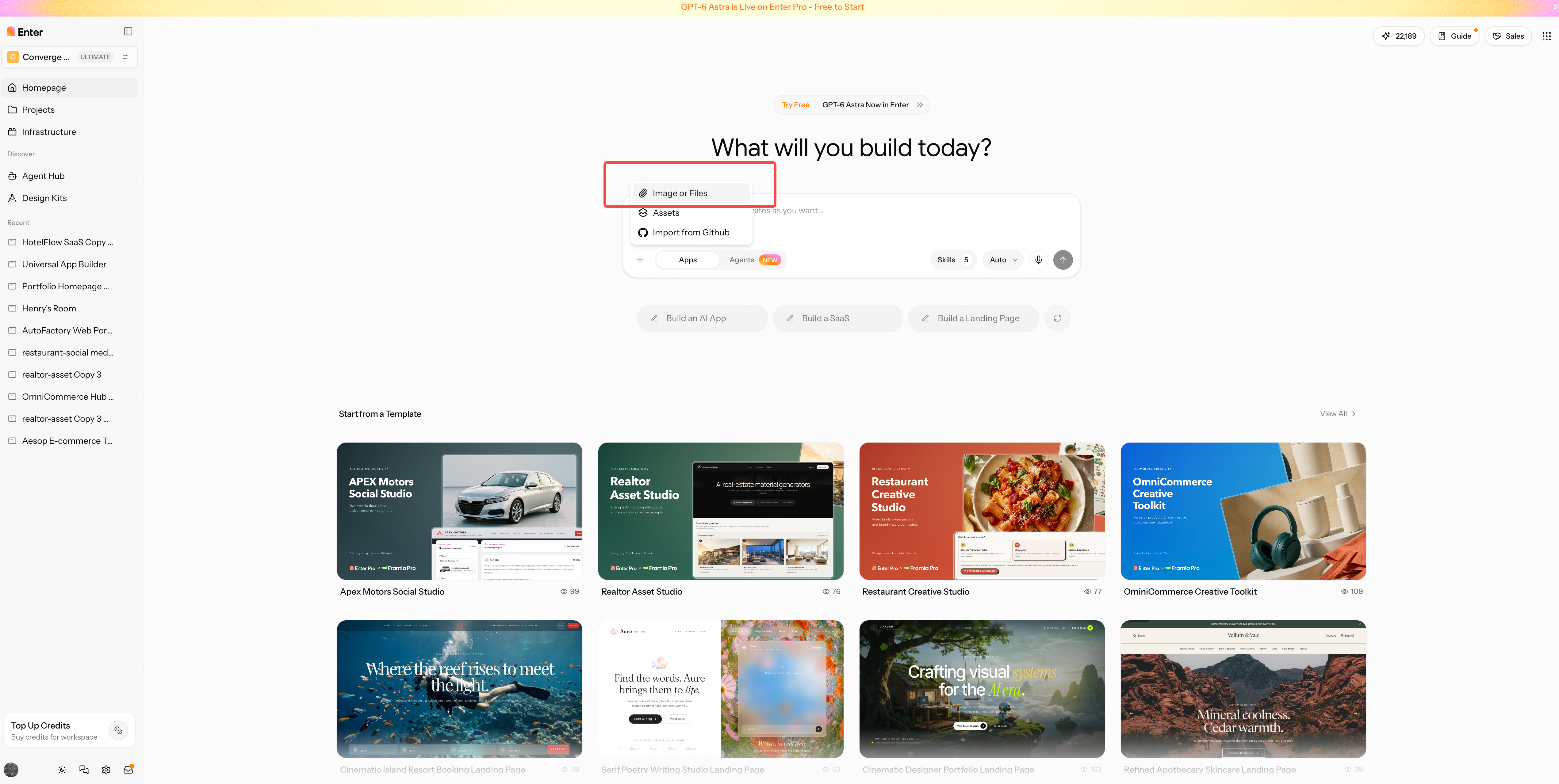
Open the Enter homepage, choose New Project, and use the “+” beside the input box to upload your business files.
Copy and submit the first-round prompt at the end of this scenario. Enter first proposes a build plan. Review and confirm it, then click Build Now to generate the first version.
Step 3: Refine the business rules
After metrics point to a problem item, the menu team needs to establish that the numbers are comparable, register a proposed change as an experiment, and send it to finance and operations for approval. Refine comparison scope, experiment registration, and approval follow-up in turn.
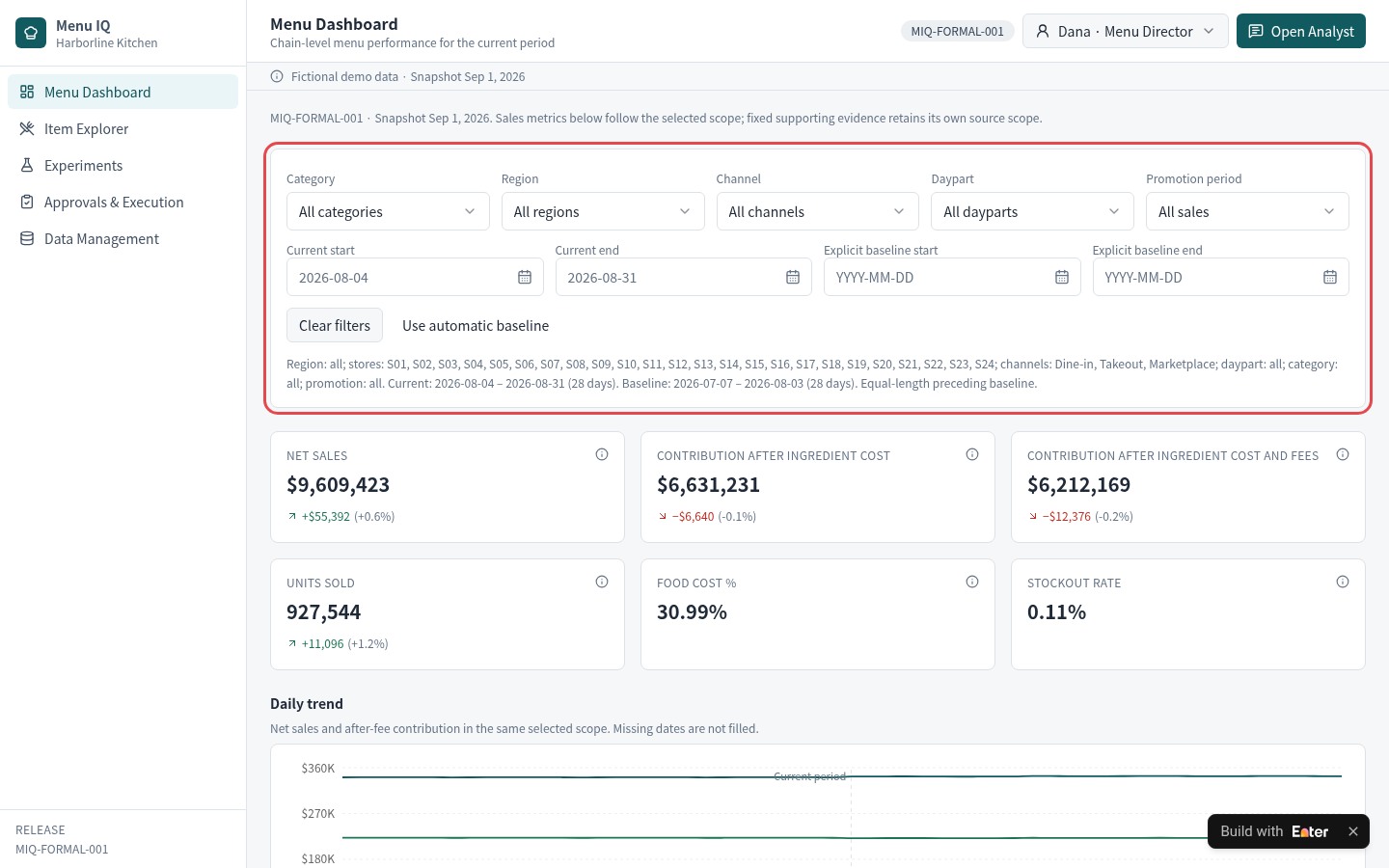
3.1 Compare like with like
An item falling in the rankings does not necessarily mean something is wrong with the dish. Differences in channels, stores, dayparts, or promotion coverage can send a period comparison in the wrong direction.
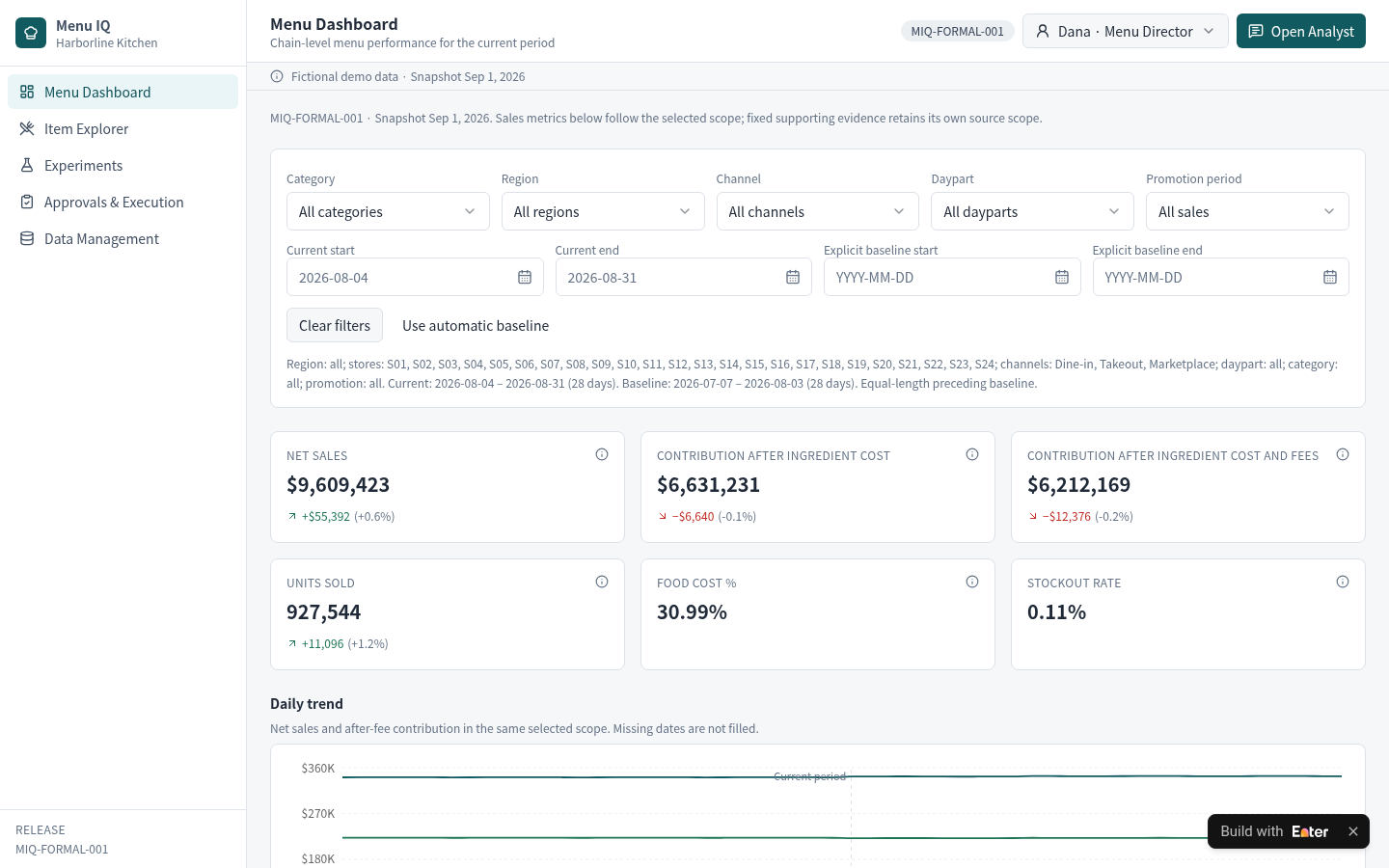
Display the active scope and baseline on the page, and calculate dashboard and detail metrics using the same conditions. Show contribution in two layers: after ingredient cost, and after ingredient cost plus marketplace fees. The team can explain the comparison and the source of the change, instead of relying on a downward arrow. Define your own formulas for net sales, contribution, and food-cost percentage, and specify how to choose the baseline.
Echo the active scope (dates, stores, channels, daypart, category, promotion) and the baseline period on every metric view. Calculate units, net sales, and both contribution measures on that same scope.
If coverage or definitions differ between periods, label the comparison as not directly comparable instead of showing a change.
Expected output: The dashboard and item detail echo the same scope and baseline. The menu team can explain what the reported change is being compared against.
3.2 Turn a proposed change into an experiment
An immediate price increase may seem like the obvious response to falling contribution. But without specifying the increase, pilot stores, duration, and success criteria before launch, you will struggle to judge whether it worked.
Register the change as an experiment first: item, action, stores and channels, observation window, owner, and success metrics. Record whether a concurrent control group and significance test exist. Without them, describe results as a before-and-after comparison, rather than a causal effect. Replace the experiment types, observation windows, and success metrics with your team's actual rules.
Create each menu change as an experiment with item, action, stores, channels, dates, owner, hypothesis, success metric, and stop threshold. Record whether a concurrent control group and a significance test exist.
Label before-and-after differences as observations, not causal effects.
Expected output: Every proposed price increase, recipe change, or removal has an experiment record. The team knows who owns it, which stores will test it, and how long to observe it.

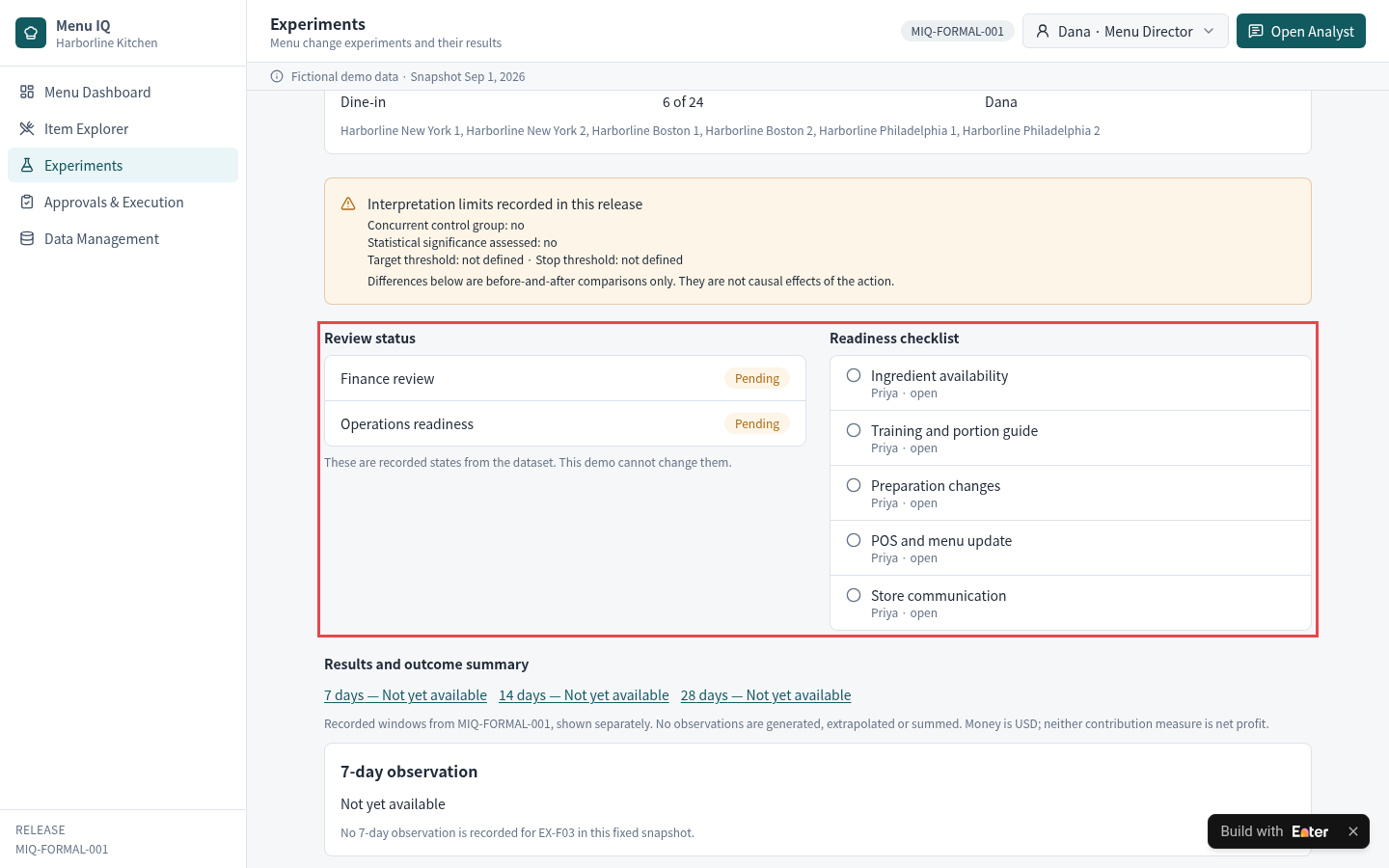
3.3 Launch only after approval
A written experiment does not authorize a menu change. Finance needs to assess pricing and cost effects; operations needs to confirm ingredients, training, POS updates, and store communication. The price should stay unchanged until both have confirmed readiness.
Record finance review and operations readiness separately. Allow launch only after both approve. After launch, keep separate observations at 7, 14, and 28 days, and have the owner decide whether to scale, iterate, roll back, or archive. The tool presents the evidence; it does not declare success for the team. Adapt the approvers, readiness checklist, and observation windows to your process.
Keep Finance review and Operations readiness as separate approvals, each with its own checklist. Keep a proposed price change marked as not applied until both approve.
Record 7-, 14-, and 28-day observations separately, and let the owner decide to scale, iterate, roll back, or archive with a reason.
Expected output: Approval states and readiness checklists appear separately. Unapproved proposals remain awaiting review, and observation windows without data explicitly show that no data is available.
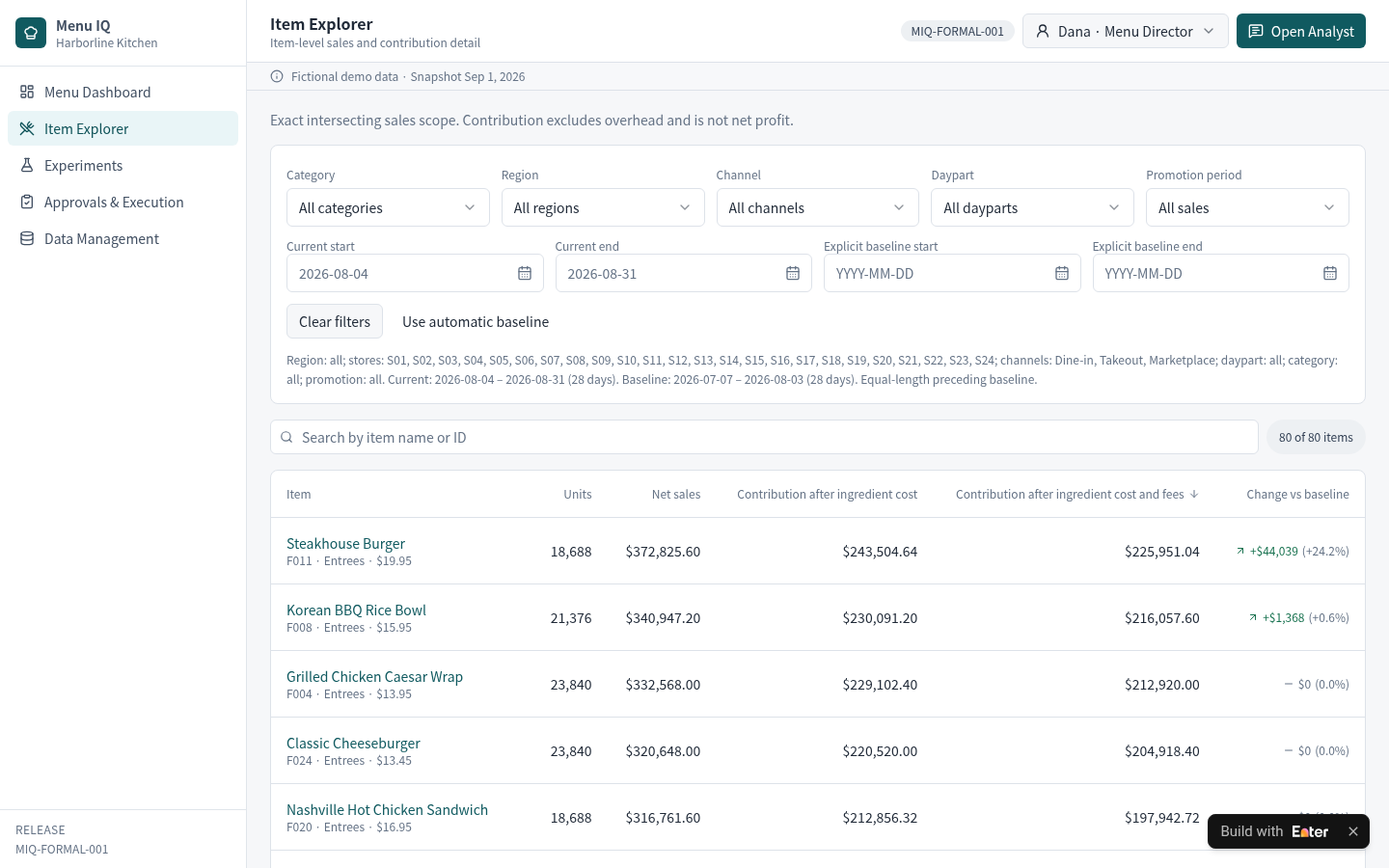
Step 4: Verify the case
Use a signature dish with rising costs to check why contribution fell and whether its price test is approved. In the demo, select Dana (Menu Director) and inspect Truffle Mac & Cheese (F002).
4.1 Locate the contribution decline
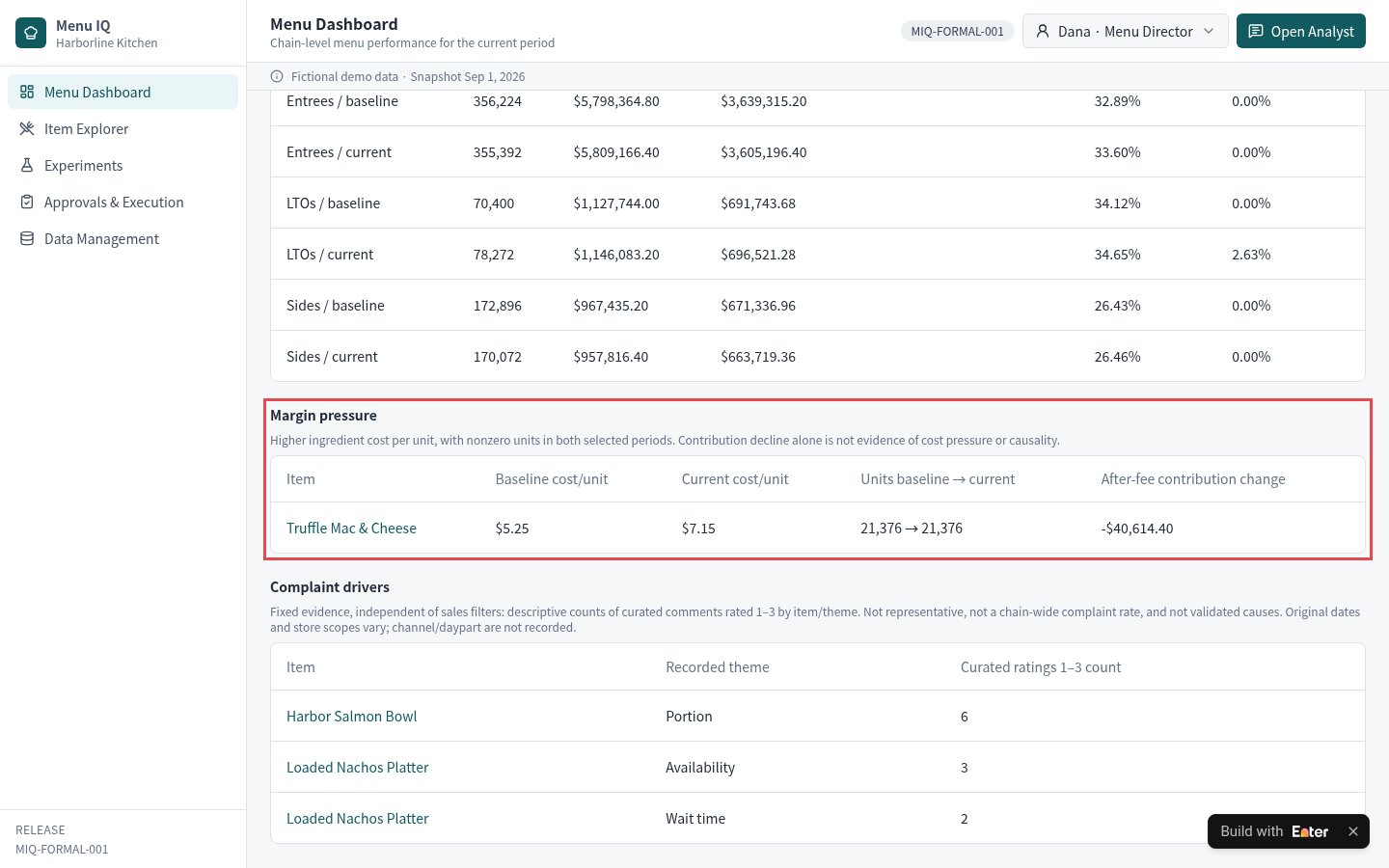
Find Truffle Mac & Cheese under Margin pressure on Menu Dashboard. Ingredient cost per portion rose from $5.25 to $7.15. Both periods sold 21,376 portions, but contribution after ingredient costs and fees fell by $40,614.40.
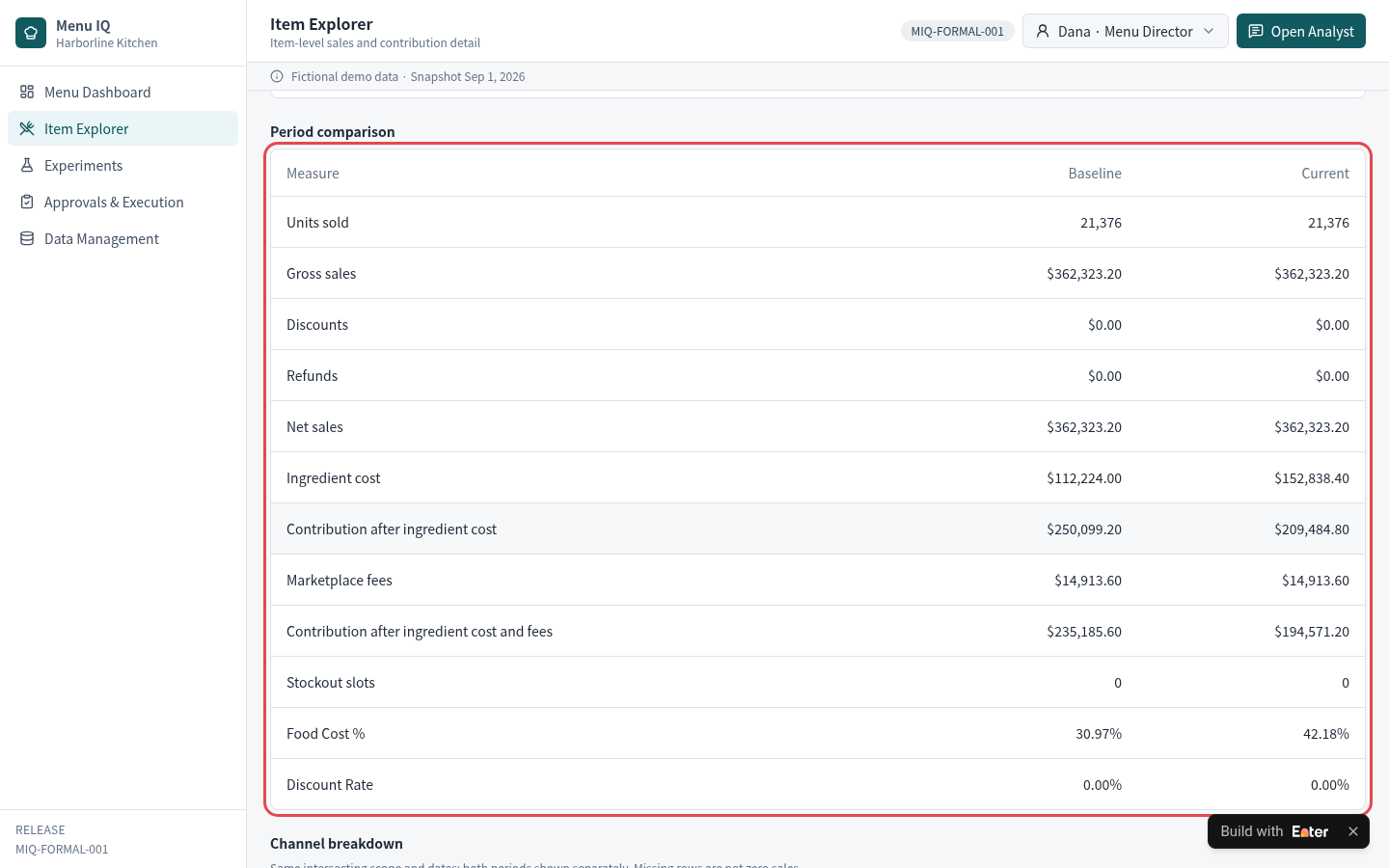
Open the dish in Item Explorer and inspect Period comparison. Net sales are $362,323.20 in both periods. Ingredient cost increased from $112,224.00 to $152,838.40, and food-cost percentage rose from 30.97% to 42.18%.
4.2 Inspect the price test
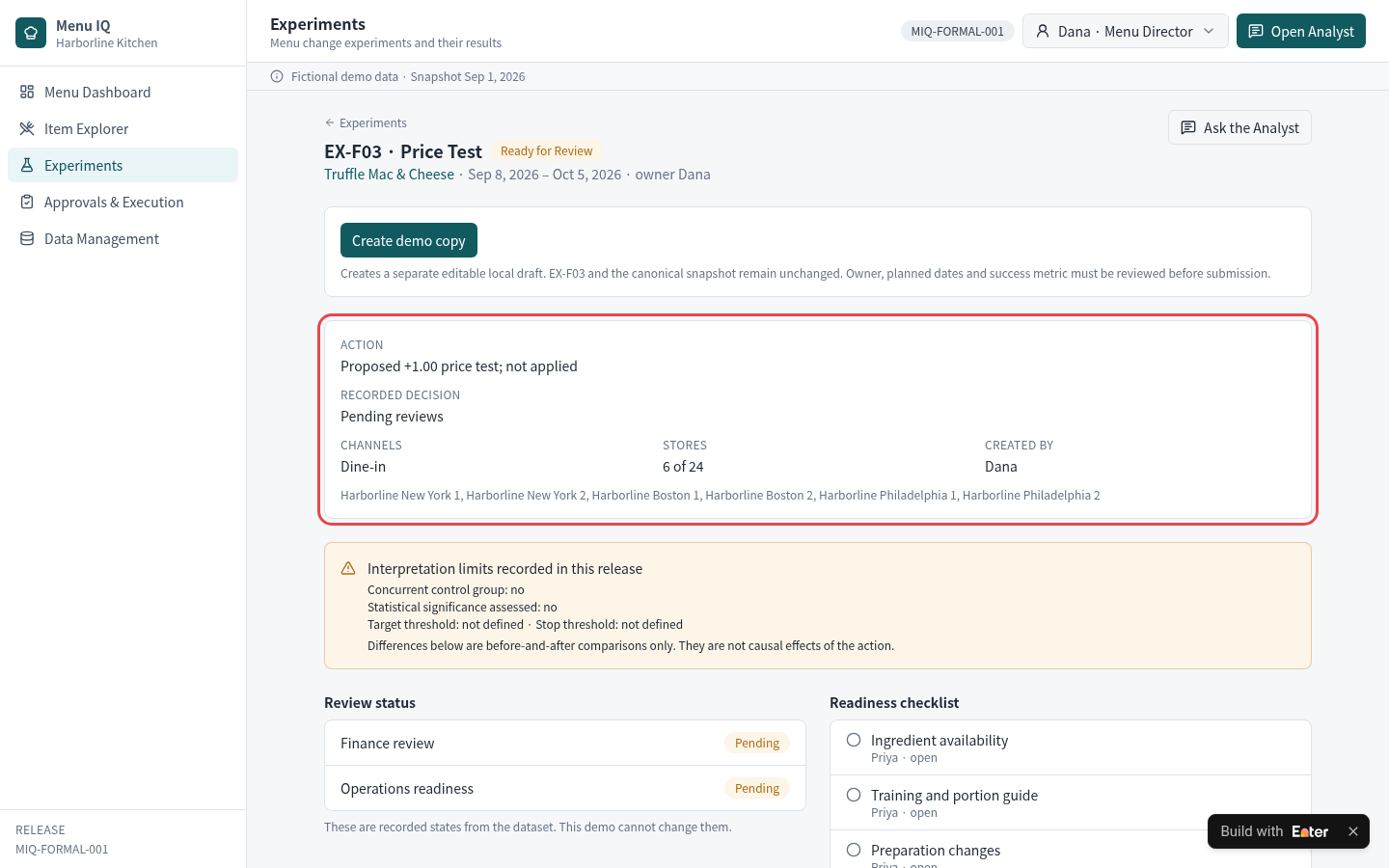
Open EX-F03 (Price Test) in Experiments. It proposes a $1.00 increase for dine-in at 6 stores, with an observation period of Sep 8 – Oct 5, 2026, owned by Dana. The change is currently not applied. The page also states that there is no concurrent control group and no significance test.
4.3 Check the approval state
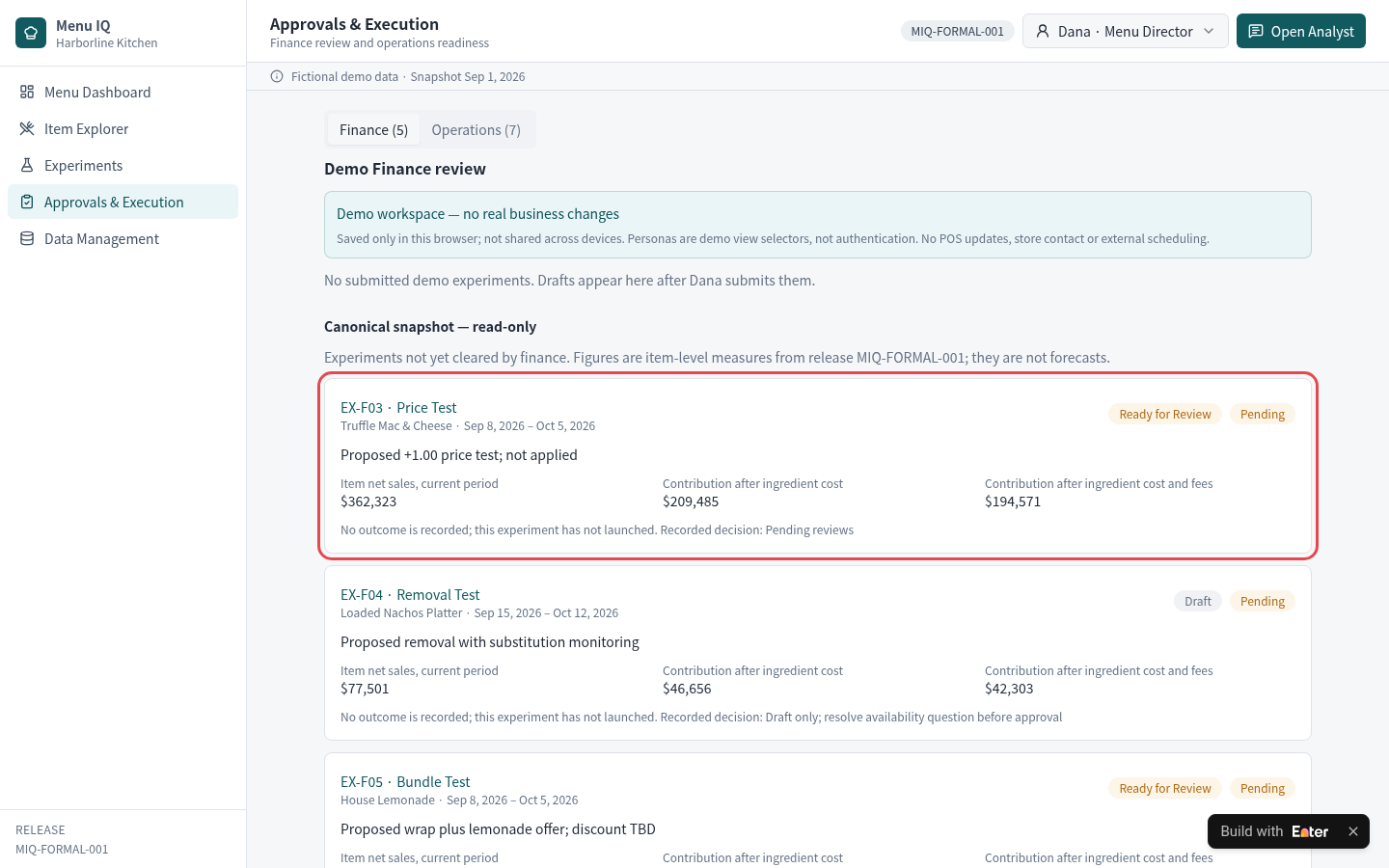
Find EX-F03 in the Finance section of Approvals & Execution. Its status is Ready for Review; finance and operations are both Pending. The page states that the experiment has not launched and has no recorded results.
Step 5: Refine the interface and test with your team
When the menu team opens the dashboard, items with falling contribution and experiments awaiting approval should be easy to find. In Preview, choose Select to Edit to enter Visual Edit and refine titles and key information.
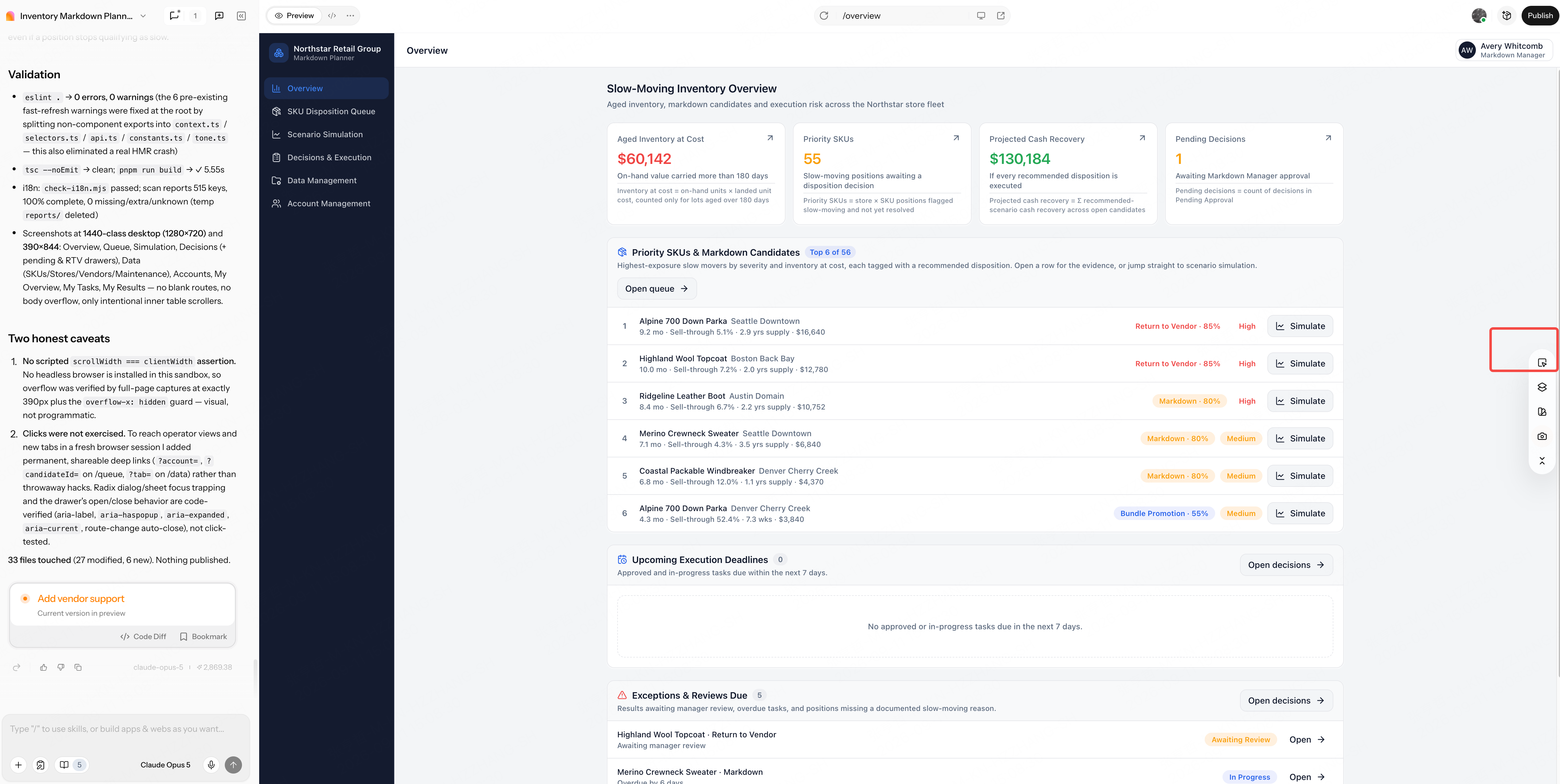
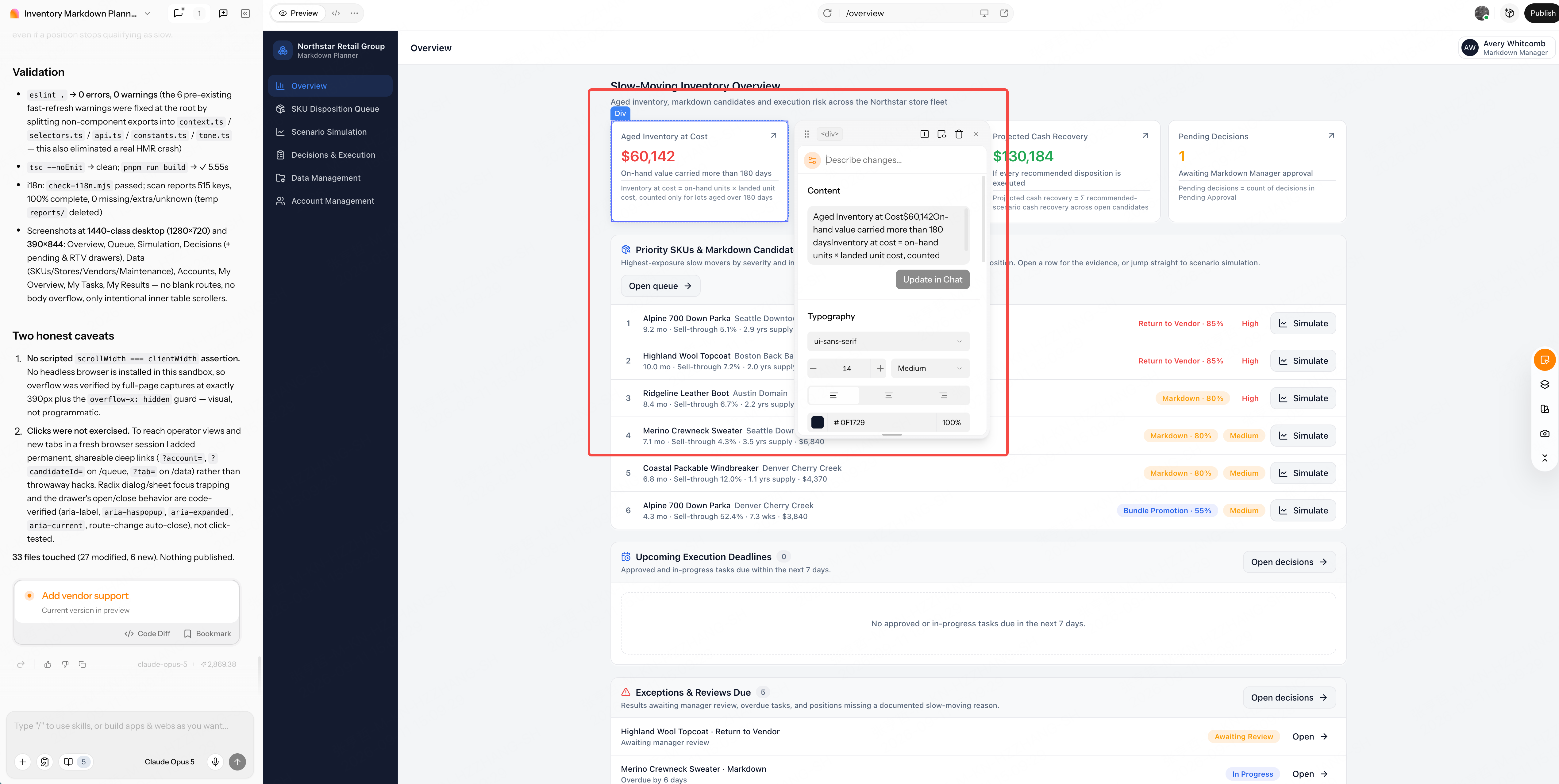
Select Menu Dashboard, then use Content and Typography to adjust the wording and font size. Make the comparison scope and baseline visible without letting them overwhelm the metrics.
Finance may check numbers on desktop while store operations reviews readiness checklists on a phone. Once both views are clear, use Publish to share the tool. At the next menu discussion, use it to ask: What is this item's change being compared against, and has the proposal been approved?
Copy the starter prompt
Before copying: Adapt team responsibilities, comparison scope (stores, channels, dayparts, and baseline), contribution formulas, experiment approvers, and observation periods. Change the region, currency, and interface language as needed. Remove stockout or review modules if you do not have those data sources.
Create a Menu Performance and Experiment Workspace in Enter for a U.S.-based multi-location restaurant group. Help menu, finance, and operations teams compare items on a like-for-like scope, explain why contribution changed, turn a proposed menu change into a controlled experiment, and launch it only after finance and operations approve.

[TARGET USERS]
- Menu Director: Review item performance, open item detail, and propose price, recipe, bundle, photo, regional, or removal experiments.
- Finance Analyst: Review ingredient cost, fees, discounts, and contribution effects, then approve or return an experiment.
- Operations Manager: Check ingredient availability, prep changes, training, POS updates, and store communication before launch.
- Administrator: Manage source data, metric definitions, stores, channels, and user access.

[CORE WORKFLOW]
1. Filter by current period, an equal-length baseline, region, store, category, channel, daypart, and promotion status. Echo the active scope and baseline on every page.
2. Compare units, net sales, ingredient cost, contribution after ingredient cost, contribution after ingredient cost and fees, food-cost percentage, and stockouts on the same scope.
3. Open an item to see the period comparison, channel breakdown, recipe cost changes, and related experiments. An AI analyst may draft questions and hypotheses from the visible metrics, but must cite evidence and never change prices or approve anything.
4. Create an experiment with item, action, stores, channels, dates, owner, hypothesis, success metric, and stop threshold. Record whether a concurrent control group and a significance test exist.
5. Keep Finance review and Operations readiness as separate approvals with checklists. After an approved launch, record 7-, 14-, and 28-day observations and decide to scale, iterate, roll back, or archive.

[CORE PAGES]
- Menu Dashboard: Scope filters, KPI cards with baseline changes, largest contribution increases and decreases, category performance, margin pressure, and data coverage.
- Item Explorer: Item list, item detail, period comparison, channel breakdown, supporting evidence, and linked experiments.
- Experiments: Experiment list and detail, interpretation limits, review status, readiness checklist, and observation windows.
- Approvals & Execution: Finance and Operations queues with recorded decisions.
- Data Management: Imports, metric definitions, mappings, quality warnings, and permissions.

[DATA AND BUSINESS RULES]
- Use stable IDs to link items, stores, channels, periods, sales facts, recipe costs, experiments, reviews, and observations.
- Net sales = gross sales - discounts - refunds. Contribution after ingredient cost = net sales - ingredient cost. Contribution after ingredient cost and fees = that amount - marketplace fees. Food cost % = ingredient cost / net sales. Neither contribution measure is net profit; handle zero denominators explicitly.
- Compare only like-for-like scopes; if coverage or definitions differ, label the comparison as not directly comparable.
- Label before-and-after differences as observations, not causal effects, unless a control group and significance test are recorded.
- A proposed change stays "not applied" until both approvals are recorded; never update prices automatically.
- Include a demo case: Harborline Kitchen, 24 stores, Aug 4-31, 2026 compared with Jul 7-Aug 3, 2026. Truffle Mac & Cheese sells 21,376 units in both periods with flat net sales of $362,323, but ingredient cost per unit rises from $5.25 to $7.15, so contribution after ingredient cost and fees falls by $40,614 (-17.3%). Experiment EX-F03 proposes a +$1.00 dine-in price test in 6 stores from Sep 8 to Oct 5, 2026, with no control group; Finance and Operations are both pending, so no result is recorded.

[VISUAL DIRECTION AND DELIVERABLES]
- Use a clean analytics workspace with compact KPI cards, readable tables, visible scope labels, and clear status badges.
- Support desktop and mobile, keeping filters and wide tables usable on small screens.
- Use labelled demo data with consistent IDs and dates, USD amounts, and U.S. date conventions.
- Deliver a publishable demo with one traceable path from item diagnosis to experiment approval.

Before building, provide a requirements summary, missing information, page architecture, data model, metric formulas, role permissions, state transitions, and acceptance criteria. Do not begin generating pages yet.
WORKFLOW 03 / 05Track opening tasks, verify evidence, and control soft-opening approval
The business problem: Is the new store actually ready to open?
In the two or three months before a new store opens, the launch manager coordinates hiring and training, construction, permits, suppliers, POS systems, and local marketing. Every task needs an owner and deadline. Before a soft opening, the team must also confirm that permits, staffing, and equipment are ready before authorizing the doors to open.
These are the handoffs most likely to break down:
- The schedule shows more than half the work complete, but the health inspection is already overdue and blocked. The occupancy permit must wait for a passed reinspection, delaying the soft opening as well.
- A task says “complete,” but nobody can find the inspection report, certificate, or test record. Without evidence, the team cannot establish whether the work is really finished.
- Hiring is nearly on target, but training lags. With 39 staff on board and only 32 trained, the store still falls short of the 90% soft-opening requirement.
Use Enter to connect launch tasks, acceptance evidence, staff training, and soft-opening approval, following the store through to actual opening readiness.
Build the workflow
Step 1: Map the business workflow
The opening tool needs to carry work through to soft-opening approval, beyond the task list. Connect the process in this order:
- Move tasks forward. Divide work across hiring and training, construction, permits, supply, systems, and marketing. Record owners, deadlines, and dependencies.
- Check the evidence. Require inspection reports, certificates, or test records for critical tasks. A task cannot count as complete while required evidence is missing.
- Authorize opening. Once staffing, training, and critical tasks meet the requirements, the launch manager approves the soft opening and follows the first week of operation.
Keeping tasks, evidence, and approval requirements together lets the team assess whether the store is actually ready.
Case file: Upload the business input brief below, or use your own data.
↗ Open case input · 03-new-store-opening-input.txtStep 2: Generate the first version
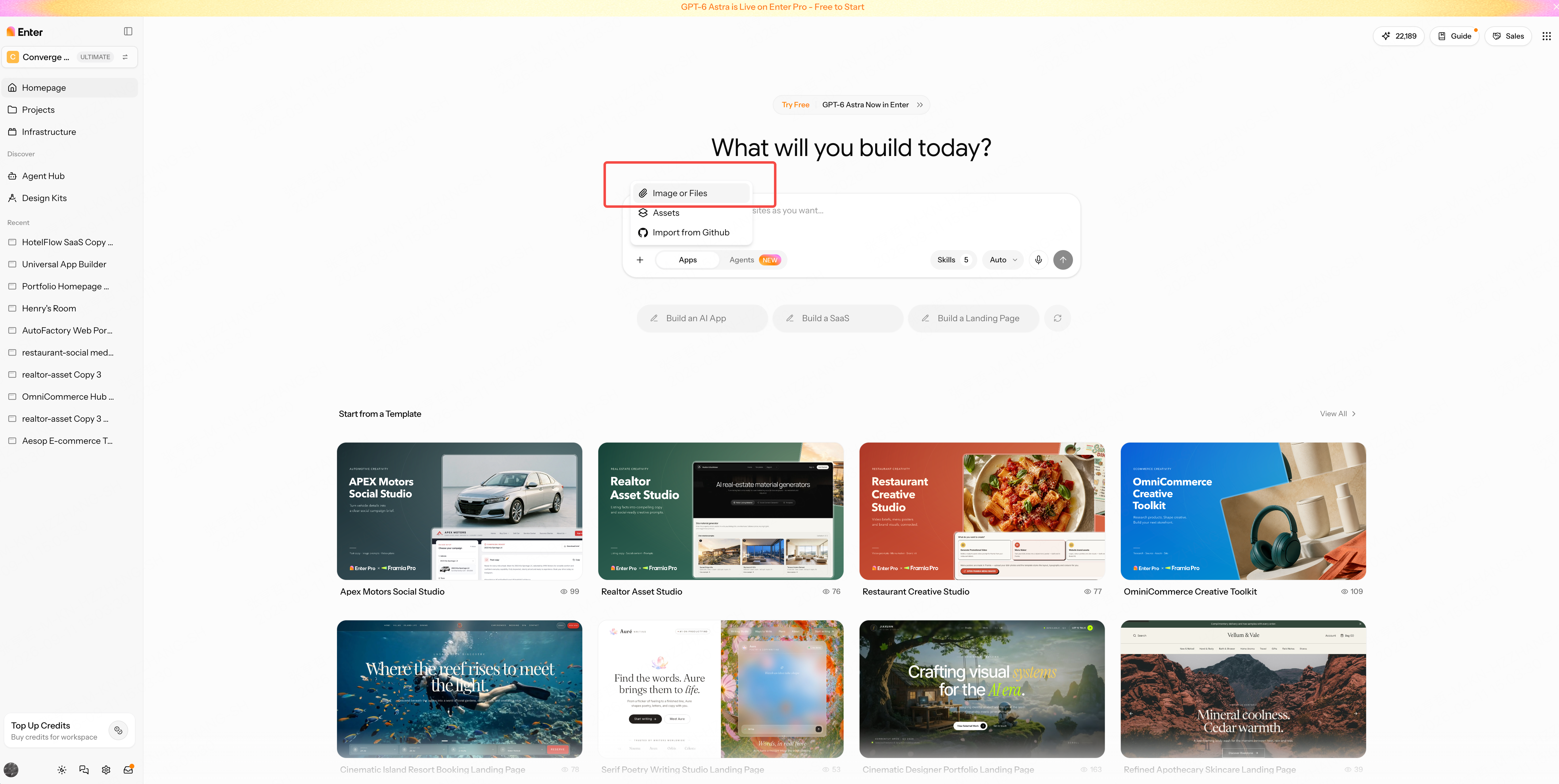
Open the Enter homepage, choose New Project, and use the “+” beside the input box to upload your business files.
Copy and submit the first-round prompt at the end of this scenario. Enter first proposes a build plan. Review and confirm it, then click Build Now to generate the first version.
Step 3: Refine the business rules
A launch manager needs answers to three questions: Which tasks are blocked? Is there evidence for completed work? When can the soft opening be approved? Start by clarifying tasks and dependencies, then establish evidence requirements and approval conditions.
3.1 Make tasks and dependencies visible
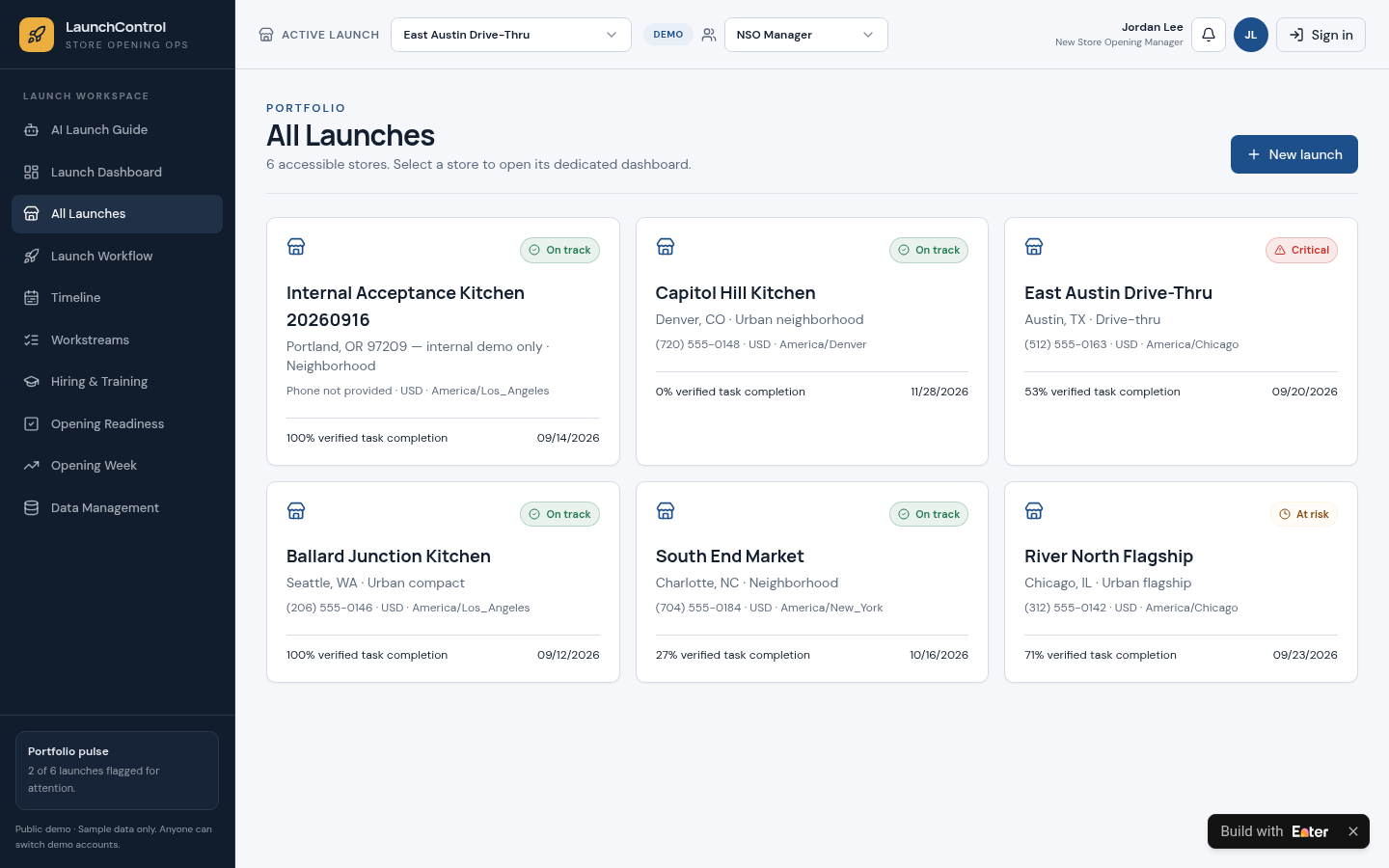
A 53% progress indicator suggests the work is more than halfway done. But if a prerequisite such as the health inspection is blocked, the occupancy permit and soft opening will slip with it. An average progress figure can conceal the risk.
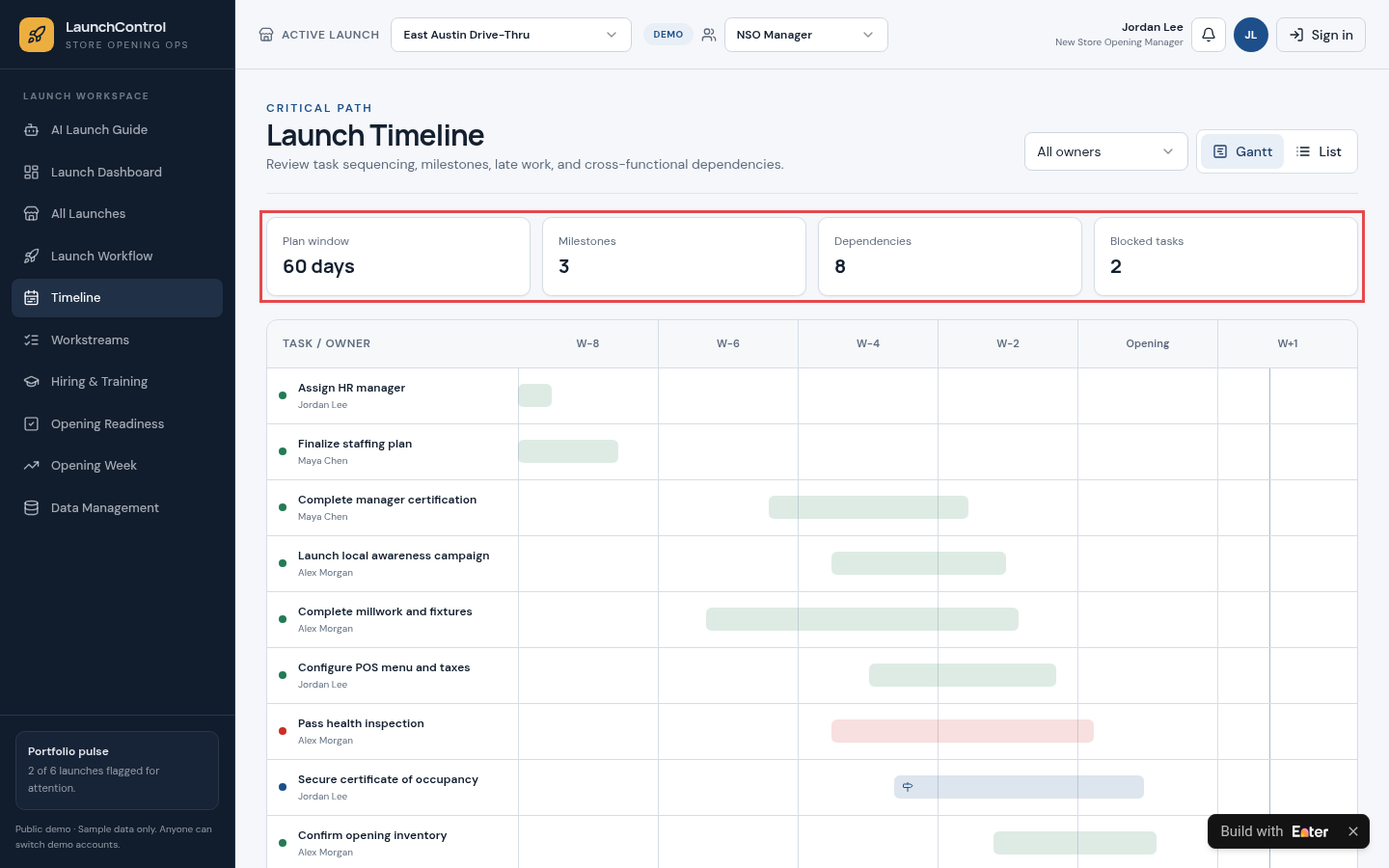
Give every task an owner, deadline, workstream, and dependencies, and record why blocked work cannot proceed. Prioritize overdue and blocked tasks on the timeline and board instead of relying on a completion percentage. Replace workstream categories, critical tasks, and the countdown schedule with your own opening checklist.
Give every launch task an owner, due date, workstream, dependencies, and a blocked reason when blocked. Show which later tasks and gates each blocked task holds up.
Rank next actions by due date and dependency impact, not by overall completion percentage.
Expected output: The launch manager can open the timeline or board and see which tasks are blocked, what they delay, and what to address next.
3.2 Require evidence before counting work as complete
A checked box does not prove the work is done. Health inspection reports, occupancy permits, and payment and printer test records are the evidence to check before a soft opening.
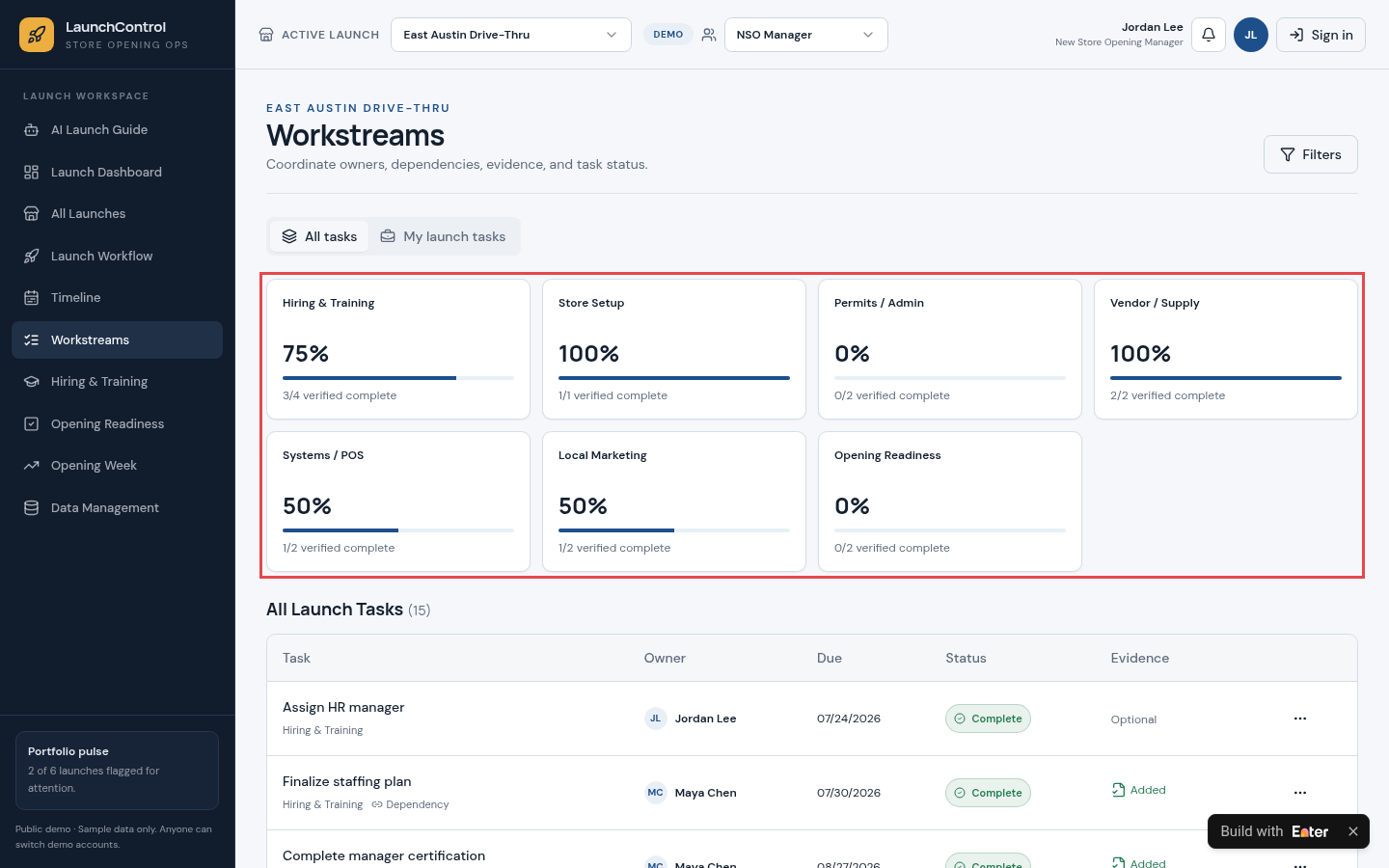
Define required evidence for critical tasks and block completion until it is uploaded. Calculate each workstream's completion rate using verified tasks only, so everyone shares the same definition of “complete.” Specify which tasks need evidence and who verifies it according to your opening standards.
Mark which tasks require evidence, such as inspection reports, permits, and test records. Do not allow a required task to be completed without its evidence.
Count only verified tasks in completion rates, and show missing evidence next to each task.
Expected output: Each workstream shows its verified task count. Tasks missing required evidence do not contribute to the completion rate.
3.3 Set explicit soft-opening requirements
As the opening date approaches, everyone wants to get the doors open. But a soft opening without the necessary permits or training can cost much more than a few days' delay.
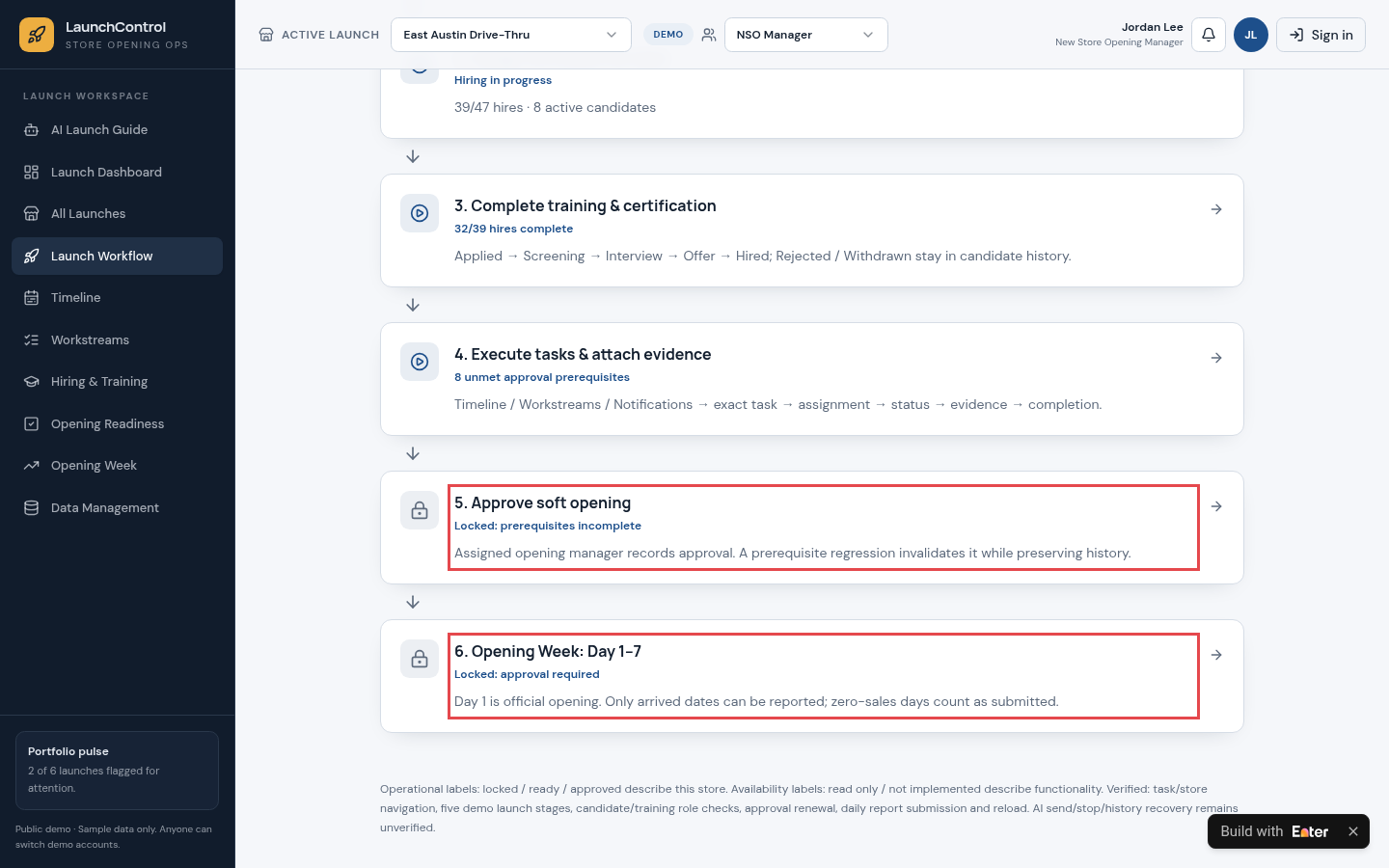
Require a clear set of conditions: mandatory tasks and evidence are complete, staff are in place, and at least 90% of employees have completed training certification. Keep the approval button locked while any condition is unmet, and list the gaps. Only the designated launch manager can approve. Replace the conditions, training threshold, and approver with your own opening rules.
Lock soft-opening approval until required tasks are verified with evidence, staffing is covered, and at least 90% of hires have completed training and certification.
List every unmet prerequisite. Only the assigned opening manager can approve, and any later regression must invalidate the approval while keeping its history.
Expected output: Each requirement can be checked individually. An unready store cannot receive soft-opening approval, and first-week daily reports remain locked.
Step 4: Verify the case
Use a delayed drive-thru opening to check blocked tasks, missing evidence, and the soft-opening gate. In the demo, select Jordan Lee (New Store Opening Manager) and open East Austin Drive-Thru (Austin, TX).
4.1 Check the opening status
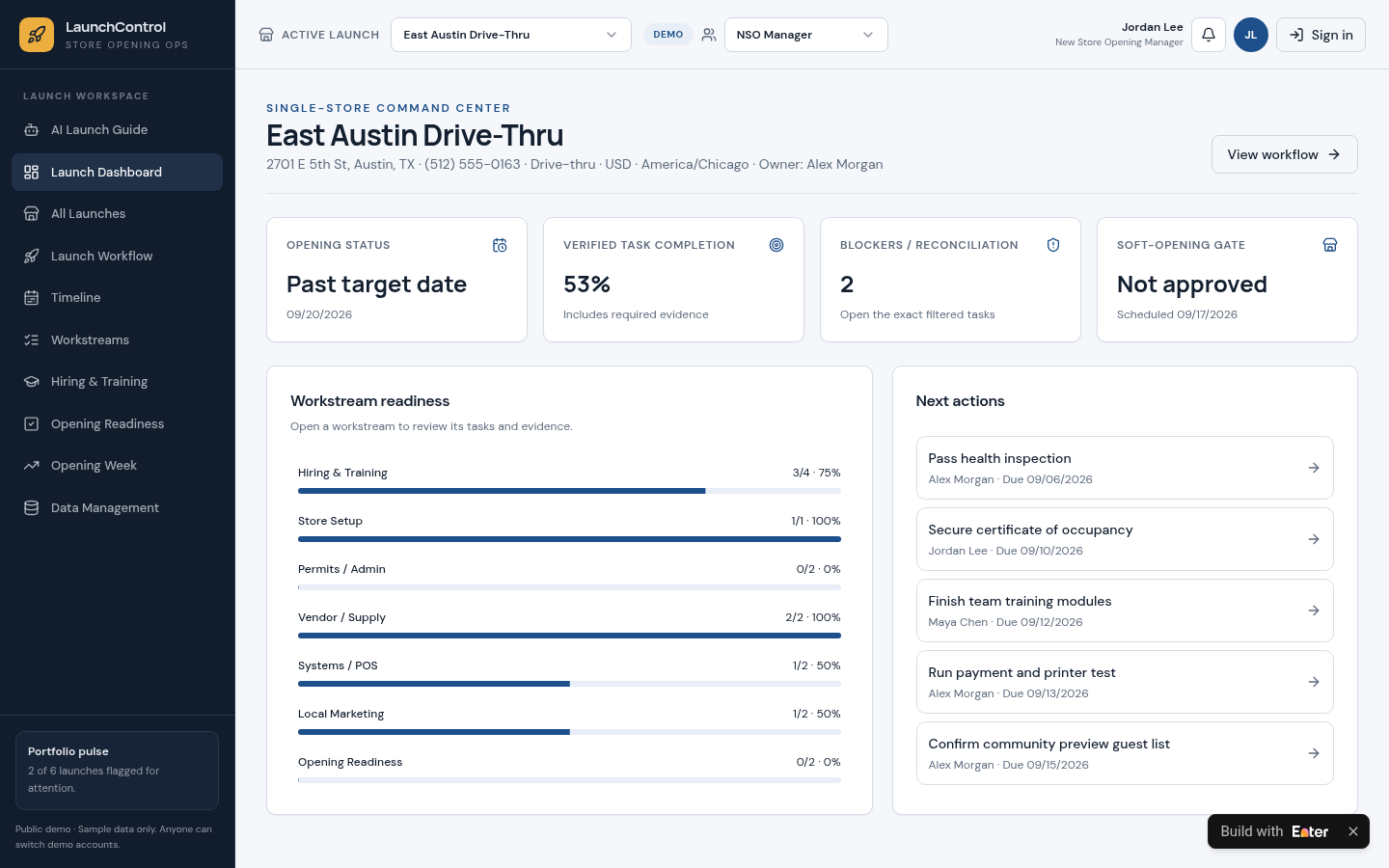
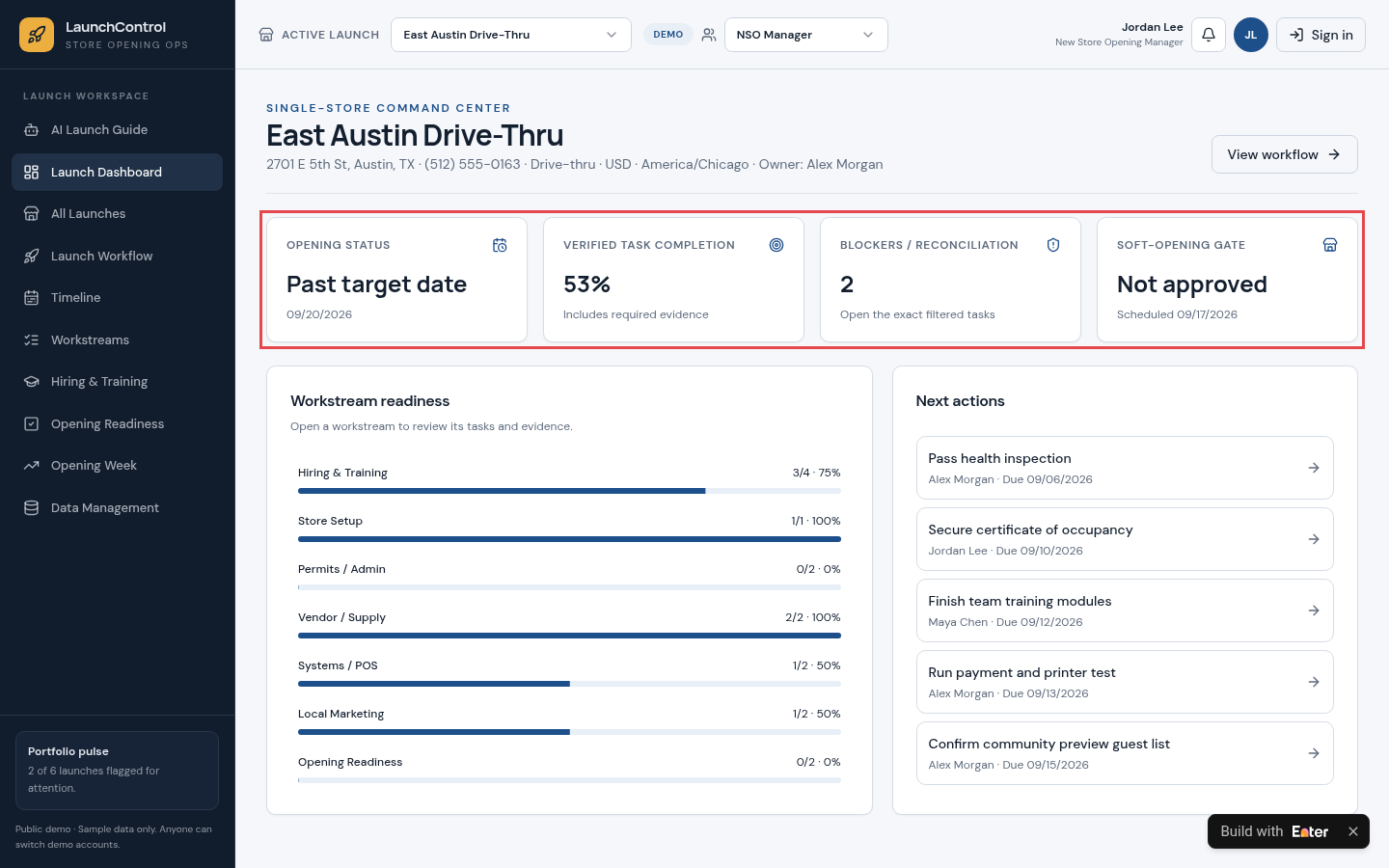
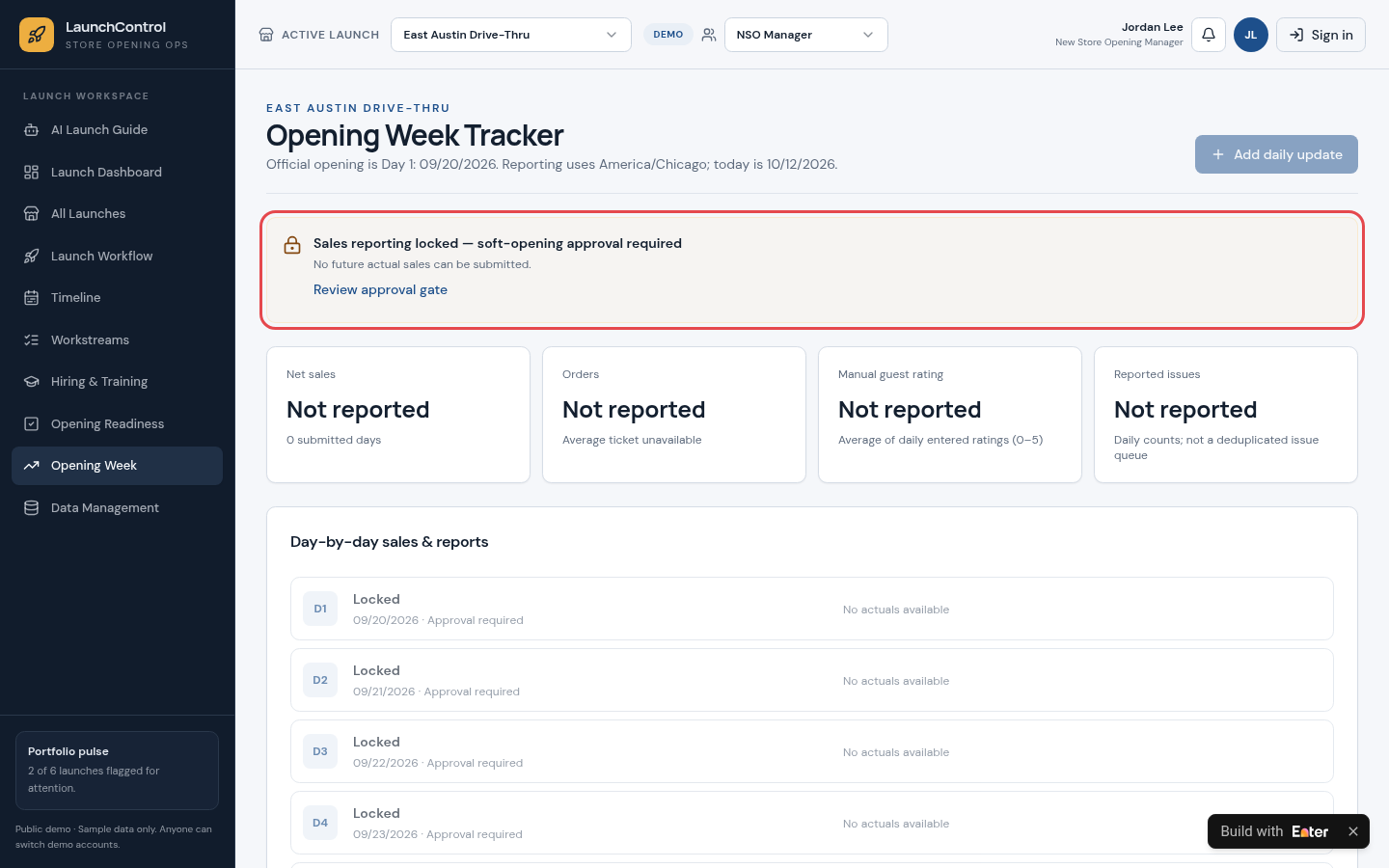
Open East Austin Drive-Thru in All Launches and inspect its dashboard. The target opening date, 09/20/2026, has passed. Verified task completion is 53%, there are 2 blockers, and the soft-opening gate remains unapproved; the original soft-opening date was 09/17/2026.
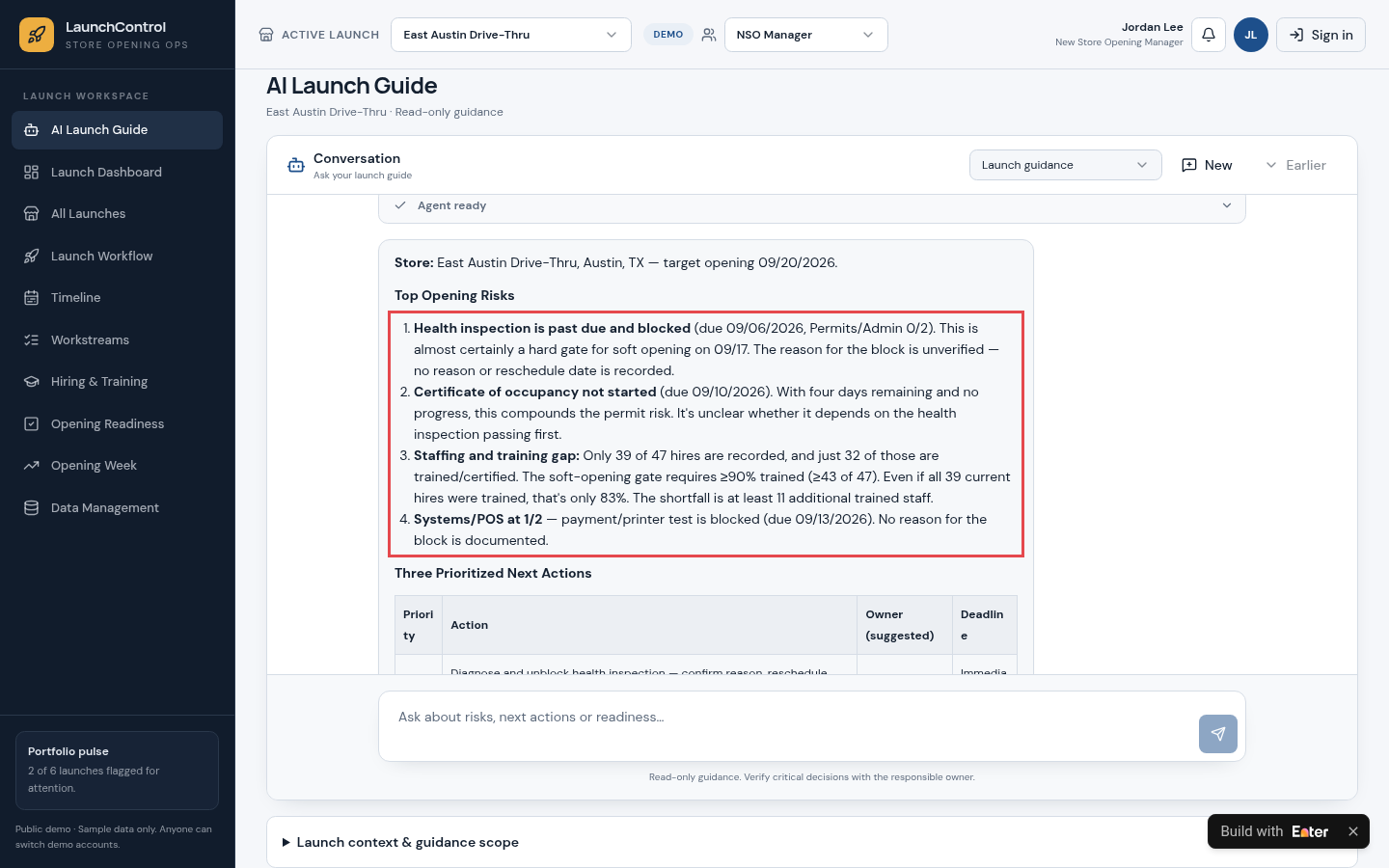
Open AI Launch Guide to see risks the assistant has organized from the current data: an overdue, blocked health inspection, an occupancy permit that has not started, and insufficient trained staff. It also lists priority actions and information that still needs verification.
4.2 Inspect the blocked task
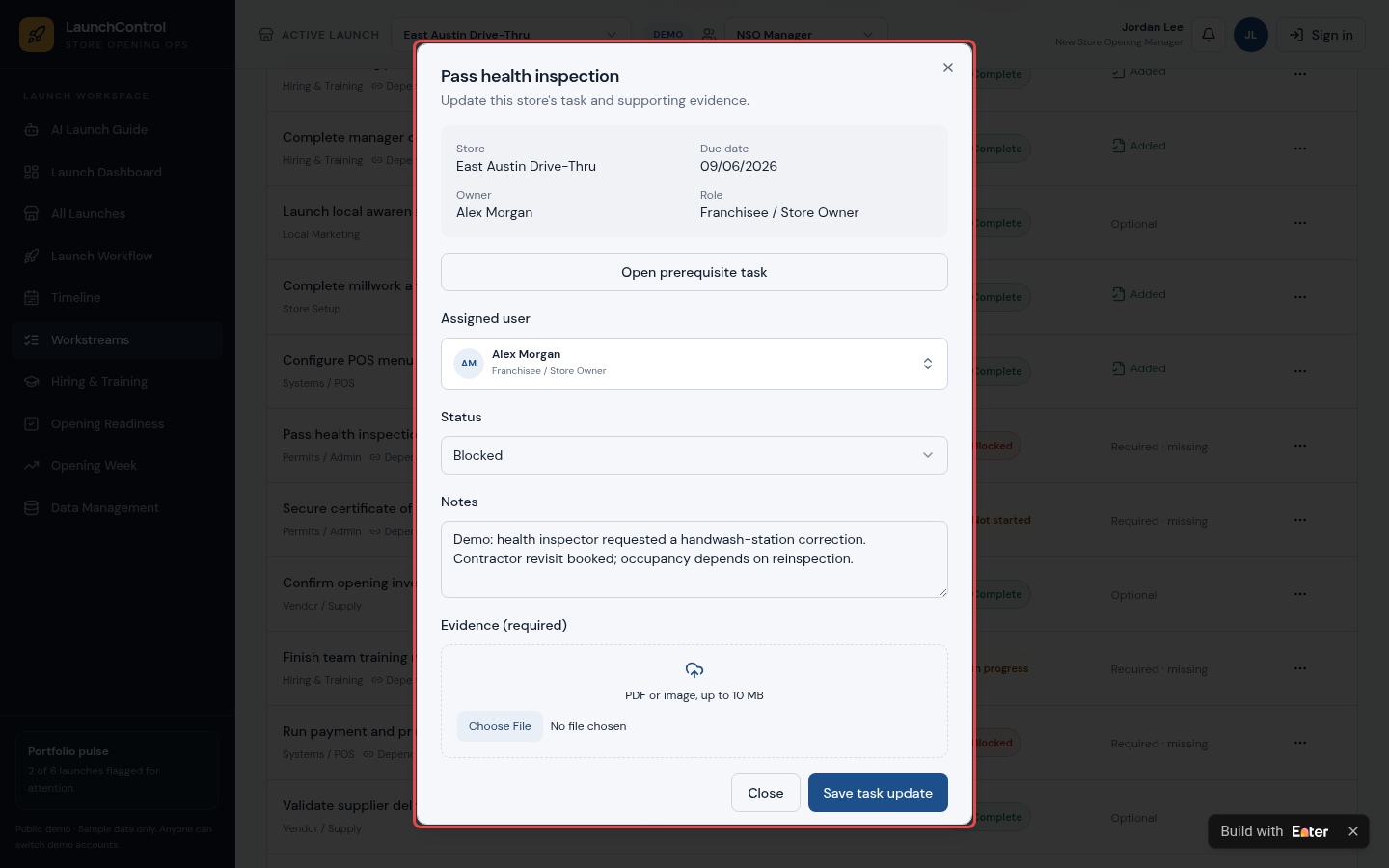
Open Pass health inspection in Workstreams. Alex Morgan owns it, the deadline is 09/06/2026, and the status is Blocked. Notes say the inspector required handwashing-sink remediation and a contractor follow-up has been scheduled. The occupancy permit must wait until the reinspection passes. No Evidence (required) has been uploaded yet.
4.3 Check the approval requirements
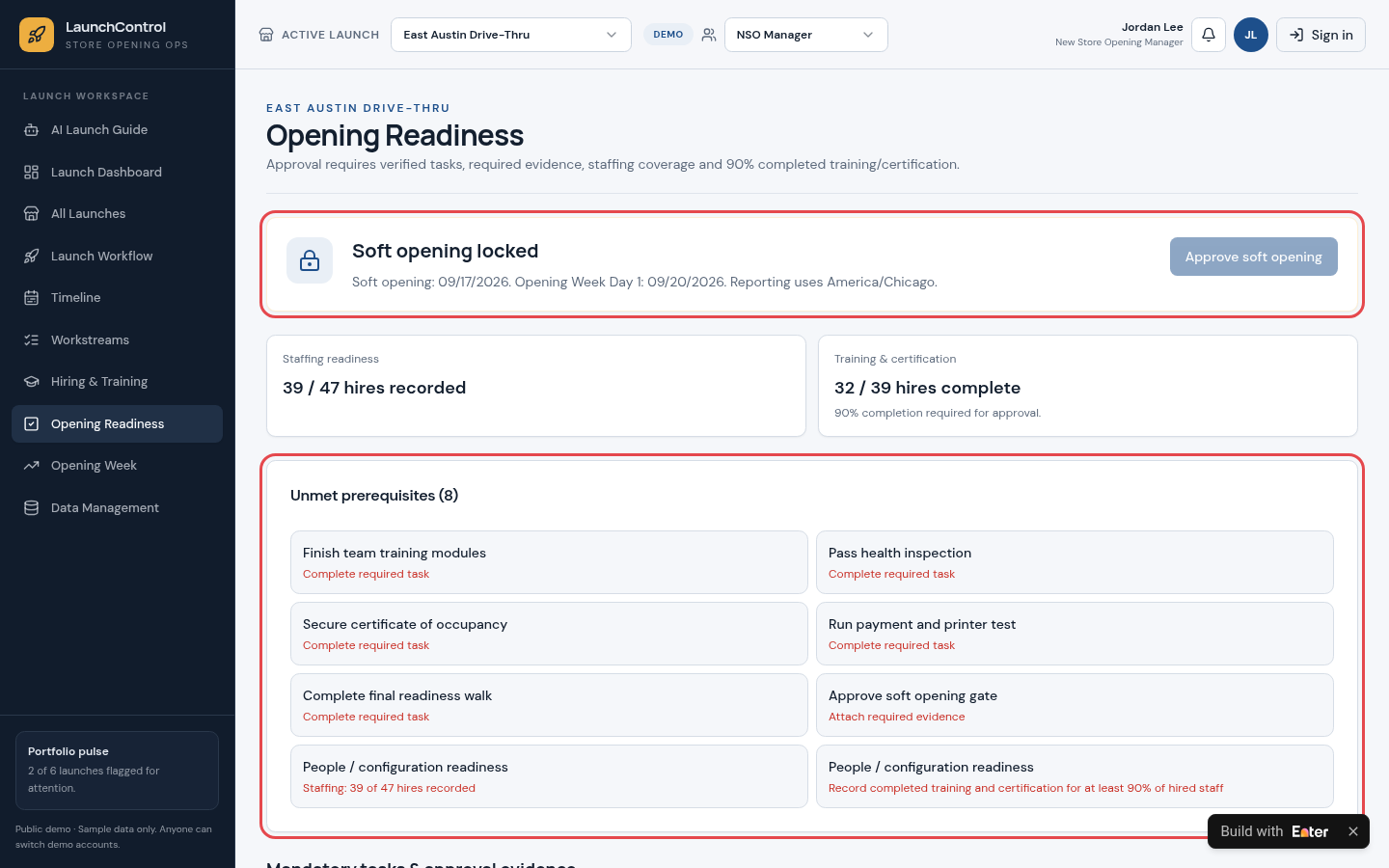
In Opening Readiness, check the staffing figures: 39/47 hired and 32/39 training-certified against a 90% requirement. There are 8 unmet prerequisites, and the page shows Soft opening locked. Daily sales reporting in Opening Week is also locked because approval has not been granted.
Step 5: Refine the interface and test with your team
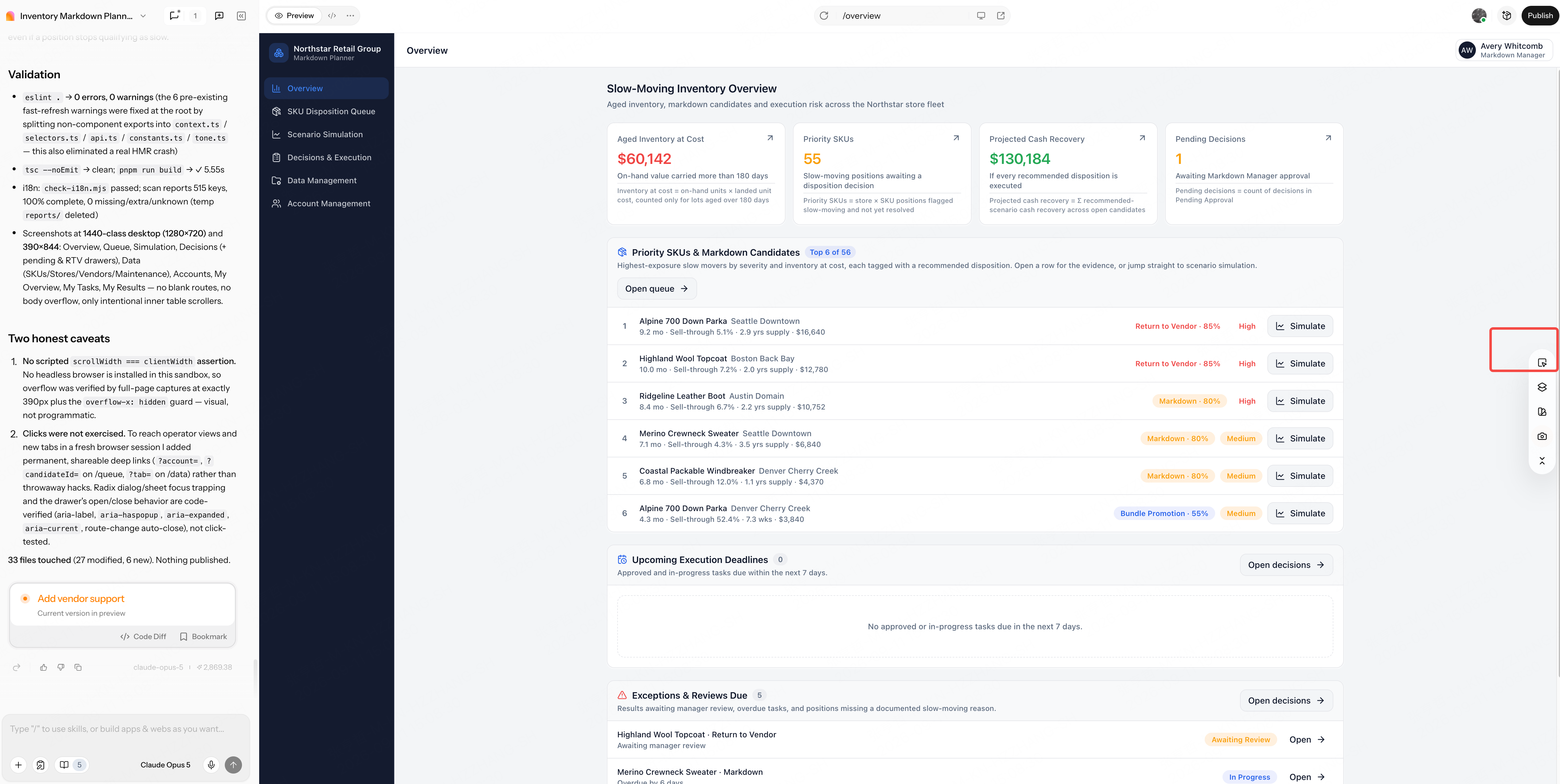
Give blocked tasks and unmet opening requirements priority on the page. In Preview, choose Select to Edit to enter Visual Edit and adjust the text hierarchy.
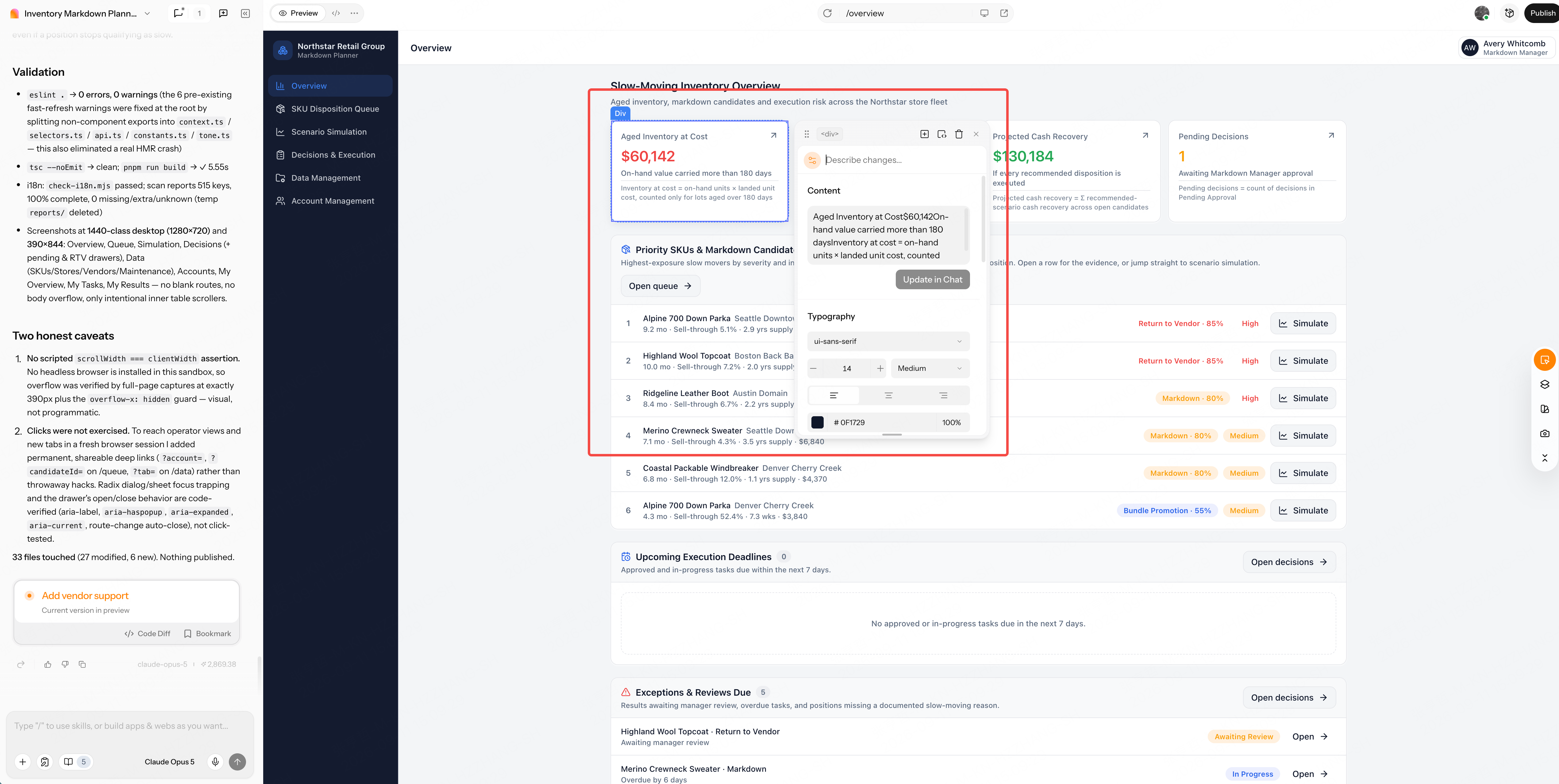
Select the store title on Launch Dashboard and adjust it through Content and Typography. Make verified completion and blockers easy to distinguish.
The launch manager may use desktop for an overall view, while store leads update tasks and upload evidence from a phone on site. Once both views show readable states, use Publish to share the tool for a trial. Test whether someone can find the owner and missing evidence for a blocked task, rather than simply read a completion percentage.
Copy the starter prompt
Before copying: Substitute your opening workstreams, critical tasks, and countdown schedule. Specify which tasks require evidence, who approves the soft opening, and the required training percentage. Replace East Austin with the store you want to test, and adjust region, currency, and interface language.
Create a New Store Opening Command Center in Enter for a U.S.-based multi-unit restaurant brand. Help the opening team move each new store from planned tasks to verified evidence, staffing and training readiness, an approved soft opening, and tracked opening-week results.

[TARGET USERS]
- New Store Opening Manager: Oversee all launches, assign owners, review evidence, and approve the soft opening for assigned stores.
- Franchisee / Store Owner: Update store tasks, upload evidence, and report blockers.
- HR / Training Manager: Track hiring stages, staffing targets, and training and certification.
- Administrator: Manage stores, workstream templates, task dependencies, users, and access scope.

[CORE WORKFLOW]
1. Create a launch for a store with address, format, timezone, target opening date, soft-opening date, and owner. Generate tasks by workstream: Hiring & Training, Store Setup, Permits / Admin, Vendor / Supply, Systems / POS, Local Marketing, and Opening Readiness.
2. Give each task an owner, due date, dependencies, status, notes, and an evidence requirement. Show blocked tasks, what they hold up, and the next actions on the store dashboard and timeline.
3. Track candidates from Applied to Hired, plus training and certification for every hire.
4. Lock soft-opening approval until all prerequisites are met, list every unmet prerequisite, and let only the assigned opening manager approve.
5. After approval, unlock Opening Week Day 1-7 daily reports for actual sales, orders, guest ratings, and issues.

[CORE PAGES]
- AI Launch Guide: Read-only answers about risks and next actions based on the current launch data.
- Launch Dashboard: Opening status, verified completion, blockers, soft-opening gate, workstream readiness, and next actions.
- All Launches, Launch Workflow, and Timeline: Portfolio status, the connected launch steps, and a dependency-aware plan.
- Workstreams: Task table with owner, due date, status, dependencies, and evidence.
- Hiring & Training, Opening Readiness, and Opening Week: Staffing pipeline, approval gate, and day-by-day reporting.
- Data Management: Imports, templates, users, and access.

[DATA AND BUSINESS RULES]
- Use stable IDs to link stores, launches, workstreams, tasks, dependencies, evidence files, candidates, training records, approvals, and daily reports.
- Count only verified tasks with required evidence in completion rates. A task that requires evidence cannot be completed without it.
- Soft-opening approval requires verified required tasks, staffing coverage, and at least 90% of hires trained and certified. Any later regression invalidates the approval but keeps its history.
- Treat AI guidance as read-only suggestions that separate verified facts from missing information; it must not change task status or approve gates.
- Use each store's local timezone for due dates and reports, and never accept future-dated actuals.
- Include a demo case: East Austin Drive-Thru, Austin, TX, target opening 09/20/2026, soft opening scheduled for 09/17/2026. Verified completion is 53% with 2 blockers; "Pass health inspection" (Alex Morgan, due 09/06/2026) is blocked and missing required evidence; 39 of 47 hires are recorded and 32 of 39 are trained; 8 prerequisites are unmet, so the soft opening stays locked and Opening Week reporting is unavailable.

[VISUAL DIRECTION AND DELIVERABLES]
- Use a focused operations workspace with clear status colors, compact cards, readable task tables, and visible locks on gated steps.
- Support desktop and mobile so store owners can update tasks and upload evidence on site.
- Use labelled demo data with consistent IDs and dates, USD amounts, and U.S. date conventions.
- Deliver a publishable demo with one traceable path from a blocked task to the locked soft-opening gate.

Before building, provide a requirements summary, missing information, page architecture, data model, readiness rules, role permissions, state transitions, and acceptance criteria. Do not begin generating pages yet.
WORKFLOW 04 / 05Turn store practices into reviewed SOPs and track adoption
The business problem: How do useful store practices spread?
Stores continually find better ways to work: preparing for the lunch rush, handing over a shift, or checking delivery orders. Operations wants to turn that experience into standard operating procedures (SOPs), review them, roll them out to more stores, and check whether teams use them.
Turning store experience into a standard means resolving several gaps:
- Useful practices are scattered across chats, photos, and managers' verbal updates. Inconsistent formats make them hard for headquarters to compare and organize.
- AI can quickly turn an anecdote into a complete-looking SOP, even though its timings and effects remain untested. Publishing without human review can spread the risks along with the practice.
- After publication, headquarters still needs feedback to know whether stores follow the SOP or encounter difficulties. Publishing an SOP does not mean stores have adopted it.
Use Enter to connect store submissions, AI-generated SOP drafts, human review, and adoption feedback. Preserve useful experience while making its implementation visible.
Build the workflow
Step 1: Map the business workflow
The best-practice tool should help operations collect experience and support stores in using the resulting standards. Connect the work in this order:
- Collect the practice. Stores submit the problem, steps, materials, time required, and evidence using consistent fields.
- Generate and review. AI organizes the submission into an SOP, checklist, and training outline. Operations decides whether to request more information, pilot first, publish, or reject.
- Track rollout. Create adoption plans for published SOPs, track store checklist completion and feedback, and decide whether revisions are needed.
Alongside SOP generation, preserve traceability to the original submission, review feedback, and stores' adoption reports.
Case file: Upload the business input brief below, or use your own data.
↗ Open case input · 04-best-practice-input.txtStep 2: Generate the first version
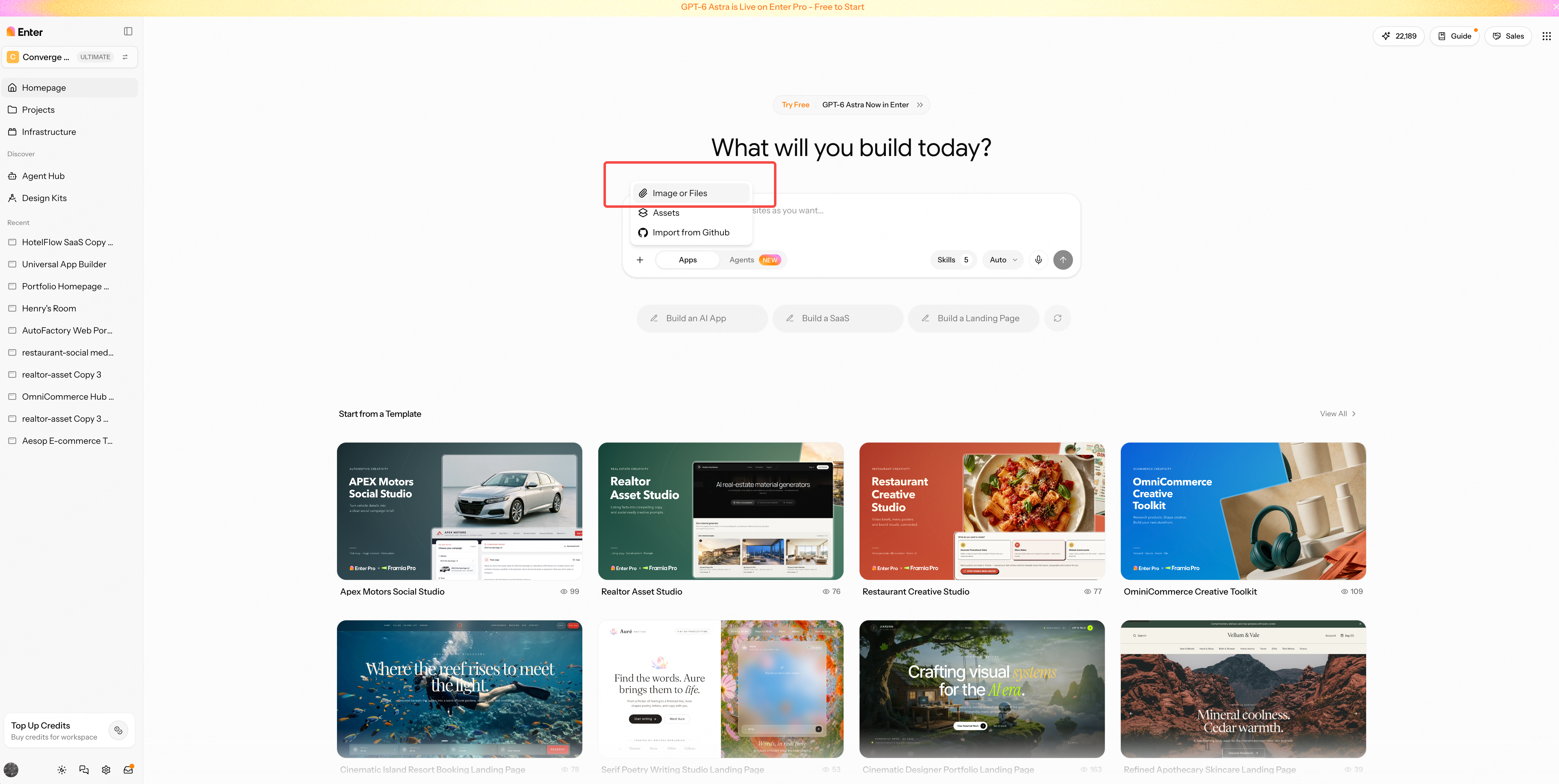
Open the Enter homepage, choose New Project, and use the “+” beside the input box to upload your business files.
Copy and submit the first-round prompt at the end of this scenario. Enter first proposes a build plan. Review and confirm it, then click Build Now to generate the first version.
Step 3: Refine the business rules
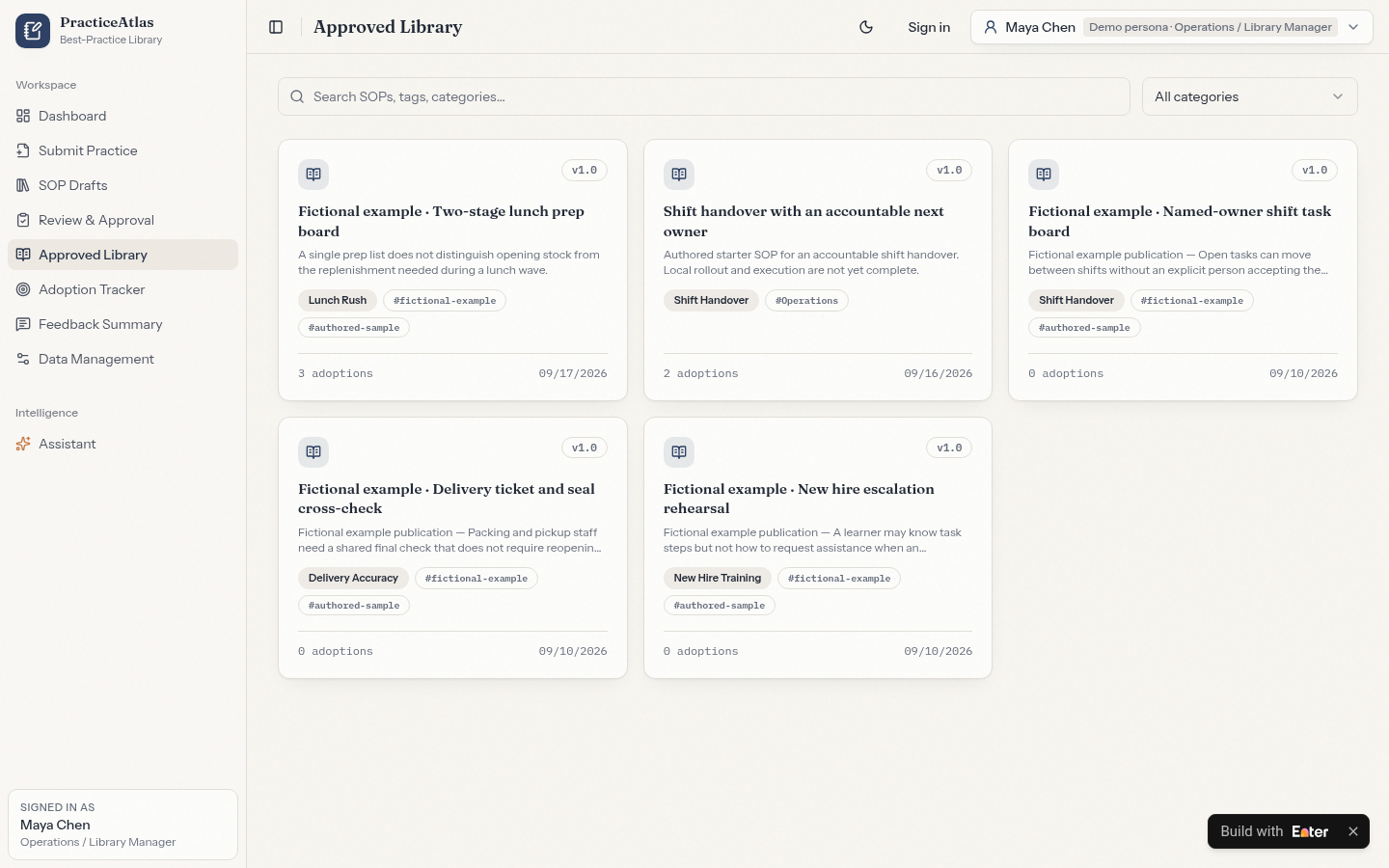
Operations needs a clearly structured original practice, a reviewed AI draft, and evidence that stores are using the result. Refine the submission format, draft review, and adoption tracking so the process continues beyond collection or publication.
3.1 Standardize practice submissions
“Get prep done before lunch” conveys experience, but does not specify stations, standards, or time required. Without a consistent format, headquarters cannot easily judge whether another store can use the practice.
Use fixed fields for the problem, context, steps, materials, time, impact metrics, and evidence. Have AI draft only from the supplied content, and keep the original submission available for review. Replace categories, required fields, and evidence requirements with your own, and specify what the original record must retain.
Collect each store practice with title, category, store, owner, problem, context, steps, materials, time required, impact metrics, and evidence files.
Keep the original submission linked to every SOP draft generated from it, and flag incomplete submissions as Needs info instead of guessing.
Expected output: Every practice has a consistent structure. Incomplete submissions are marked Needs info, and operations can trace an SOP draft back to its source submission.
3.2 Require human review of AI drafts
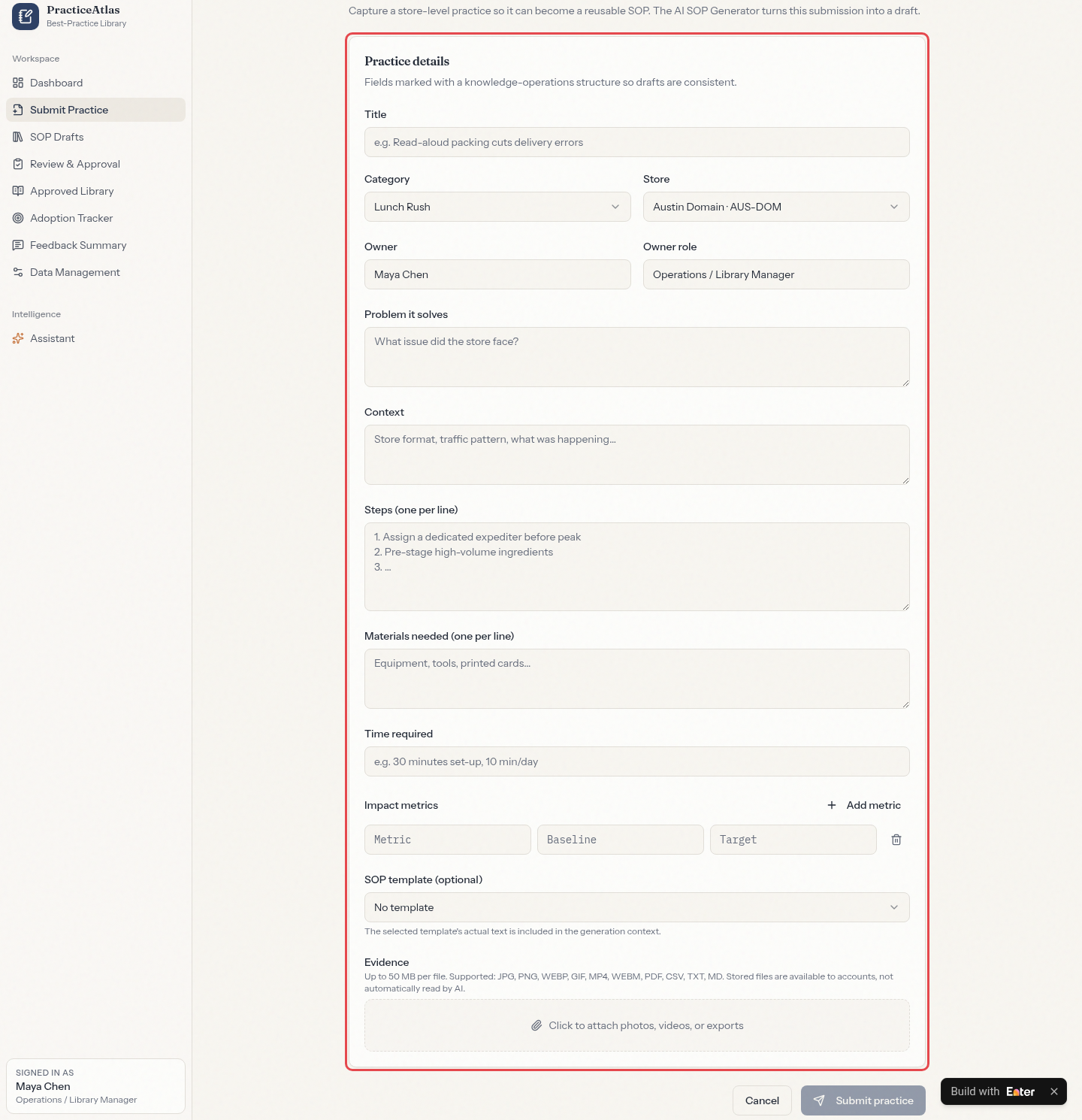
An AI-generated SOP with clear steps and a consistent format can look ready to publish. But its timings may be estimates, and its effects may never have been tested in a store.
Label drafts as AI-generated and requiring human approval, with explicit risk notes. Reviewers can request information, require a pilot, approve publication, or reject, and every decision stays in the review history. Specify who has approval authority and when a pilot is mandatory.
Label every AI-generated SOP draft as requiring human approval, and list risk notes such as unmeasured durations or missing evidence.
Let reviewers choose Needs info, Pilot first, Approve & publish, or Reject with comments. Only approved drafts enter the library.
Expected output: Draft pages clearly state that AI generated the content and human approval is required, alongside risk notes. Unapproved drafts stay out of the SOP library.
3.3 Track whether stores adopt the SOP
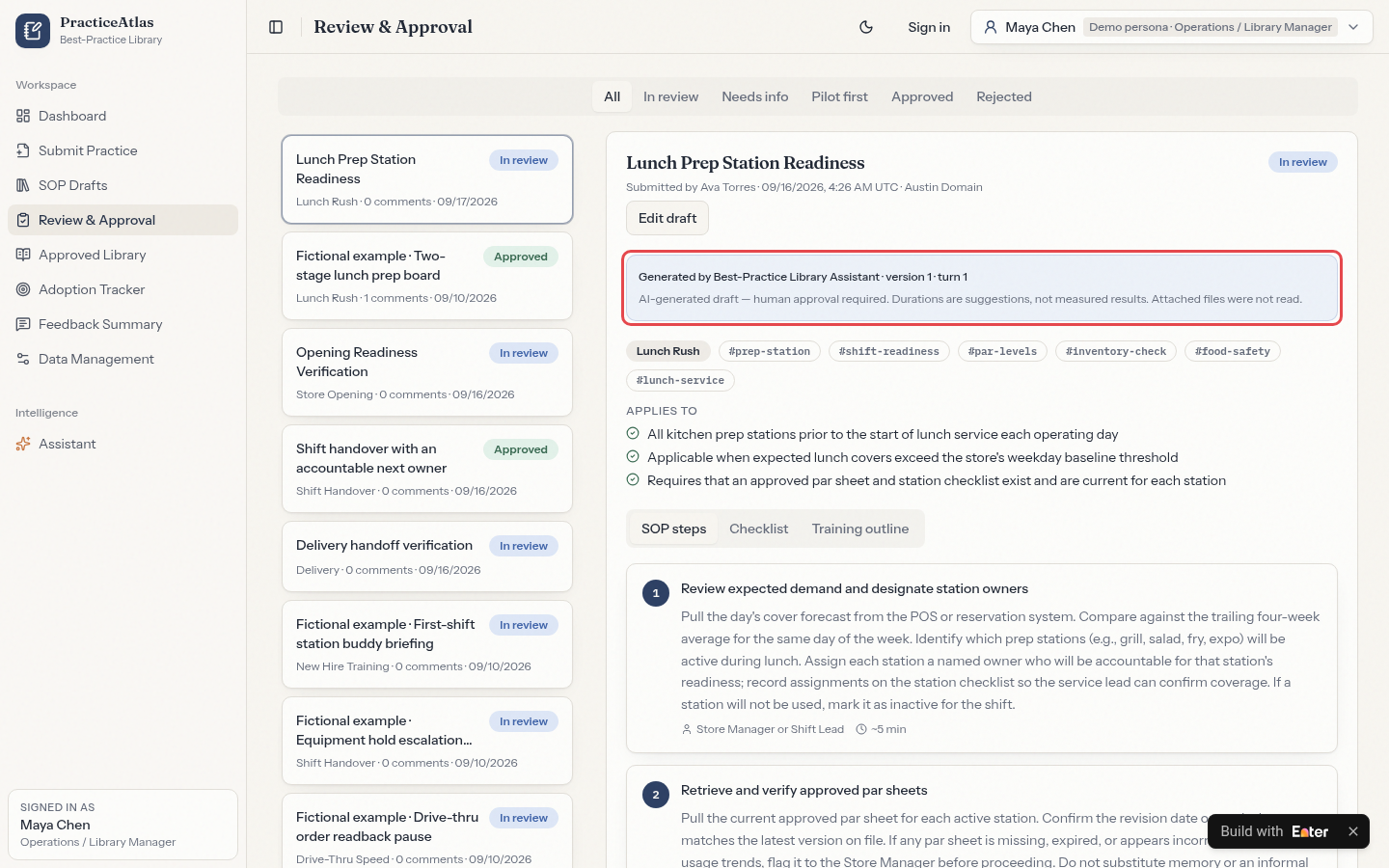
Adding an SOP to the library does not mean stores immediately use it. Counting published documents alone hides which stores have not started and where teams are struggling.
Create adoption plans for published SOPs and track checklist completion and feedback by store. List stores with no report separately instead of treating silence as smooth execution. Adapt the adoption period, required feedback, and revision criteria to your team.
Create adoption plans for published SOPs with target stores, an owner, checklist completion, and store feedback.
Show report coverage separately, treat stores without reports as unknown rather than successful, and flag revision signals from feedback.
Expected output: The adoption page shows checklist completion and feedback coverage by store. Stores that have not reported are not counted as executing well.
Step 4: Verify the case
Use a lunch-prep practice to inspect the source submission, AI-generated SOP draft, and review state. In the demo, select Maya Chen (Operations / Knowledge Base Lead) and open Lunch prep station readiness, submitted by Austin Domain.
4.1 Check the original store practice
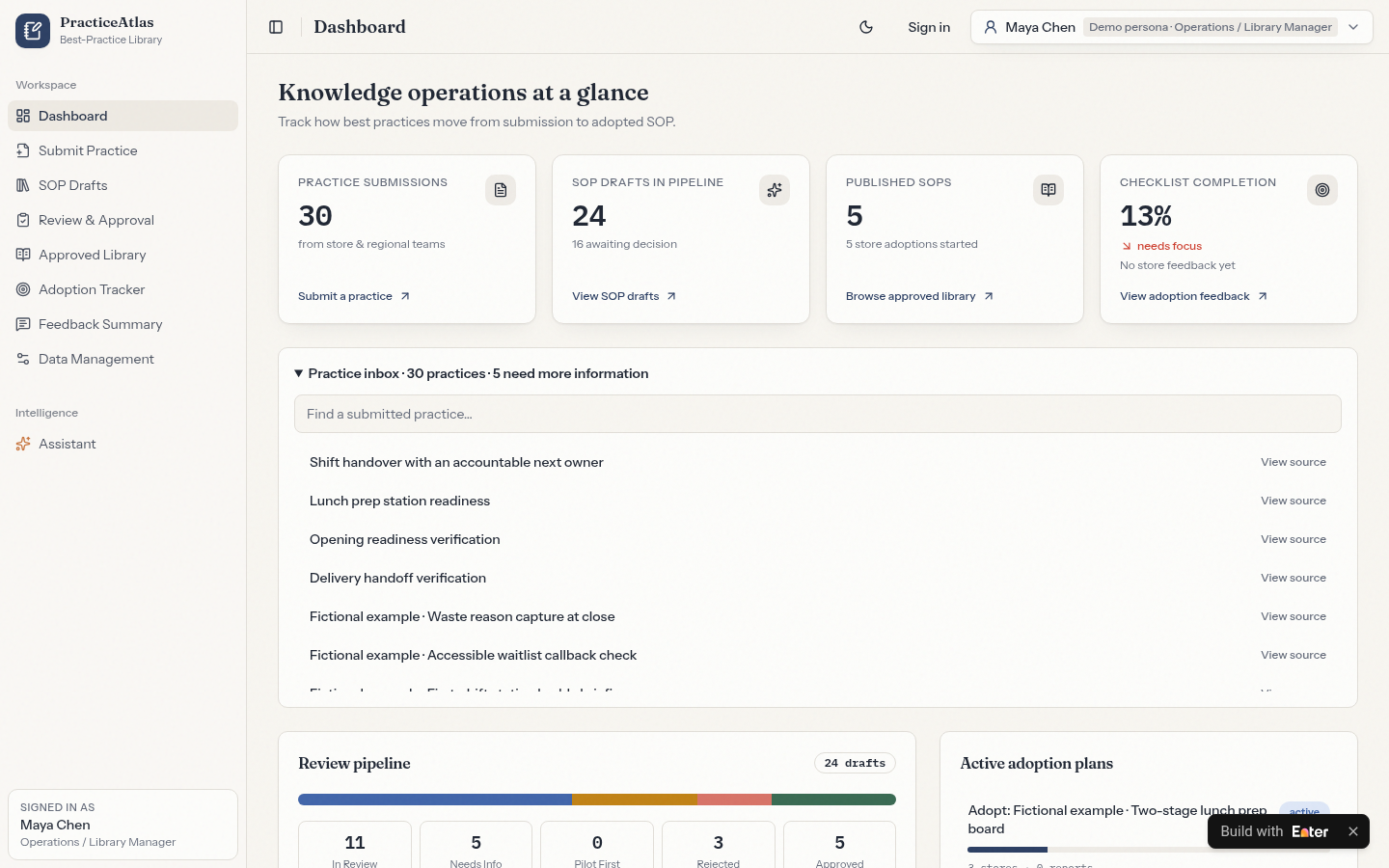
Find Lunch prep station readiness in Practice inbox on Dashboard, then open the original submission.
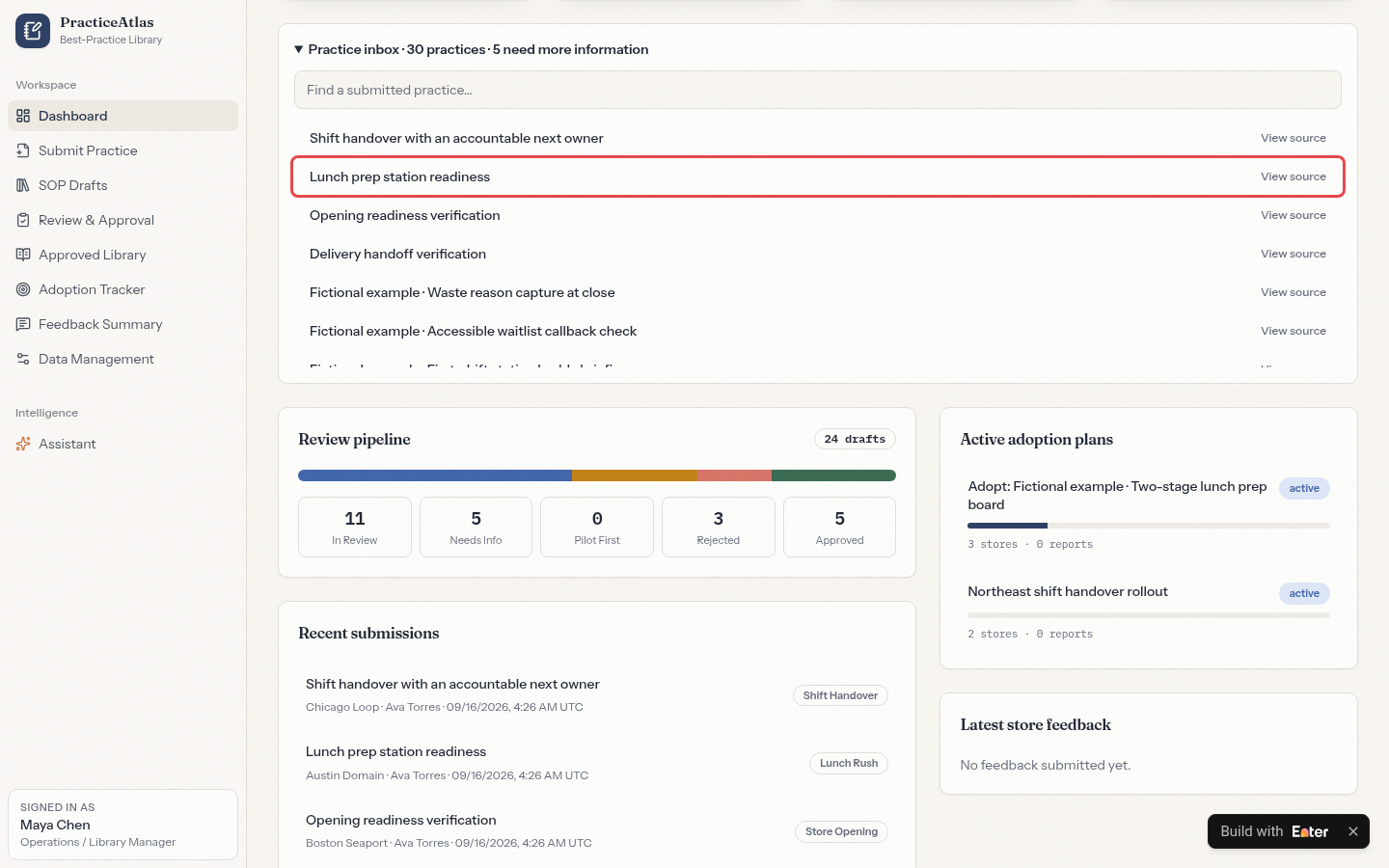
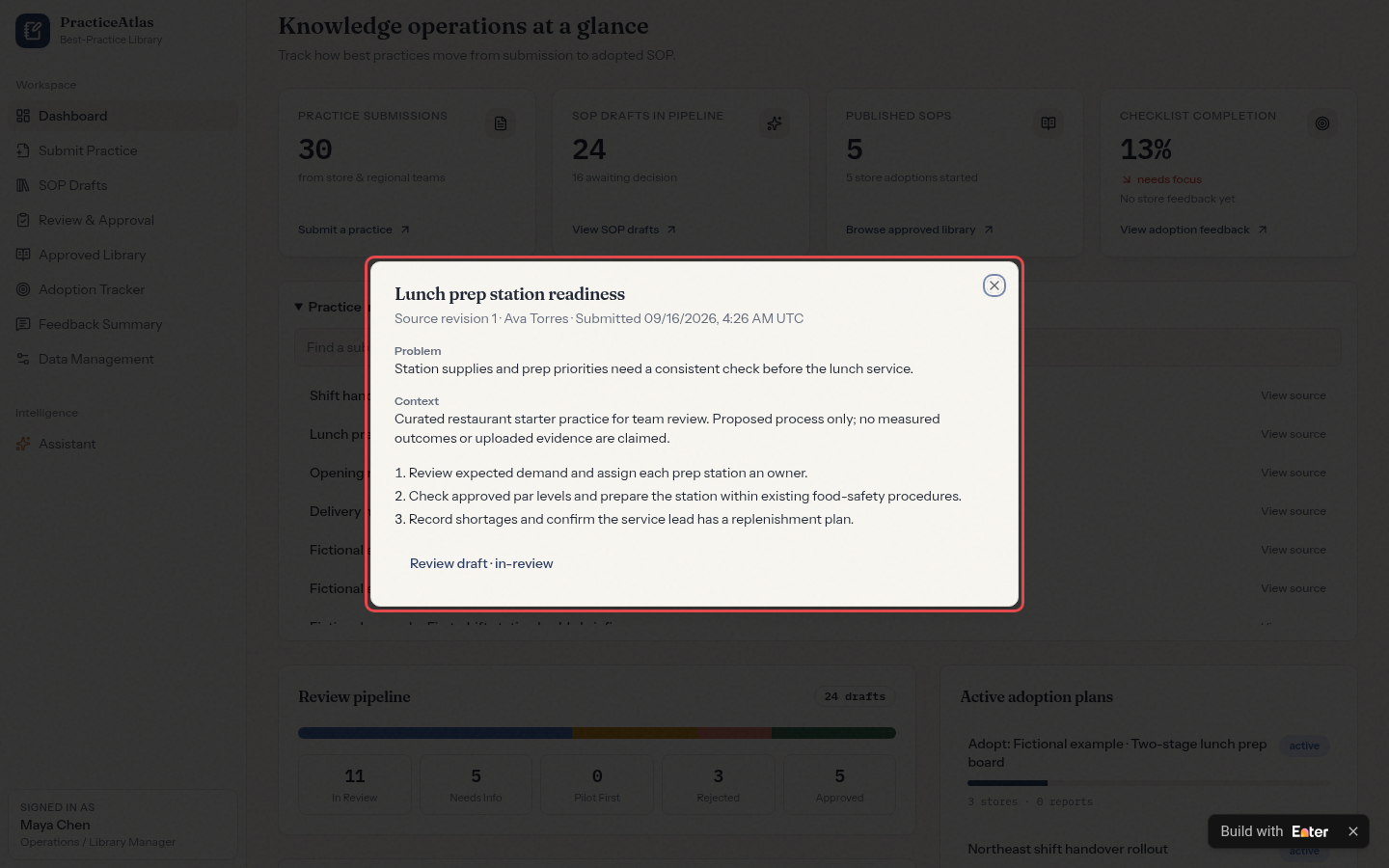
Check the source record. Ava Torres submitted it on 09/16/2026 to address the lack of a consistent pre-lunch check for station preparation and prep priorities. It has three steps: assign a station owner based on expected traffic; prepare each station against approved par levels within existing food-safety procedures; and log shortages while confirming that the service lead has a replenishment plan. The submission includes neither measured results nor attached evidence.
4.2 Inspect the SOP draft
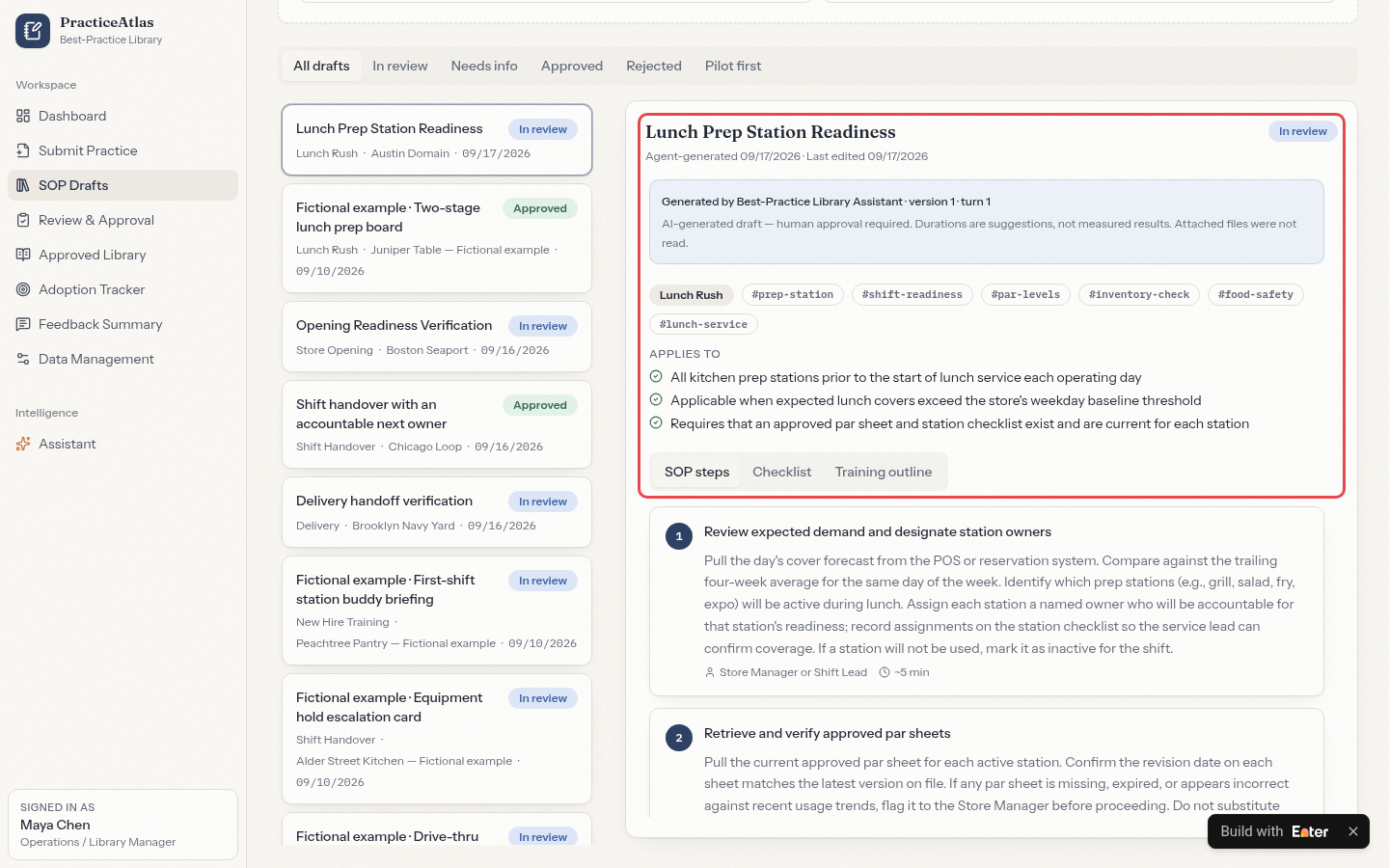
Open Lunch Prep Station Readiness in SOP Drafts. Best-Practice Library Assistant generated version 1. The page identifies it as an AI draft requiring human approval and says timings are suggestions only. It includes SOP steps, Checklist, and Training outline.
4.3 Check the review state
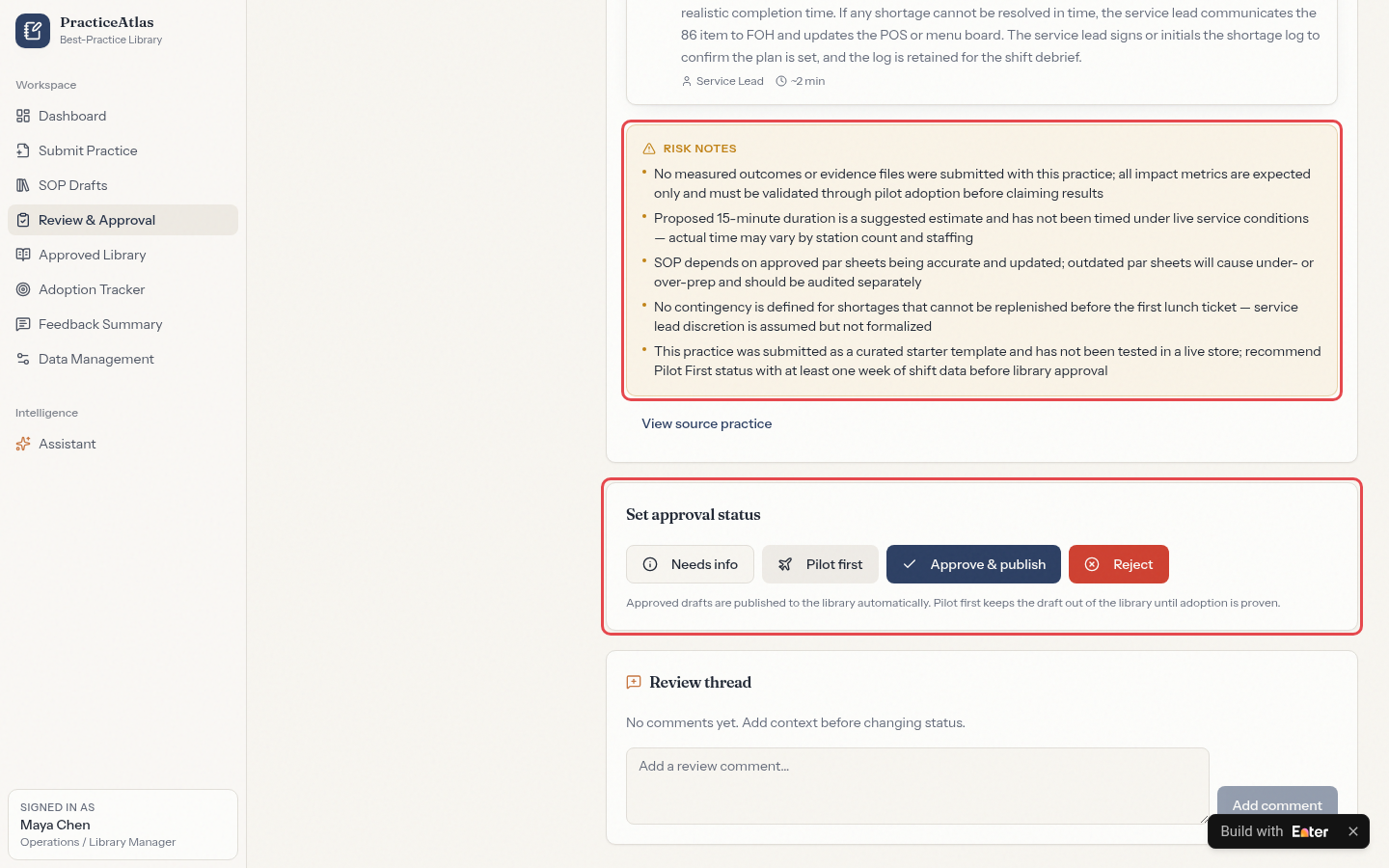
Open the draft in Review & Approval. Its status is In review. RISK NOTES state that there are no measured results and the suggested 15-minute duration has not been validated during actual service; they recommend a pilot of at least one week. The reviewer can choose Needs info, Pilot first, Approve & publish, or Reject. This example remains in review.
Step 5: Refine the interface and test with your team
Operations needs to see submitted practices and review progress; stores need to know whether their ideas are being used. In Preview, choose Select to Edit to enter Visual Edit and organize the submission, draft, and review states.
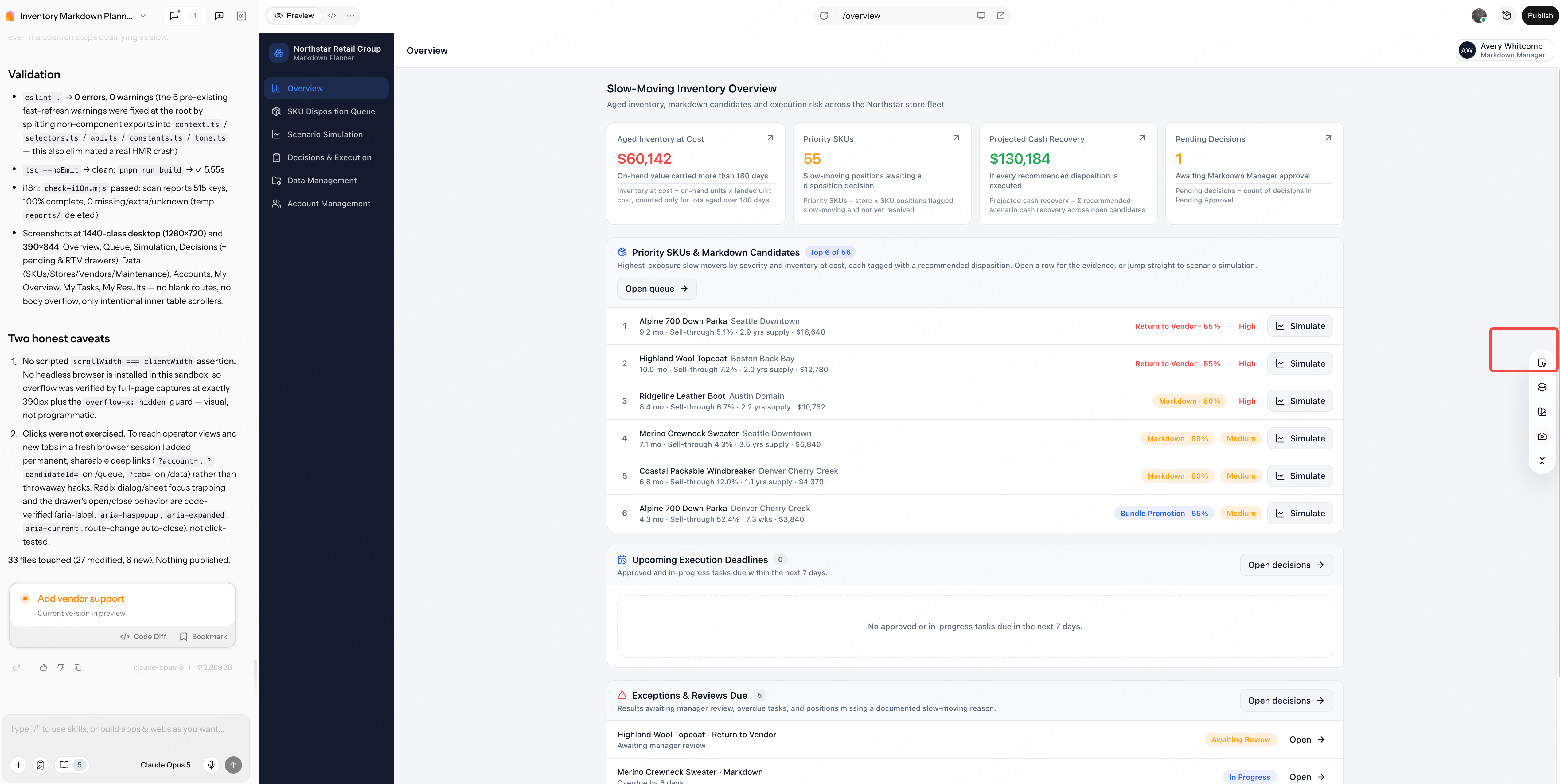
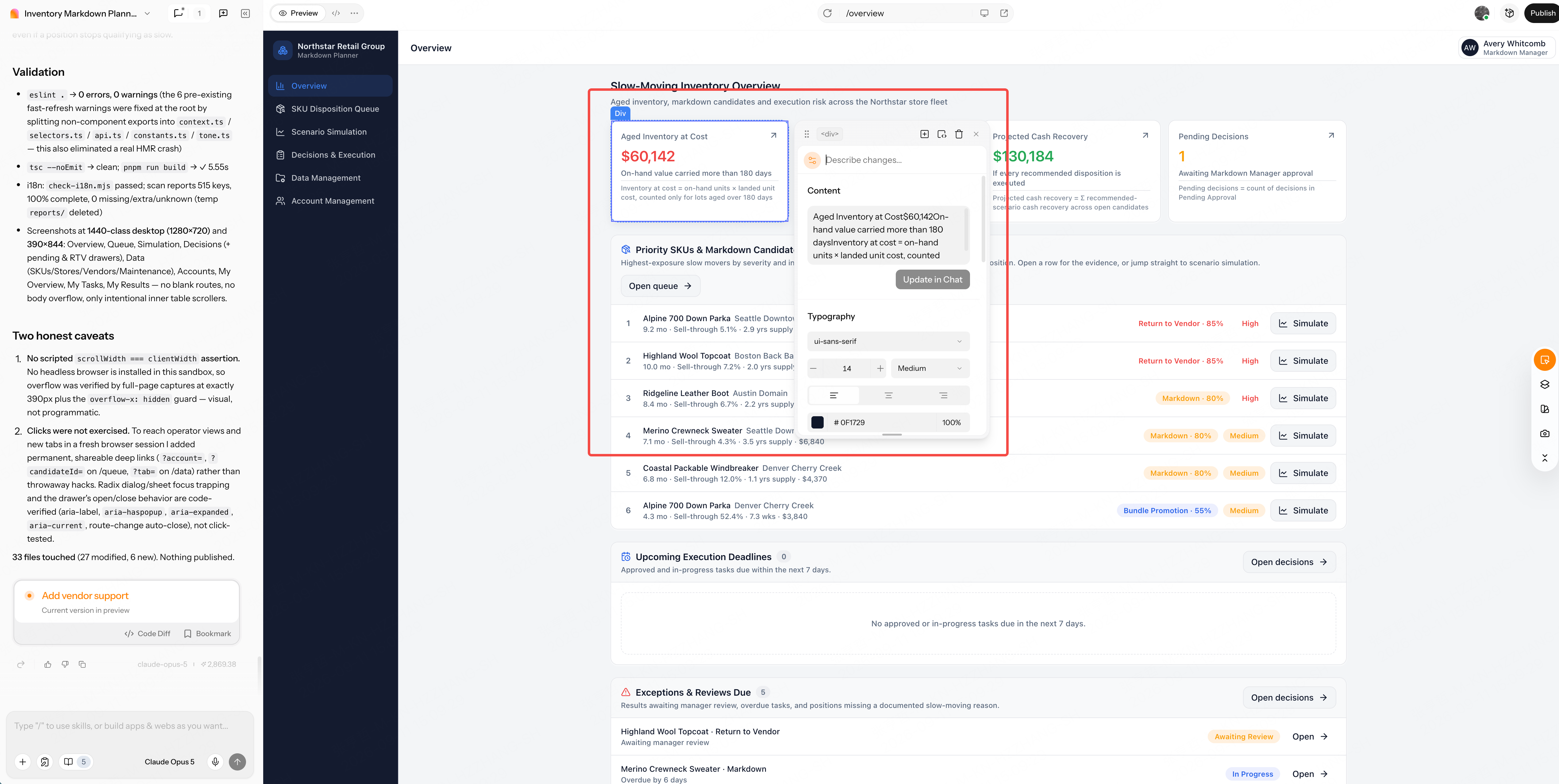
Select Knowledge operations at a glance and adjust the title through Content and Typography. Make drafts awaiting review and store adoption progress easier to find.
Desktop should support draft review, while stores should be able to read SOP steps and checklists on mobile. After using Publish, share the link with operations and store managers. Ask them to submit one of their own practices and inspect its AI draft, review feedback, and adoption feedback.
Copy the starter prompt
Before copying: Adapt practice categories, submission fields, reviewer responsibilities, and publishing rules to your actual process. Be explicit about who approves AI drafts and when a pilot is required. Adjust the region and interface language for your team.
Create a Best-Practice SOP Library in Enter for a U.S.-based multi-unit restaurant group. Help operations teams turn store-level practices into reviewed SOPs, publish them to a shared library, and track whether stores actually adopt them.

[TARGET USERS]
- Store Manager / Shift Lead: Submit practices with steps, materials, time required, expected impact, and evidence, and report adoption feedback.
- Operations / Library Manager: Review submissions and AI-generated SOP drafts, decide the approval status, publish SOPs, and run adoption plans.
- Regional Manager: Review practices from their stores and follow adoption in their region.
- Administrator: Manage categories, templates, stores, users, and access.

[CORE WORKFLOW]
1. Collect each practice with title, category, store, owner, problem, context, steps, materials, time required, impact metrics, and evidence files. Flag incomplete submissions as Needs info.
2. Let an AI assistant draft an SOP, checklist, and training outline from the submission and an optional template. Label the draft as AI-generated, list risk notes, and never invent measured results.
3. Let reviewers choose Needs info, Pilot first, Approve & publish, or Reject with comments. Only approved drafts are versioned and published to the library.
4. Create adoption plans for published SOPs with target stores, an owner, checklist completion, and store feedback. Summarize blockers, success stories, and revision signals.

[CORE PAGES]
- Dashboard: Submissions, drafts in the pipeline, published SOPs, checklist completion, practice inbox, review pipeline, and active adoption plans.
- Submit Practice: Structured submission form with evidence upload.
- SOP Drafts and Review & Approval: Draft detail with SOP steps, checklist, training outline, risk notes, approval status, and review thread.
- Approved Library: Published SOPs with version, category, and adoption count.
- Adoption Tracker and Feedback Summary: Plan progress by store, report coverage, ratings, blockers, and suggested revisions.
- Data Management: Imports, templates, categories, users, and access.

[DATA AND BUSINESS RULES]
- Use stable IDs to link submissions, drafts, revisions, reviews, published versions, adoption plans, stores, and feedback.
- Keep every draft linked to its source submission; editing creates a new revision instead of overwriting history.
- AI-generated durations and impacts are suggestions until a pilot records measured results; attached files are not treated as read unless they are processed.
- Only reviewers with approval rights can publish. Pilot first keeps a draft out of the library until adoption is proven.
- Report coverage counts stores that submitted feedback; stores without reports are unknown, not successful.
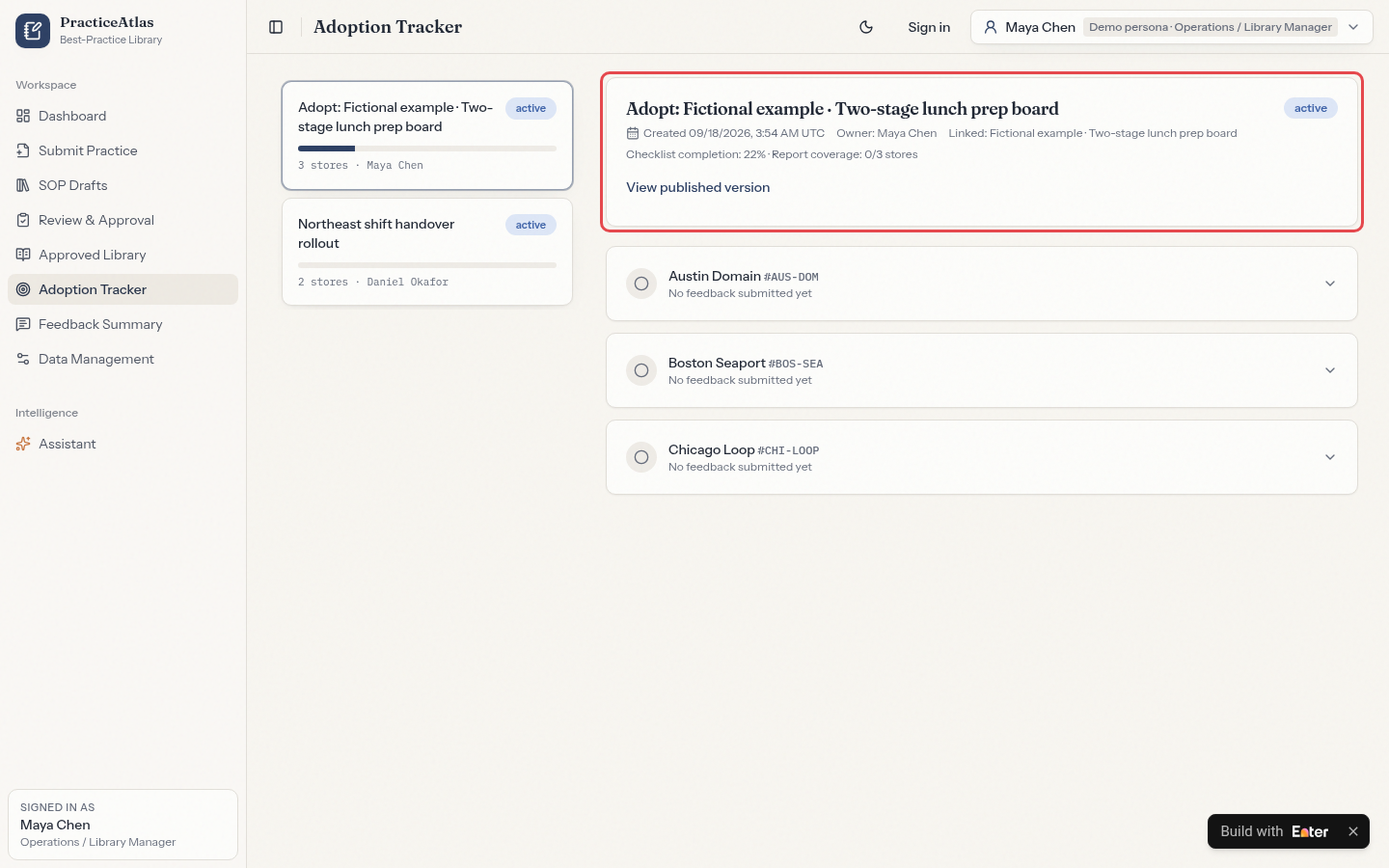
- Include a demo case: "Lunch prep station readiness" submitted by Ava Torres from Austin Domain on 09/16/2026. Its AI-generated draft (version 1) is In review; the risk notes say no measured outcomes exist and the 15-minute duration is untested, so they recommend Pilot first with at least one week of shift data. A separate published SOP, "Two-stage lunch prep board" v1.0, has an active adoption plan in 3 stores with 22% checklist completion and 0 of 3 store reports.

[VISUAL DIRECTION AND DELIVERABLES]
- Use a calm knowledge-workspace style with readable SOP steps, clear status badges, and visible links between source, draft, and library.
- Support desktop and mobile so store teams can submit practices and follow checklists on the floor.
- Use labelled demo data with consistent IDs and dates and U.S. date conventions.
- Deliver a publishable demo with one traceable path from store submission to review decision.

Before building, provide a requirements summary, missing information, page architecture, data model, review and publishing rules, role permissions, state transitions, and acceptance criteria. Do not begin generating pages yet.
WORKFLOW 05 / 05Follow headquarters updates through store execution, escalation, and verification
The business problem: Did stores carry out the headquarters request?
Headquarters sends stores new SOPs, training, marketing materials, and corrective actions every week. Operations needs to know whether each store received the request, acted on it, and had the result verified. Stores also need a way to report blockers and get the right person to resolve them.
Headquarters needs to establish more than whether a notification was sent:
- An allergen-labeling SOP goes to 24 stores. Chat read receipts do not make it easy to identify stores that have not opened it or are already overdue.
- A store reports “complete” but supplies no photos or records. If its manager has not verified the work, the task should not contribute to completion.
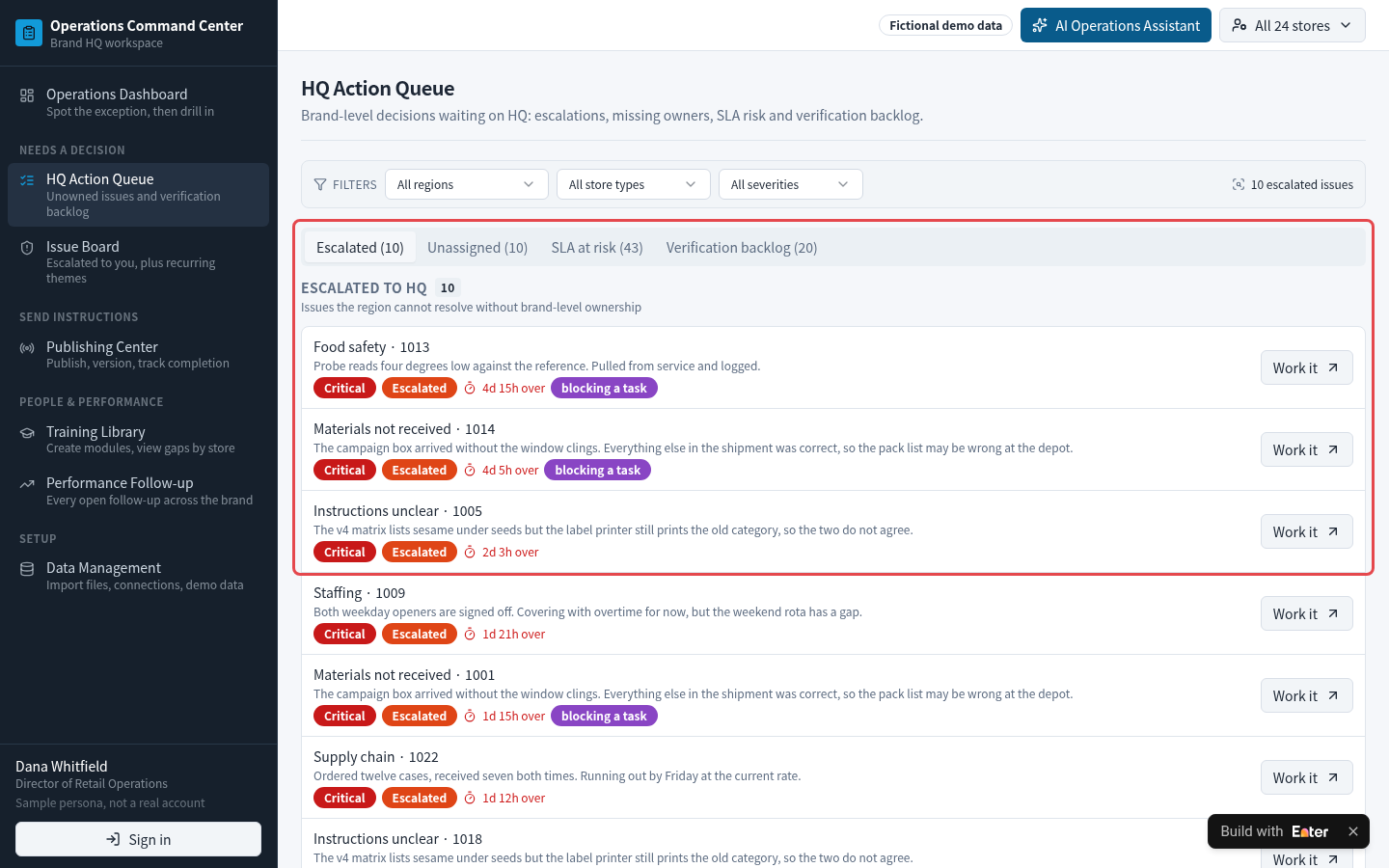
- The label printer still uses the old categories, blocking execution. The store reports the problem to its region, but nobody takes ownership within the response deadline. The task remains overdue.
Use Enter to bring headquarters publishing, store execution, manager verification, and issue escalation into one place. Trace each request to the store, its evidence, and its owner.
Build the workflow
Step 1: Map the business workflow
Help headquarters see how far each request has progressed and help stores get someone to take ownership of blockers. Connect the process in this order:
- Publish the request. Headquarters issues an SOP, training requirement, or marketing instruction, creating per-store tasks with deadlines and evidence requirements.
- Execute and verify. Stores acknowledge receipt, carry out the steps, and upload evidence. A task counts as complete only after manager verification; incomplete evidence can be returned.
- Escalate and follow up. Stores report blockers, which are assigned by severity and response deadline. Issues the region cannot resolve escalate to headquarters.
The tool needs to show each store's progress, blockers, and issue owner, as well as whether the notification went out.
Case file: Upload the business input brief below, or use your own data.
↗ Open case input · 05-store-execution-input.txtStep 2: Generate the first version
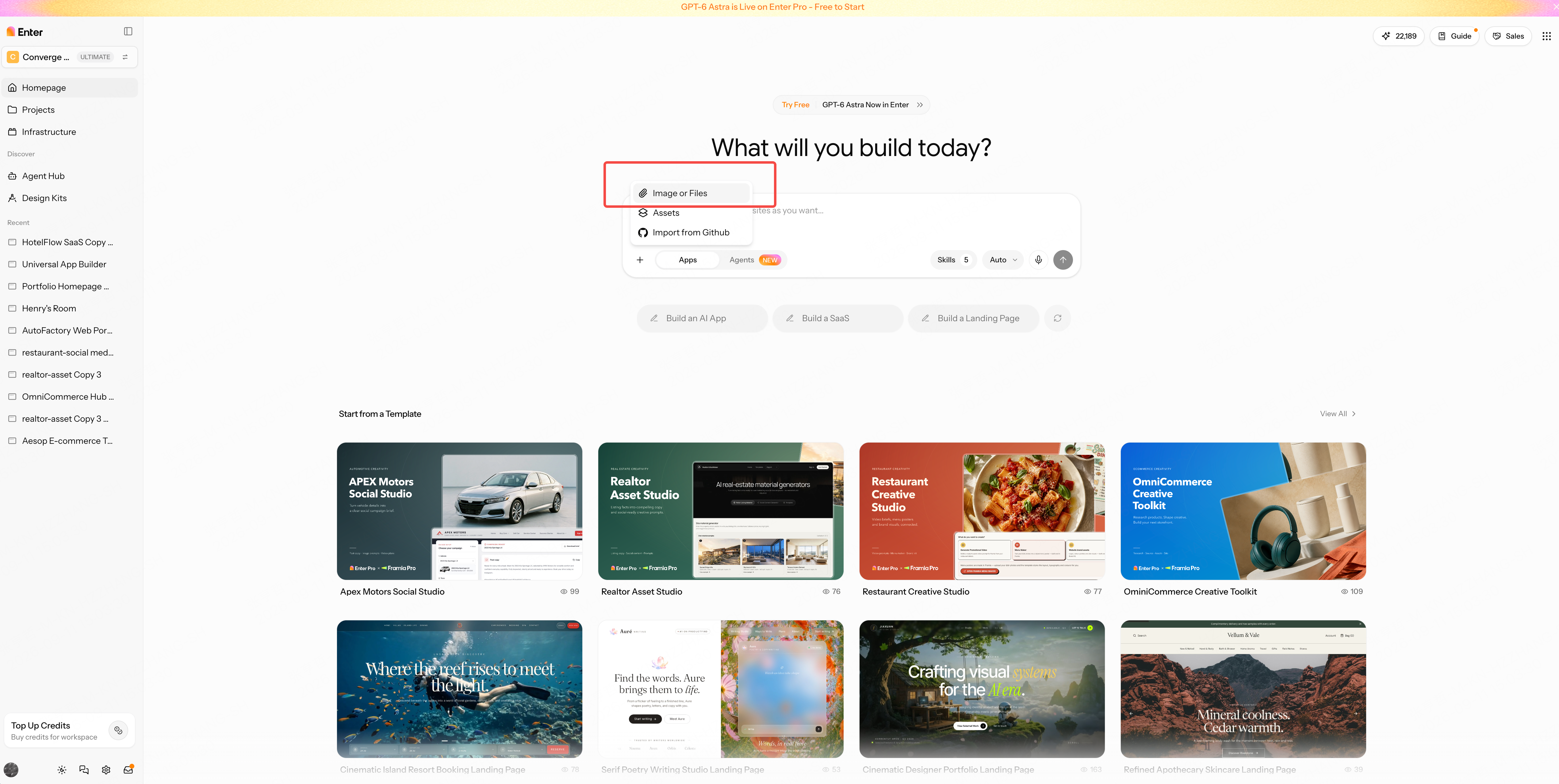
Open the Enter homepage, choose New Project, and use the “+” beside the input box to upload your business files.
Copy and submit the first-round prompt at the end of this scenario. Enter first proposes a build plan. Review and confirm it, then click Build Now to generate the first version.
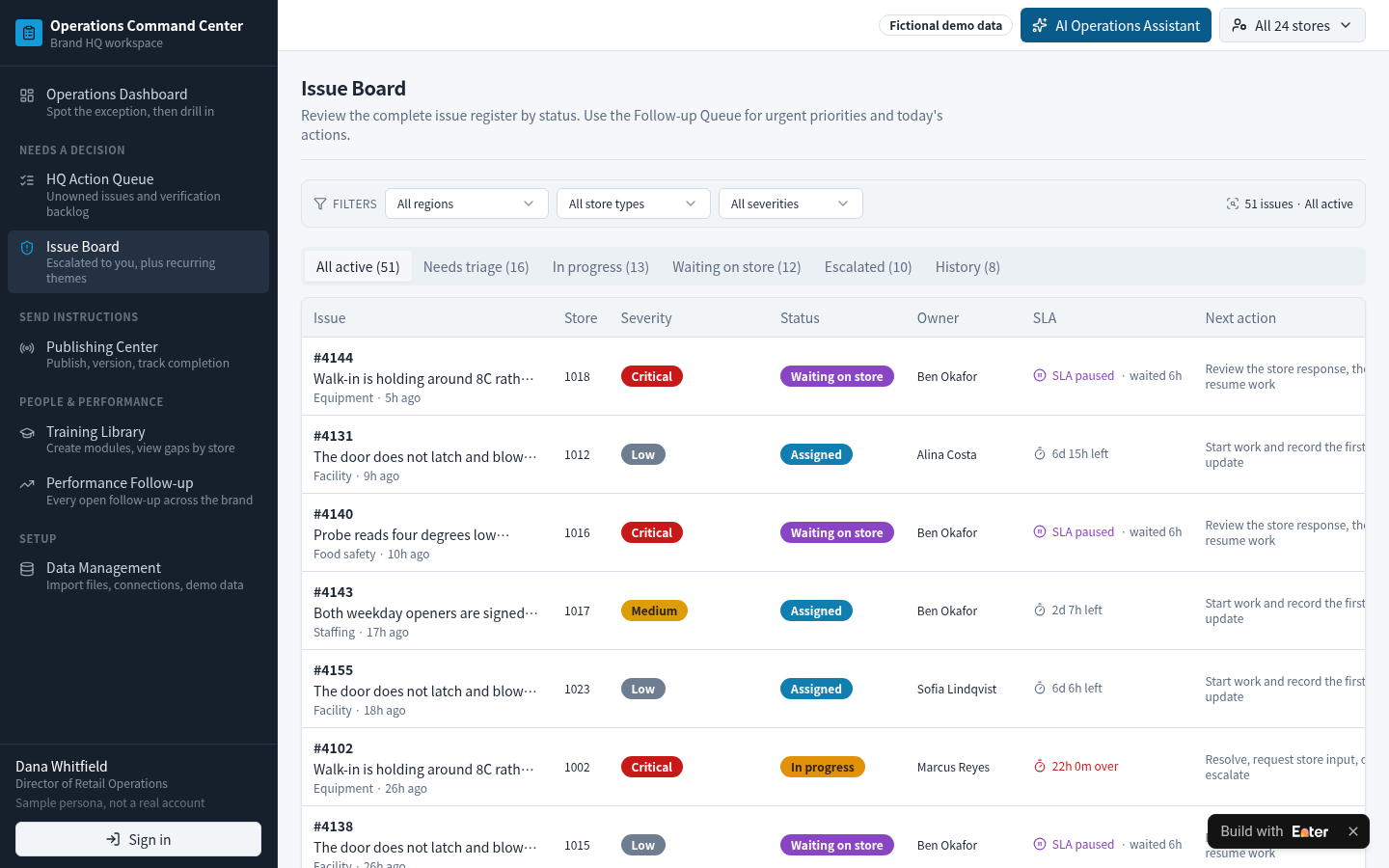
Step 3: Refine the business rules
Headquarters needs to know whether instructions were carried out. Stores need clear tasks and a contact when they cannot proceed. Regional managers need to verify execution and handle escalations. Refine publishing, verification, and escalation so all roles work around the same request.
3.1 Create a task for each store
Posting an SOP update in a group chat can make it appear that every store has received it. Yet nobody can immediately say which store has not opened it or has missed the deadline.
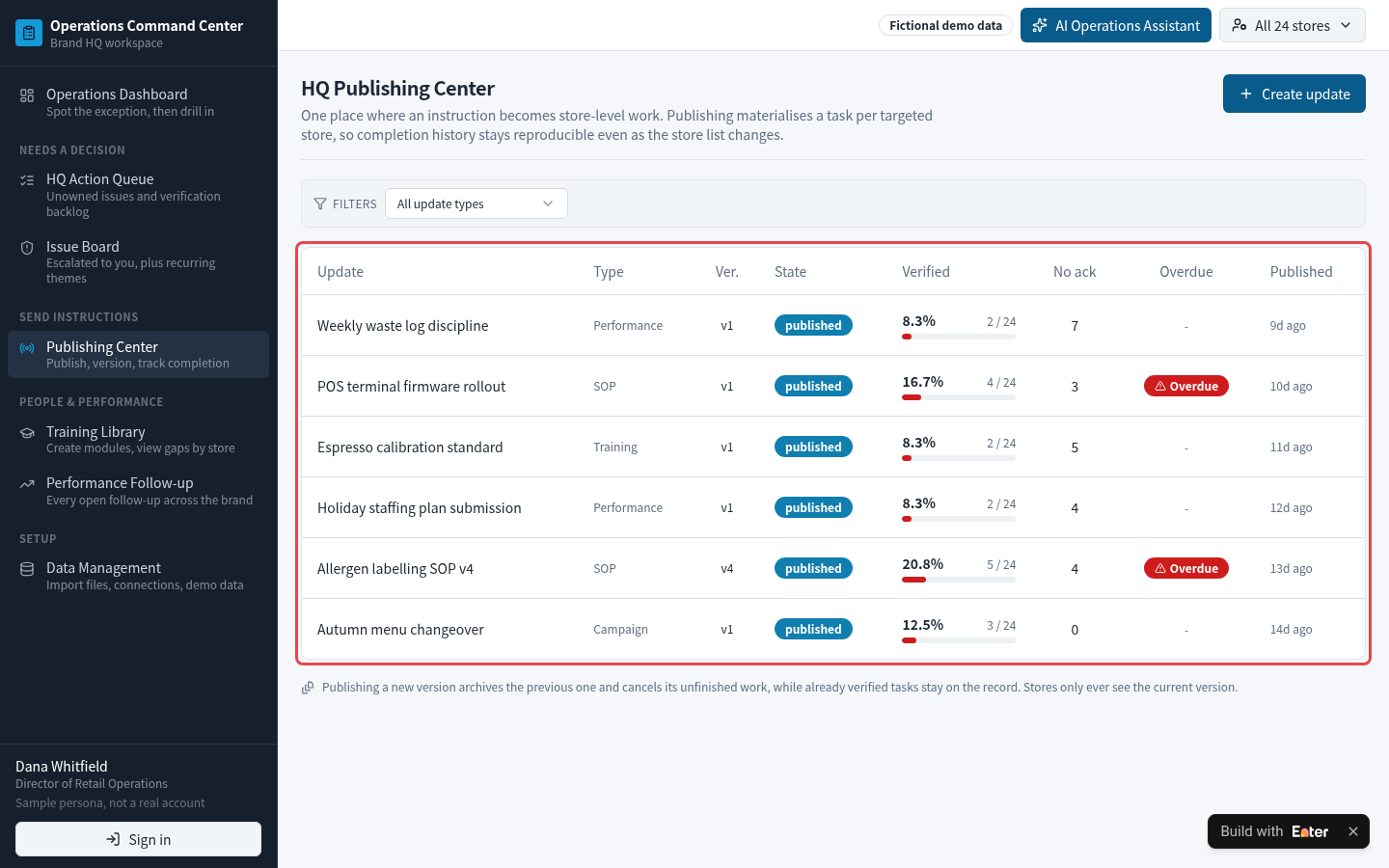
On publication, generate per-store tasks that record acknowledgment, steps, evidence, and deadlines. Determine overdue status in each store's local time zone. When publishing a new version, archive the previous one, cancel unfinished old tasks, and retain verified records. Stores should see only the current version. Substitute your own store coverage, task types, and deadline rules.
When HQ publishes an SOP, training, or campaign update, create one task per targeted store with acknowledgement, steps, required evidence, and a due time in the store's local timezone.
Publishing a new version archives the old one and cancels its unfinished tasks, but keeps verified history. Stores only see the current version.
Expected output: Headquarters can inspect acknowledgment, verification, and overdue status for each update by store. After a version update, stores no longer execute against the old version.
3.2 Verify the work stores submit
Clicking “complete” does not establish that a store met the requirement. Posting the new allergen matrix at every prep station and obtaining staff acknowledgment both require evidence.
Separate completion into two stages: the store submits its steps and evidence, then a manager verifies the work. The manager can return incomplete evidence. Count only verified tasks in completion, and exclude canceled tasks from the denominator. Adapt evidence requirements and verifier responsibilities to your team.
Let stores acknowledge, complete steps, upload evidence, and submit for manager verification. Managers can verify or return a task with a reason.
Count only verified tasks in completion rates, exclude cancelled tasks from the denominator, and show missing evidence by store.
Expected output: Store states distinguish awaiting acknowledgment, in progress, submitted, verified, and returned. Only verified tasks contribute to the completion rate.
3.3 Escalate store issues to an owner
A store may be unable to proceed because its label printer still uses the old categories. If someone merely mentions this in chat and nobody takes ownership, the issue can linger and the task stays overdue.
Require each issue to include its category, impact, and requested support, with severity, owner, and response deadline. Pause the timer while waiting for the store's reply; escalate to headquarters when the deadline passes without action. Mark tasks blocked by the issue and extend their deadlines accordingly. Substitute your team's severity levels, response deadlines, and escalation path.
Let stores raise issues linked to a task, with category, affected area, and requested support. Assign severity, an owner, and an SLA clock that pauses while waiting on the store.
Escalate to HQ when no regional owner acts within the SLA, and mark linked tasks as blocked instead of overdue.
Expected output: Every issue has a severity, owner, and response deadline. Issues the region cannot resolve reach the headquarters queue rather than stalling in chat.
Step 4: Verify the case
Use an allergen-labeling SOP to inspect store execution, an escalated issue, and manager verification. In the demo, select Dana Whitfield (Director of Store Operations) and open Allergen labelling SOP v4.
4.1 Check rollout progress
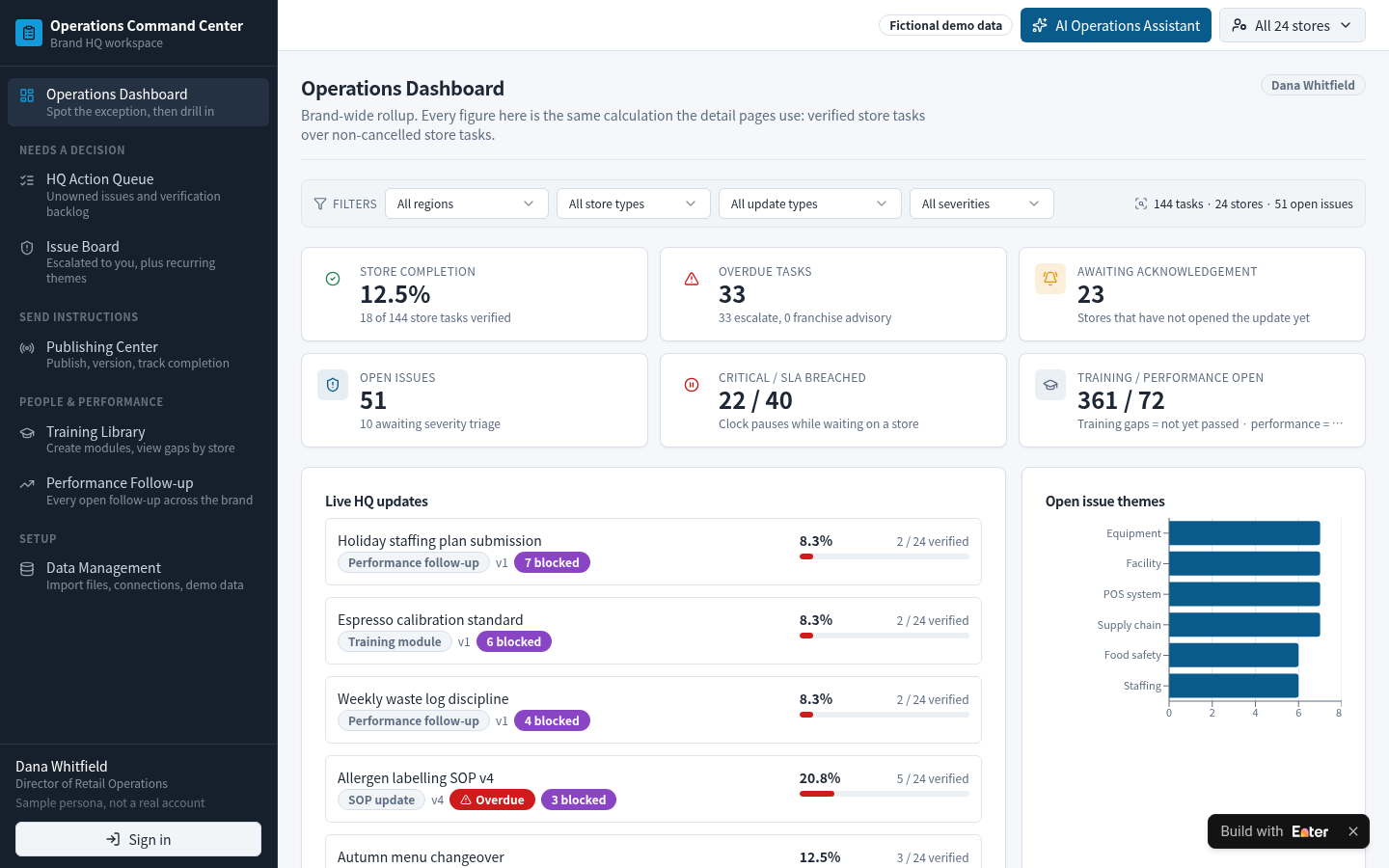
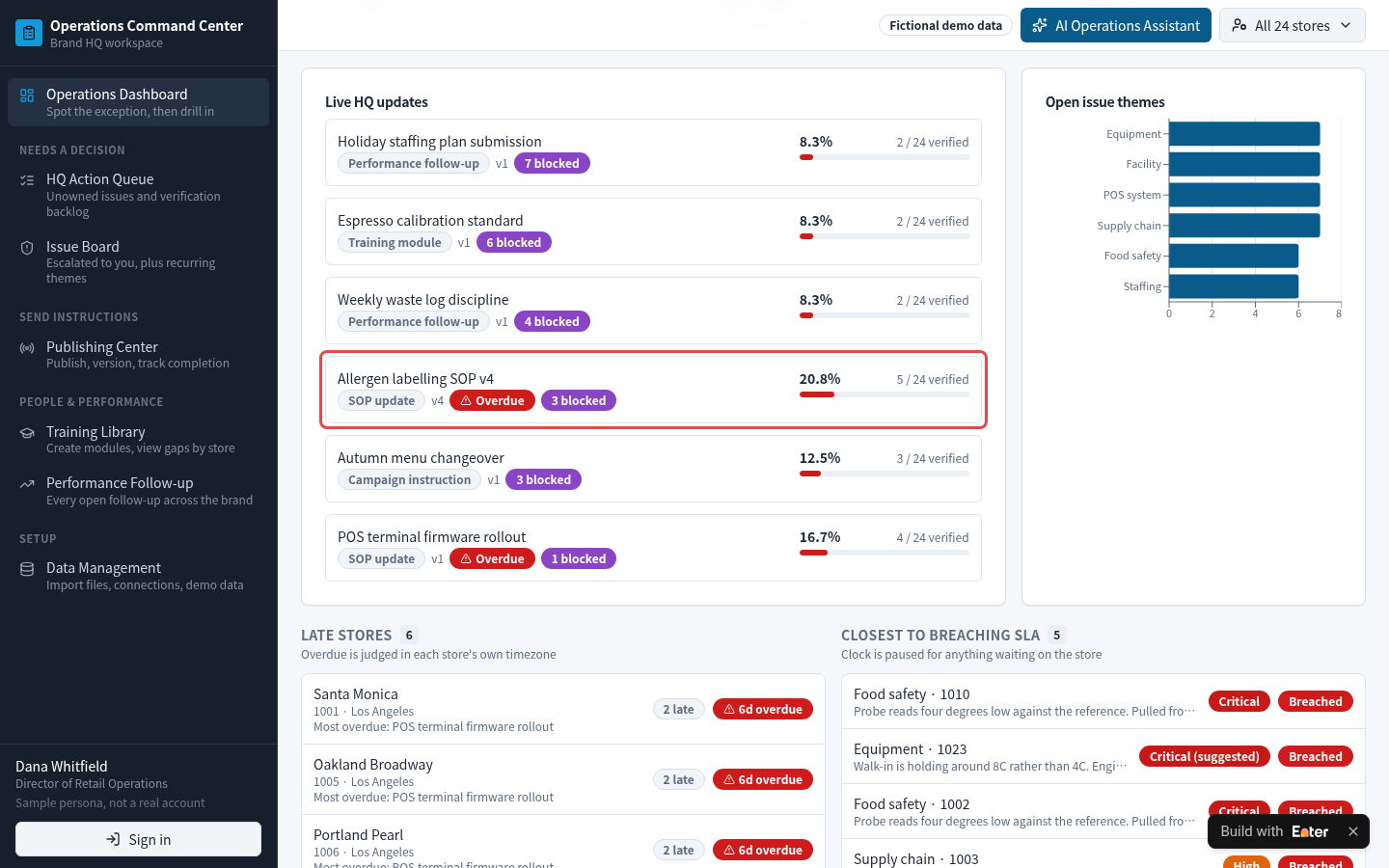
Find Allergen labelling SOP v4 under Live HQ updates on Operations Dashboard. It shows 5/24 verified (20.8%), status Overdue, and 3 stores blocked by issues.
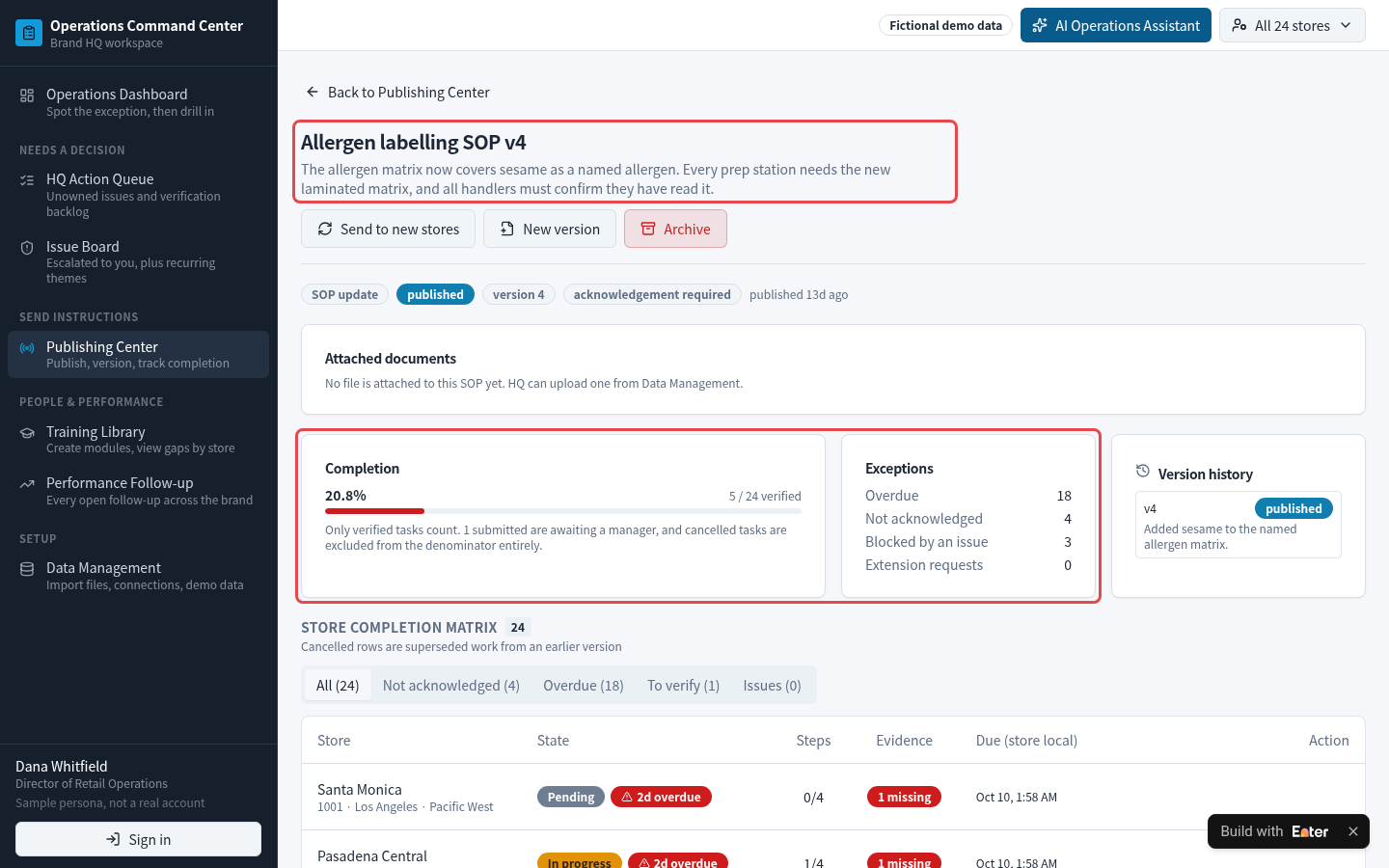
Open the update in Publishing Center. Version v4 makes sesame a separate allergen and requires the new allergen matrix at every prep station, plus acknowledgment from every food-handling employee. The exception counts show 18 stores overdue, 4 unacknowledged, and 3 blocked by issues.
4.2 Inspect a store's blocker
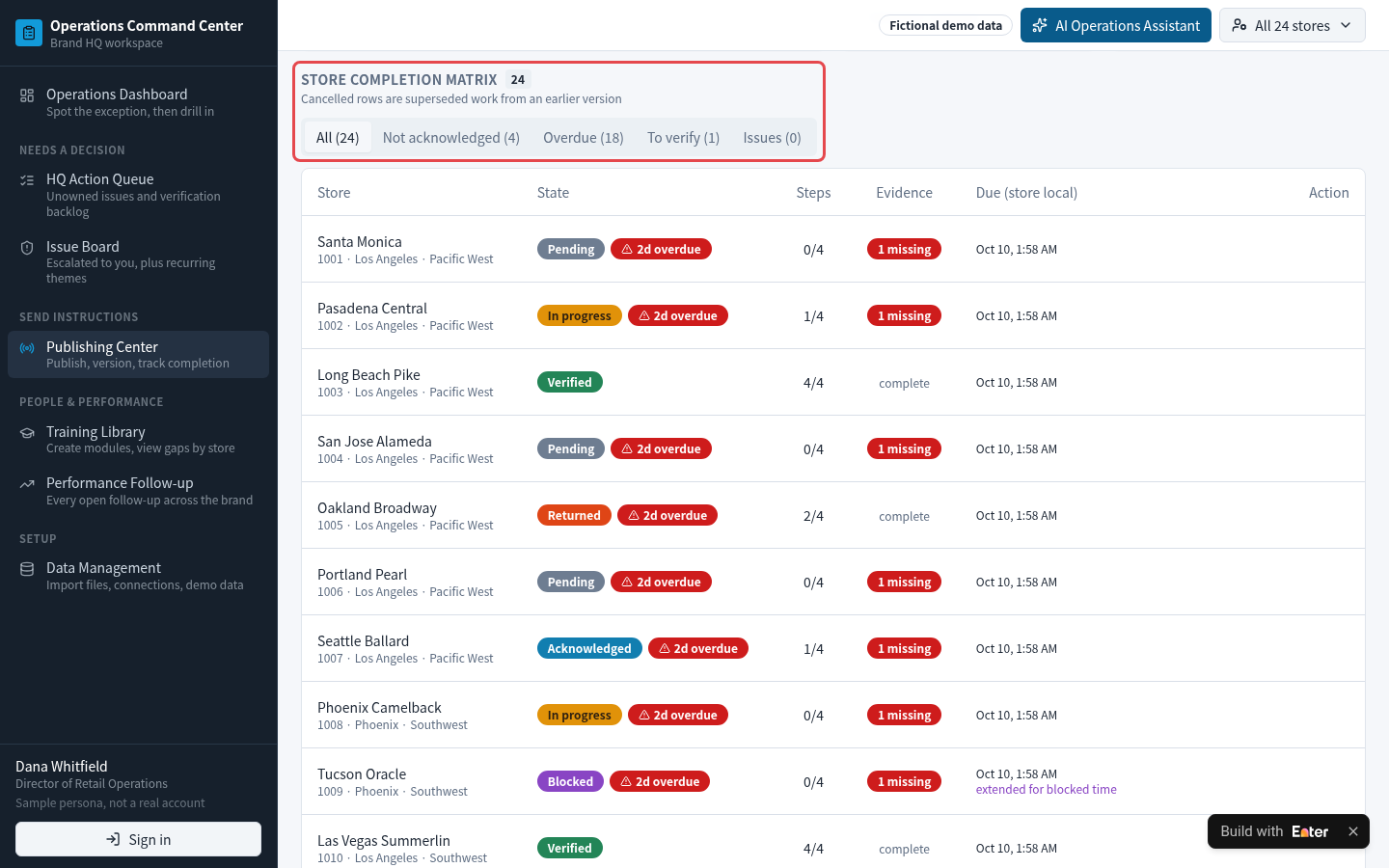
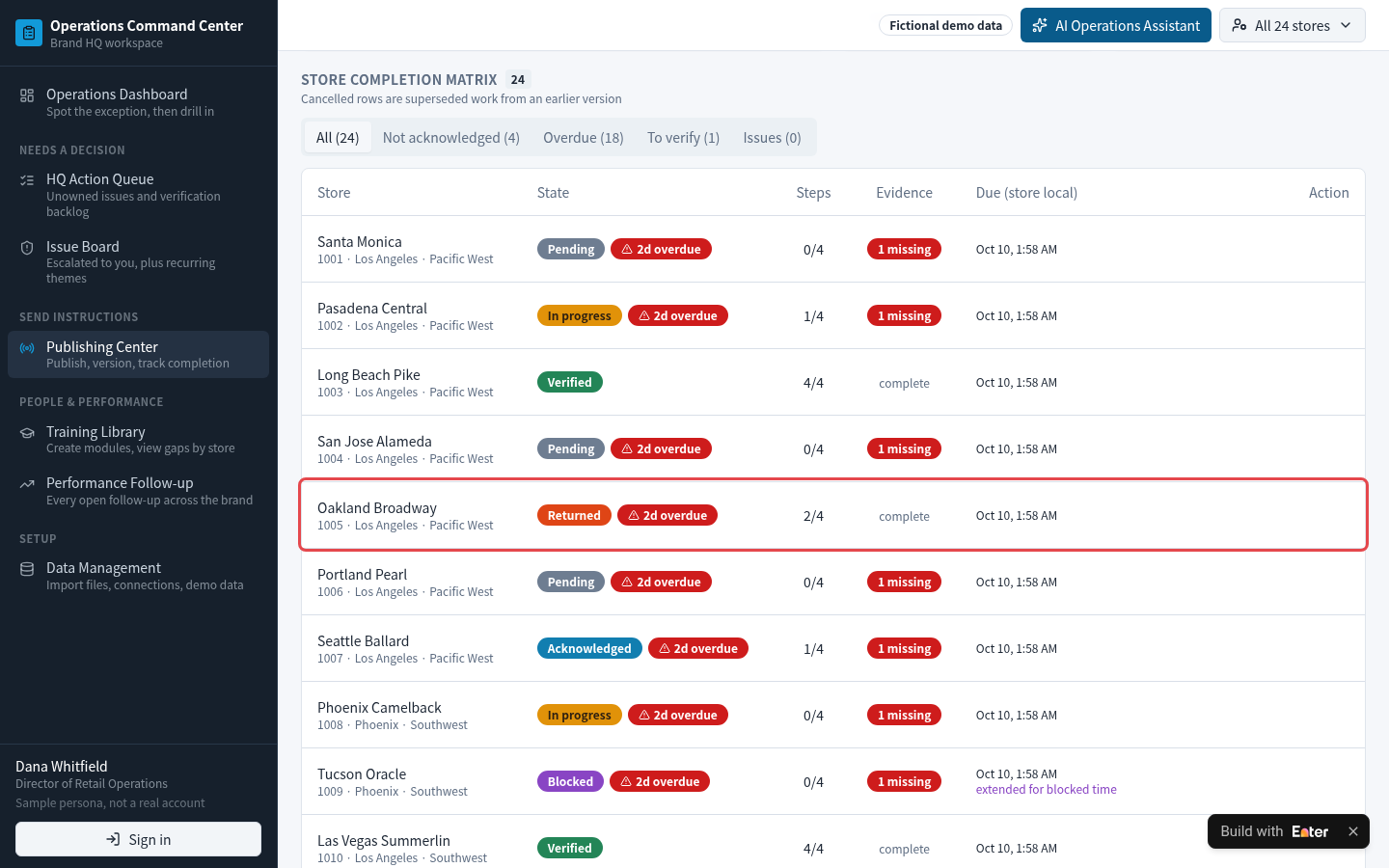
Find Oakland Broadway (1005) in Store completion matrix. Its task is Returned and overdue, with 2 of 4 steps complete.
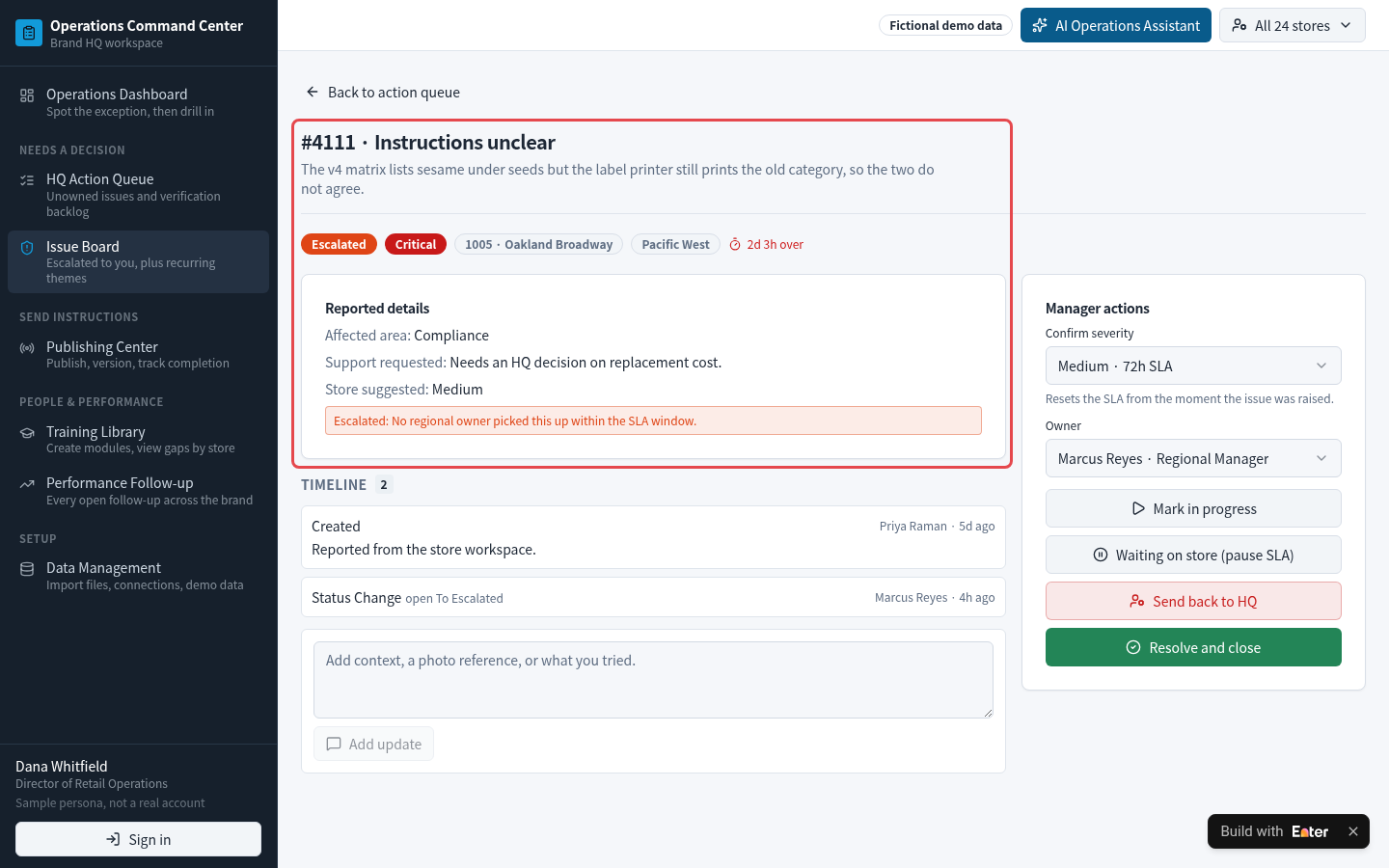
Open that store's issue #4111 (Instructions unclear) in HQ Action Queue. The v4 matrix groups sesame under seeds, while the label printer still prints the old categories. Severity is Critical. Nobody in the region took ownership within the response deadline, so the issue has escalated to headquarters. The store asks headquarters to decide on replacement costs.
4.3 Inspect a submission awaiting verification
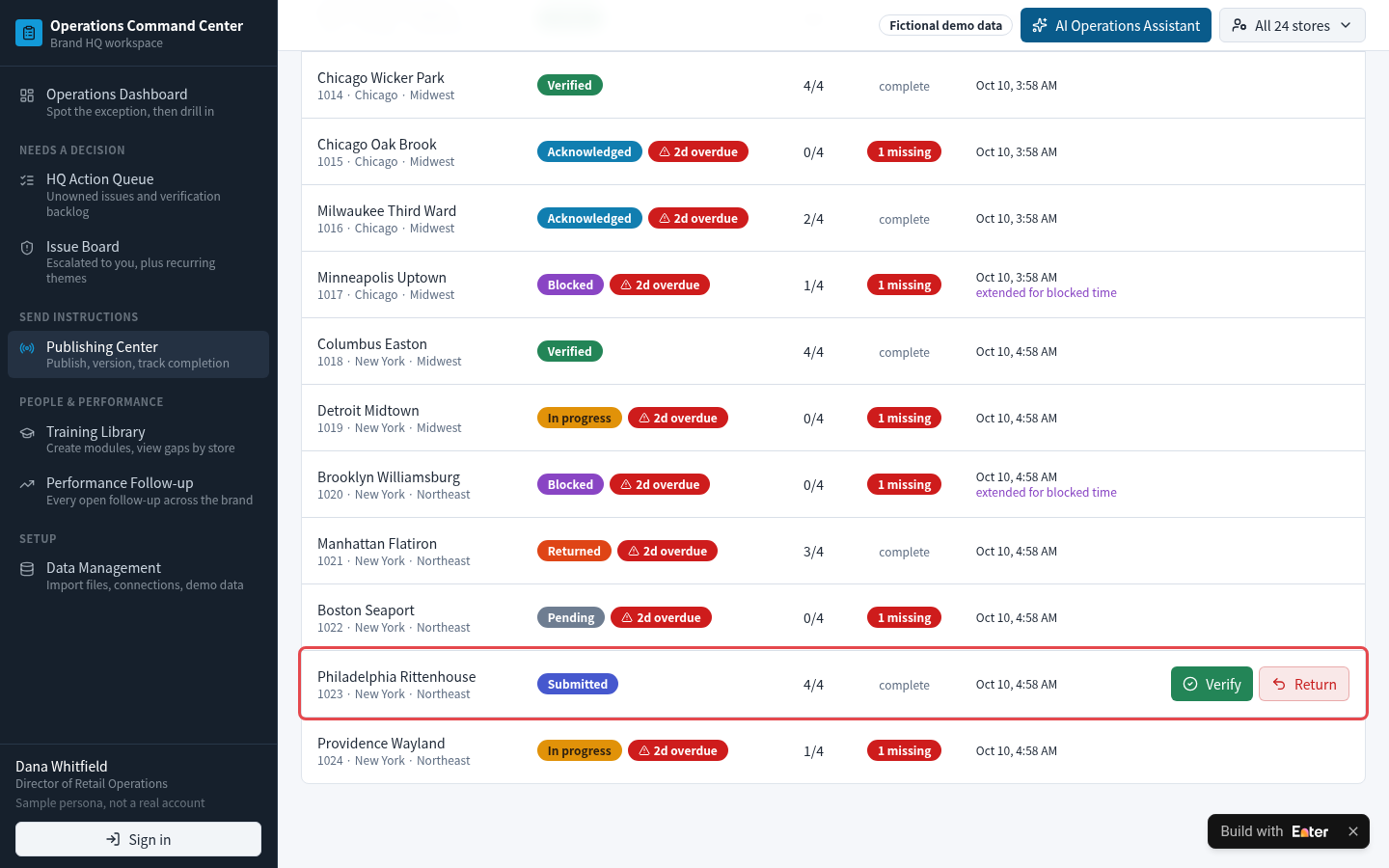
Return to Store completion matrix and find Philadelphia Rittenhouse (1023). All 4 steps and the evidence are Submitted, awaiting the manager's choice to Verify or Return. Before verification, this store does not contribute to the 20.8% completion rate.
Step 5: Refine the interface and test with your team
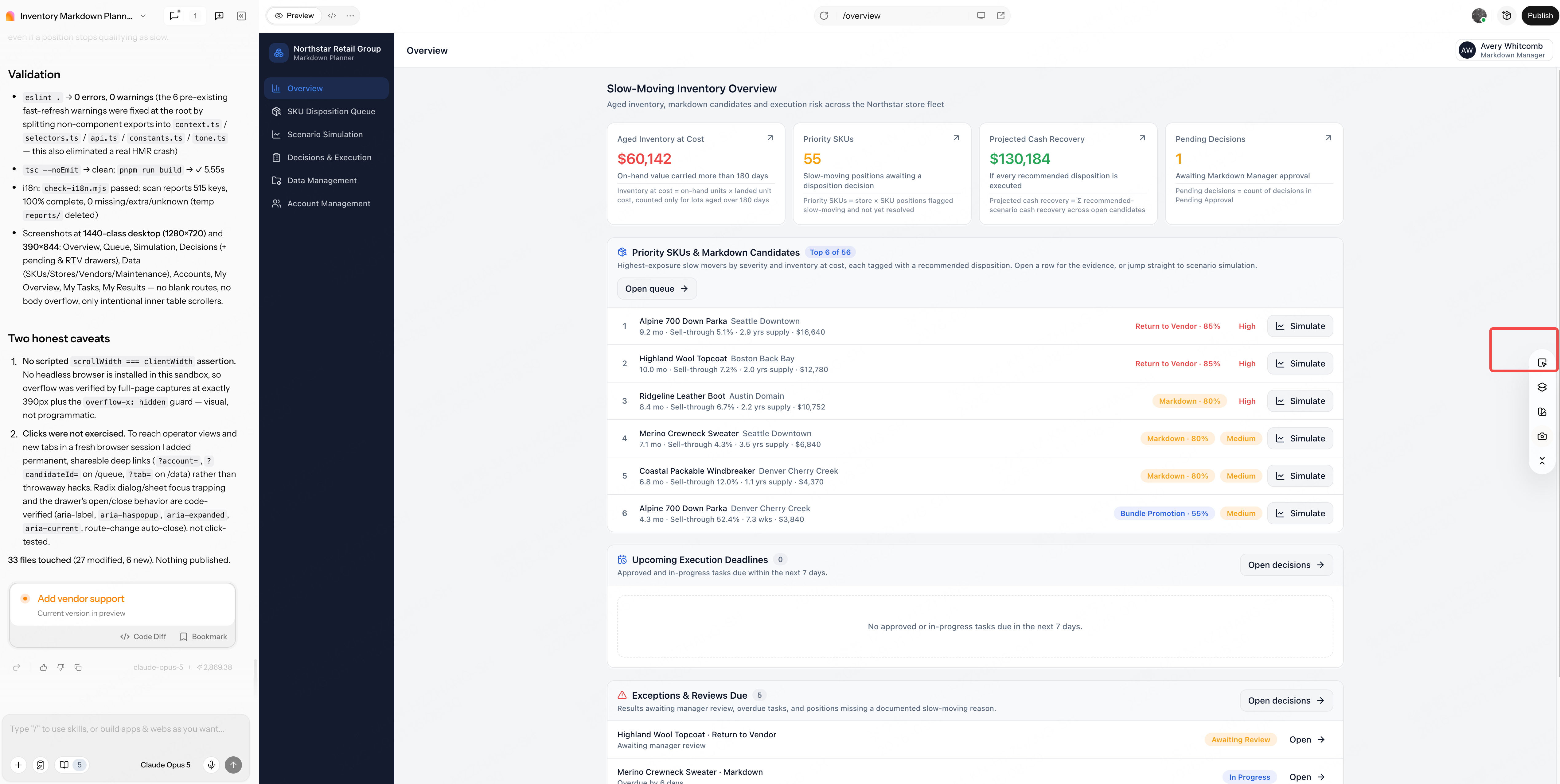
Make verified stores, stores awaiting verification, and stores blocked by issues easy to distinguish. In Preview, choose Select to Edit to enter Visual Edit and organize titles and text hierarchy.
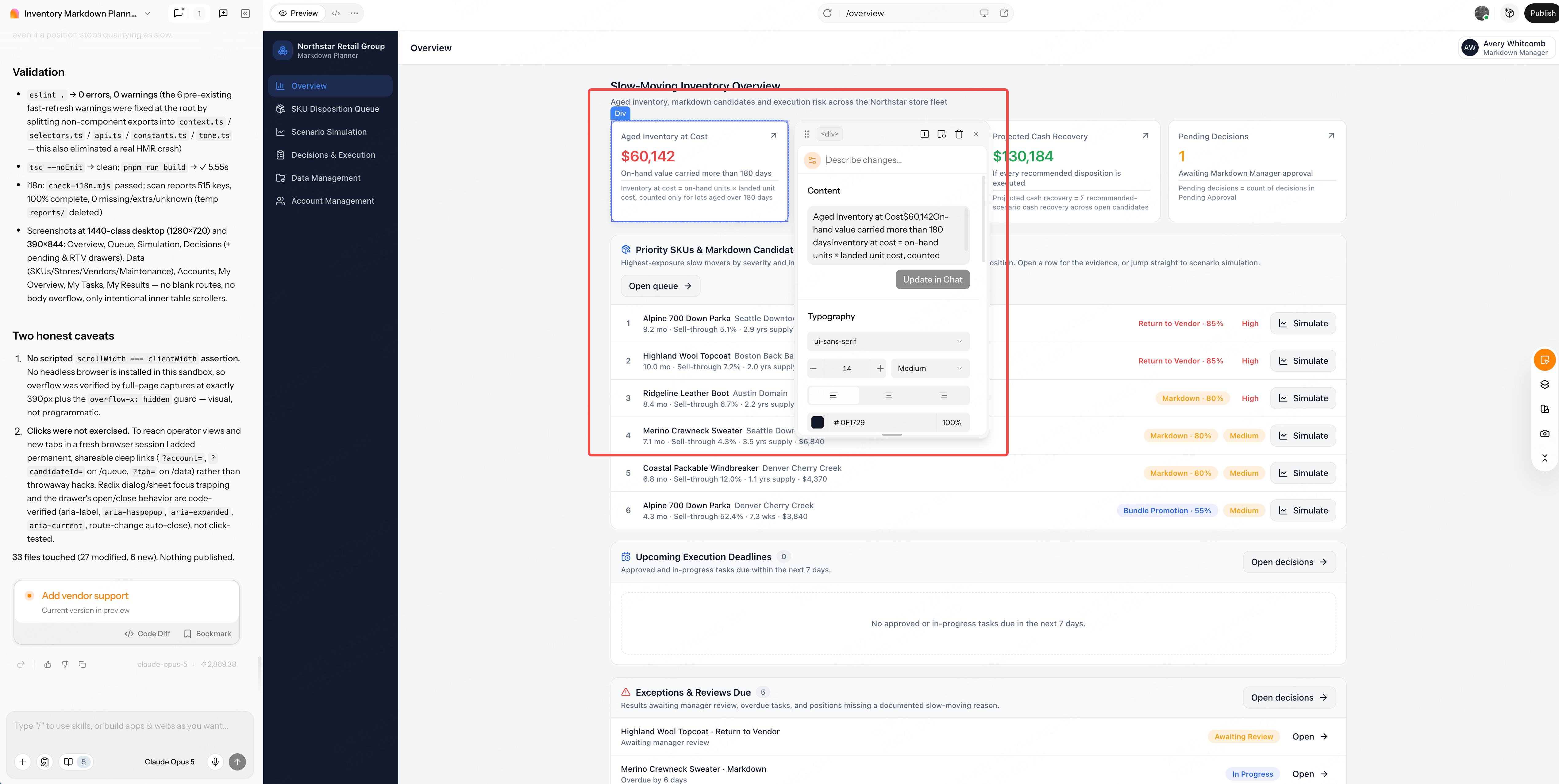
Select Operations Dashboard and adjust copy and font sizes through Content and Typography. Highlight overdue and escalated work, rather than simply enlarging the completion rate.
Once store states and issues are readable on desktop and mobile, use Publish to share the application with headquarters, regional managers, and store managers for a trial. Publishing releases the tool; stores still need to submit evidence and pass verification. The practical test is whether everyone can see each store's progress in the same place.
Copy the starter prompt
Before copying: Decide which request types headquarters will publish, which stores they cover, and how deadlines work. Then adapt evidence requirements, verification responsibilities, issue severity, and escalation deadlines. Replace Allergen labelling SOP v4 with your own case, and adjust region, time zones, and interface language.
Create a Multi-Store Operations Command Center in Enter for a U.S.-based restaurant brand with 24 stores. Help headquarters publish SOPs, training, and campaign instructions as store-level tasks, verify execution with evidence, and route store issues to an owner before they stall.

[TARGET USERS]
- Director of Operations (HQ): Publish updates, monitor completion and exceptions, and decide escalated issues.
- Regional Manager: Verify or return store submissions, own regional issues, and follow up on late stores.
- Store Manager: Acknowledge updates, complete steps, upload evidence, raise issues, and request extensions.
- Administrator: Manage stores, regions, timezones, users, data imports, and access.

[CORE WORKFLOW]
1. Publish an SOP update, training module, campaign instruction, or performance follow-up to selected stores. Create one task per store with acknowledgement, steps, required evidence, and a due time in the store's local timezone.
2. Let stores acknowledge, complete steps, upload evidence, and submit. Managers verify or return each submission with a reason.
3. Let stores raise issues linked to a task with category, affected area, and requested support. Triage severity, assign an owner, and run an SLA clock that pauses while waiting on the store.
4. Escalate issues to the HQ Action Queue when no regional owner acts within the SLA. Mark linked tasks as blocked and extend their due time for the blocked period.
5. Publishing a new version archives the previous one and cancels its unfinished tasks while keeping verified history; stores only see the current version.

[CORE PAGES]
- Operations Dashboard: Store completion, overdue tasks, awaiting acknowledgement, open issues, critical and SLA-breached issues, live HQ updates, and late stores.
- HQ Action Queue and Issue Board: Escalated, unassigned, SLA-at-risk, and verification-backlog items with next actions.
- Publishing Center: Updates, versions, store completion matrix, exceptions, and verification actions.
- Training Library and Performance Follow-up: Modules, assignments, quiz results, gaps by store, and open follow-ups.
- Data Management: Imports, connections, stores, users, and demo data.

[DATA AND BUSINESS RULES]
- Use stable IDs to link updates, versions, store tasks, steps, evidence, issues, SLA events, training assignments, and users.
- Completion = verified store tasks / non-cancelled store tasks. Submitted tasks do not count until verified.
- Judge overdue status in each store's own timezone; blocked time extends the due time, and waiting on the store pauses the SLA.
- AI assistance may summarize issues and draft follow-ups, but must not verify tasks, close issues, or change severity on its own.
- Include a demo case: "Allergen labelling SOP v4" adds sesame as a named allergen and requires a new laminated matrix at every prep station. Published to 24 stores, it has 5 of 24 tasks verified (20.8%), 18 overdue, 4 not acknowledged, and 3 blocked by an issue. Oakland Broadway (1005) was returned with 2 of 4 steps done; its issue "the v4 matrix lists sesame under seeds but the label printer still prints the old category" is Critical and escalated to HQ after missing the SLA. Philadelphia Rittenhouse (1023) submitted all 4 steps and awaits verification.

[VISUAL DIRECTION AND DELIVERABLES]
- Use a dense but readable command-center layout with filters, status chips, SLA timers, and drill-down from every number.
- Support desktop and mobile so store managers can acknowledge, upload evidence, and raise issues from the floor.
- Use labelled demo data with consistent IDs, store numbers, timezones, and U.S. date conventions.
- Deliver a publishable demo with one traceable path from an HQ update to store evidence, an escalated issue, and manager verification.

Before building, provide a requirements summary, missing information, page architecture, data model, completion and SLA rules, role permissions, state transitions, and acceptance criteria. Do not begin generating pages yet.